|
Internet: Migrate A Netscape Webserver To Microsoft IIS
(c) Symmetric Web Sites, Inc. Author: Mark Hopkins Email Date: 10.21.2005
I know that this is hard to believe, but we are actually doing the untinkable: Migrating a
webserver from a Unix (Sun Solaris 8) to Microsoft Windows 2000 Internet Information Server
(IIS). I suppose that it could be worse; we could be migrating from Apache. Now that would
be a sin! Nonetheless, this procedure details the actual content move and some really cool
Unix commands are used as well.
|
|
Requirements
The requirements here are quite quite intuitive and are as follows:
|
|
Procedure There really is not great procedure with this write up. It is simply a collection of tasks and descriptions of the execution of the tasks. |
|
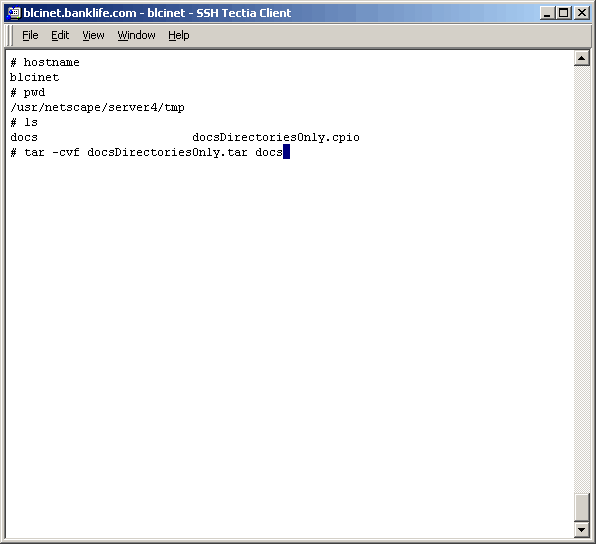
Task 1: Install GNU WIn32 Tar On The Target Server
Copying the source content tree from a Unix server to a Windows server involves three
steps; zip, ftp and unzip. Zipping and unzipping the content tree can be done with any
number of utilities, but I prefer tar. However, this
can be a little tricky because of file name limitations (or rules) on the target server.
We have seen that the source server (Unix) has characters in file names that are not
accepted bu Windows. In the case of using cpio on Windows, strange things happen and the
complete content tree does not get created. As a matter of fact, it seems like a few
file name errors will cause many failed directory creations on the target server. For that
reason we will use tar to create the archive on the source and tar to explode the archive
on the target. Therefore we need to install a Windows version of the utiltiy on the target.
|
|
|
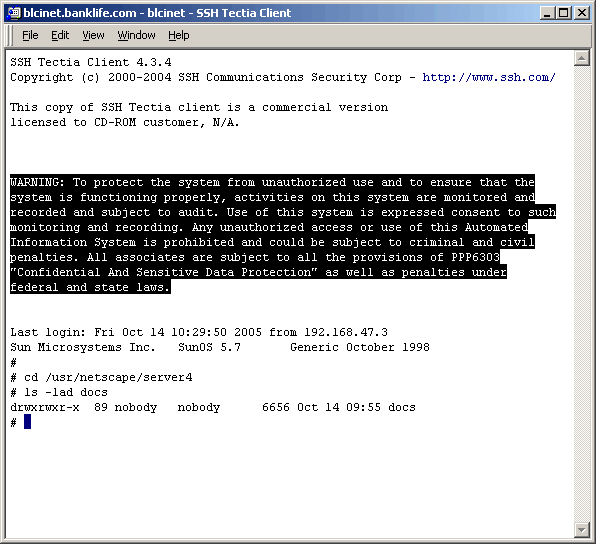
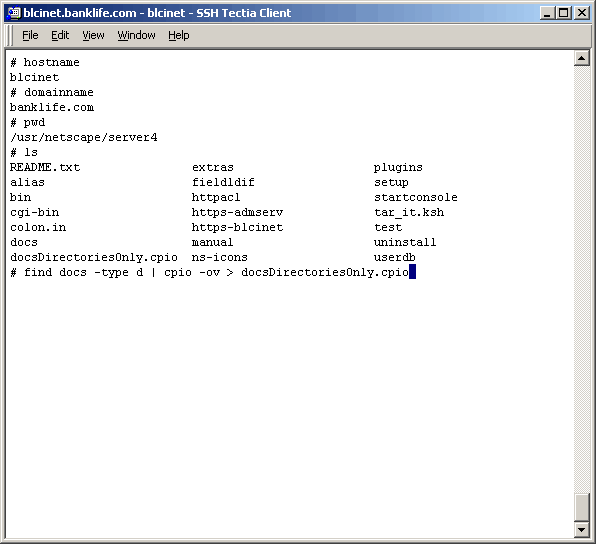
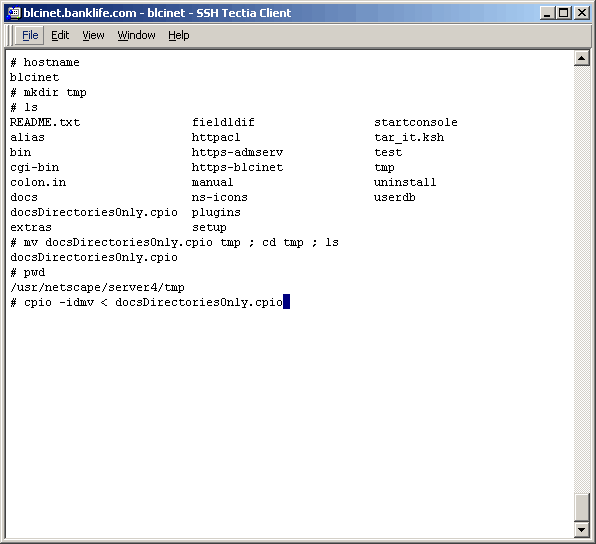
Task 2: Copy The Directory Structure (No Content) To The Target Server
One of the more menial tasks of this migration is to set up the authorization on the target server.
Since it is not a Unix server the authorization cannot be migrated; it must be done manually which
will be time consuming. Because of this, and the fact that we are migrating a live website, with
a limited window, I was asked if there is a way to migrate the directory structure only. The point
being that if we could copy the directory structure only, the authorization part of the migration
could be performed ahead of our actual migration window. Well, this being a Unix server, the answer
to the request was "YES". We all know that anything is possible on Unix!
|
|
|
|
|
|
|
|
|
|
|
|
|
|
|
|
|
|
|
|
|
|
|
|
|
|
|
|
|
|
|
|
|
|
|
|
|
|
|
|
|
|
|
|
|
|
|
|
|
|
|
|
|
|
|
|
|
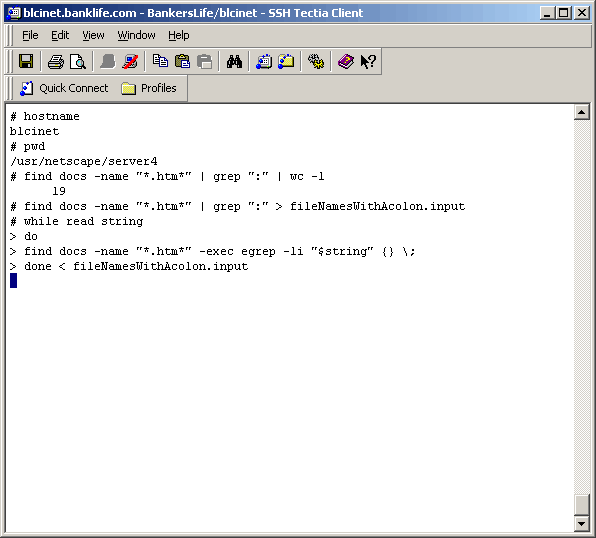
Task 3: Search All Content (*.htm*) On The Source Server For Strings As it turns out, there are some file names in the content tree that contain a special character (":"). We need to locate any content files (*.htm*) that might be referencing these files. In our case, the files are directories so we need to find any content that references anything under those directories with an absolute method. Anything referencing files in a relative manner, underneath the "bad" directory names will be ok. So how do we do this? Using the "find" and "grep" commands as shown below. |
|
|
|
|
|
The more I think about the logic behind searching for references to files with a ":" in the name, the more complicated it gets. There are a plethora of ways they this reference could take place and searching for them could be quite difficult, and perhaps not even worth it in our case. It appears that the files created with the ":" character were done so by mistake during the act of remote publishing. |
|
|
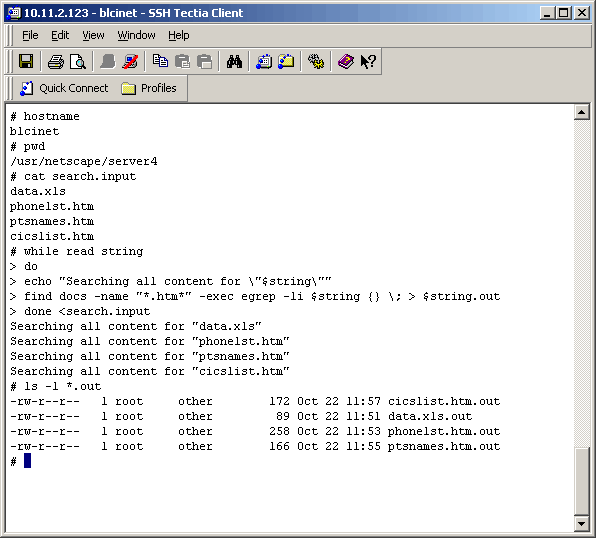
This next search is more direct. We have been asked to find all content files that contain certain strings (file names) and we do get "hits" on each string. First we create an input file with one line per search string. Then the rest is shown in the screenshot below. Note that for each search string a seperate output file is created. Also note that there may be more than one occurance of the search string in each file listed. |
|
|
Of course, the output files (*.out listed above) were sent to the requestor. |
|
|
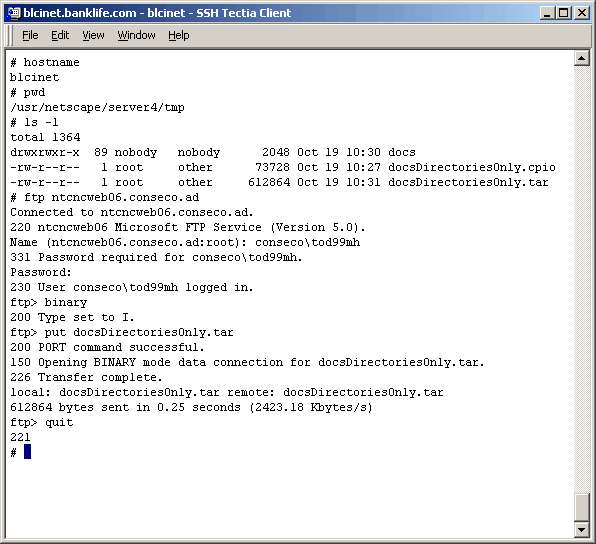
Task 4: Copy The Content To The Target Server This task is part of the actual migration, perfoemed withing the scheduled "content freeze" window. This task is actually the very first thing done once the window arrives. The start of the window does not work well with my schedule so I will cron the start of it. The content move has three parts:
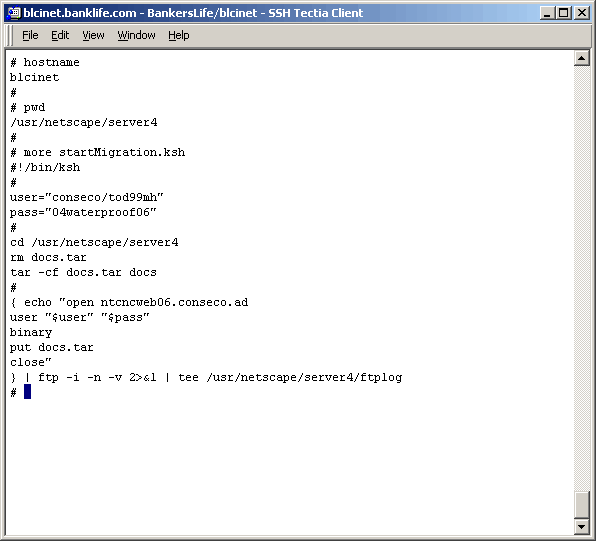
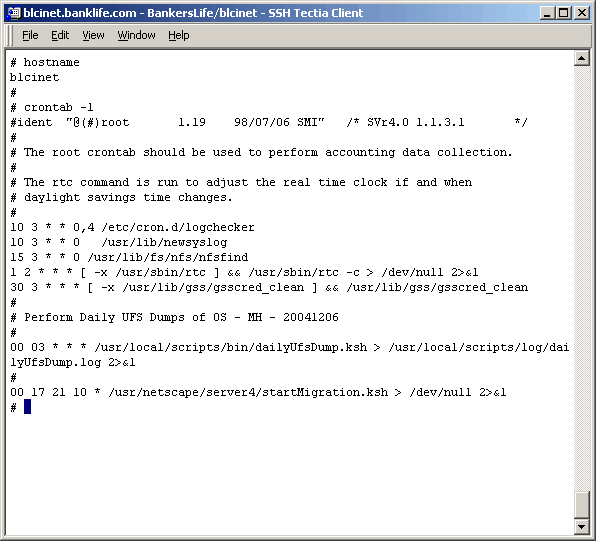
Each of these three steps will take between 90 and 120 minutes. The last thing we want is to sit around and manually execute them. So, we have created a simple shell script and we will use cron to schedule it to run at the exact start of the migration window. The following is what the script looks like: |
|
|
|
|
|
Oops, is that my password shown? It will be different by the time anyone reads these notes. The crontab entry looks like the following: |
|
|
|
|
|
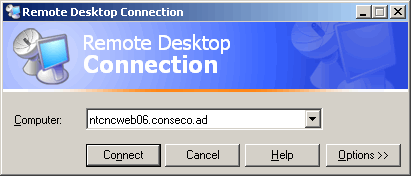
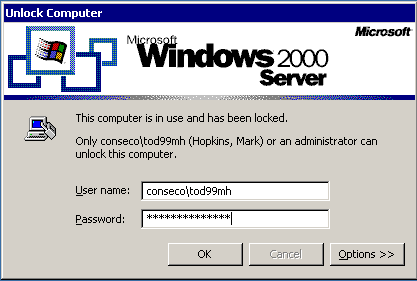
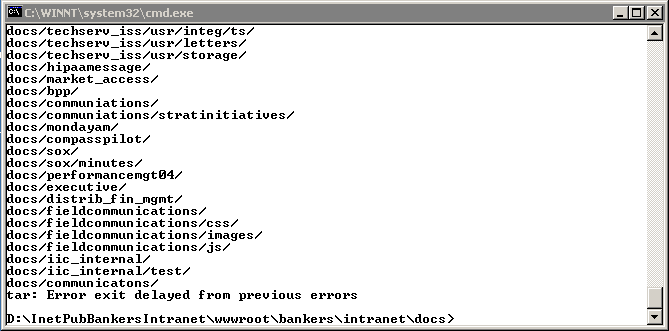
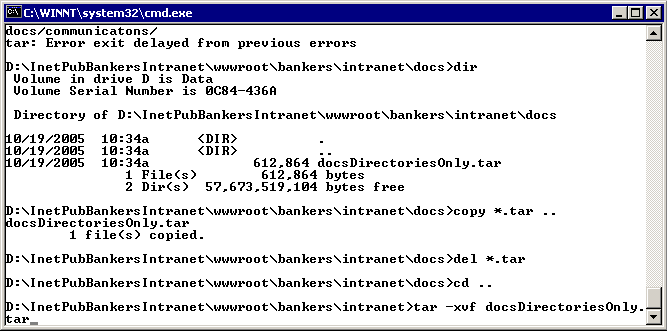
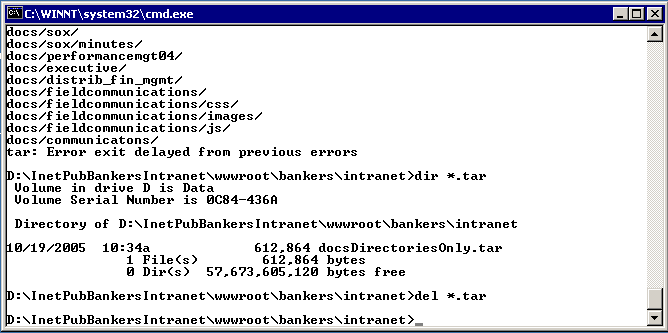
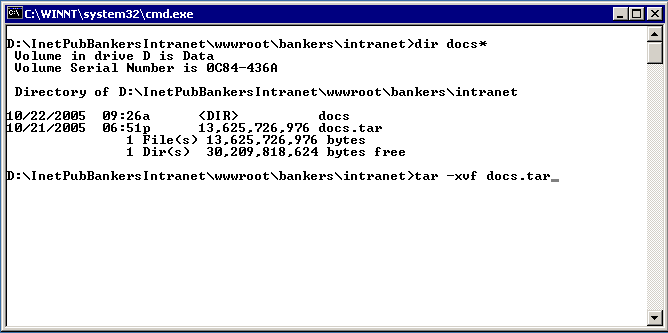
Now that the content has been archived and ftp'd it is time to log int the target server and explode them. Log into the target via "Remote Desktop" as we did above and untar the archive as shown below. |
|
|
|
|
|
Task 5: Migration "Gotchas"
A favorite line from one of my favorite movies is "There's always the unexpected, isn't there?". And
in our business the unexpected is the norm. The following are task(s) completed during the migration,
and outside (actually after in this case) of our assigned tasks.
|
|
Conclusion
Conclusion? Well, these are really just notes about my part of a project to move a web server.
However, I will say that I will never understand running a web site on anything other than
Apache. But I am just a little "worker bee" and I am only too happy to do whatever needs to
be done. There are some really cool Unix commands used in this "article" like "find:, "tar",
and "cpio". I may find myself referring to this "article" when I forget how to do something
which will no doubt happen.
|
|
Printing This Article
If you have trouble printing this article, be sure to set your browser Page Properties correctly. Go
to File -> Page Setup and set your left and right margins to .125 inches.
|