|
Linux: Fedora Core 4 - Basic Installation
(c) Symmetric Web Sites, Inc. Author: Mark Hopkins Email Date: 12.24.2005
In the first of a series of articles covering Fedora Core 4, we begin with a basic installation of
the operating system itself. This article will guide you through what it takes to install Fedora Core
4, and verify network connectivity.
Background Preferring the UNIX operating system over anything Microsoft has "created" and/or ever will "create", it bothers me somewhat to have Microsoft products anywhere in my "enterprise". Over the years, Linux has made great strides in the Open Source market, allowing everyone the opportunity to gain experience with the remarkable operating system based on UNIX. I have some experience with Redhat, Suse, and Mandrake Linx but these flavors are not royalty free. However, Redhat sponsers and maintains a product named Fedora Core, allowing us a free Open Source product on which we can build our enterprise. I am not suggesting that this flavor of Linux is capable of running a large scale effort, however it will certainly handle a small to medium effort. The general idea is to replace all Microfost products with the exception of Windows XP. That means replacing a Windows domain controller, an Exchange server, firewalls and of course web servers with Fedora Core 4 and Open Source alternatives. Assumptions Although we here at SymmetricWebSites.Com assume very little knowledge to follow our articles, we must assume that you have basic computing skills. Believe it or not (am I a hypocrite?) you will need experience with Microsoft Windows XP but I will explain this later. You will also need some experience with UNIX in general and networking. I would say that anyone looking to this article for instruction would be new to the Linux experience, but not necessarily new to UNIX. Requirements Requirements to follow the steps in this article are as follows:
Build The Virtual Machine [Optional] Now that we have laid the groundwork, let's get going with the actual steps. Remember that this section involves Vmware and should be considered optional for those of you not using the product. If you are not using VMware, proceed to "Install Fedora Core".
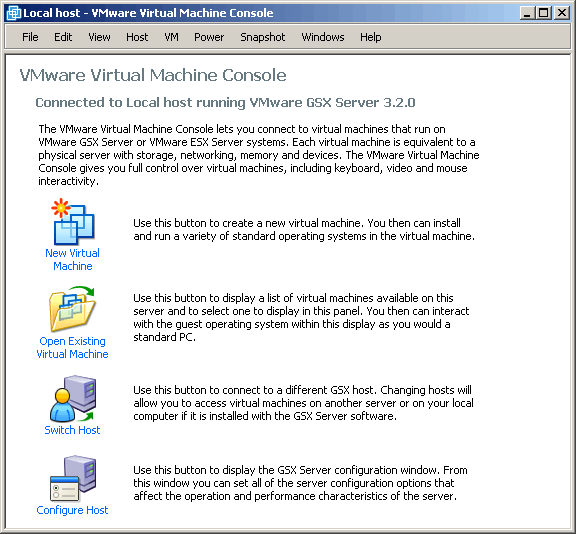
First, I will create a new VMware virtual machine. This step is not only otional for those not using VMware, but
totally unnecessary. Skip it if you are not using VMware. If you ARE using VMware, click on the "New Virtual
Machine" icon.
|
|
|
|
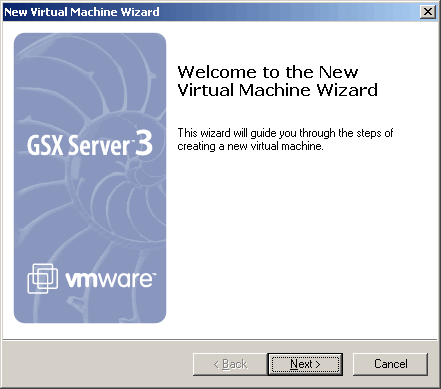
When the New Virtual Server wizard appears, click Next.
|
|
|
|
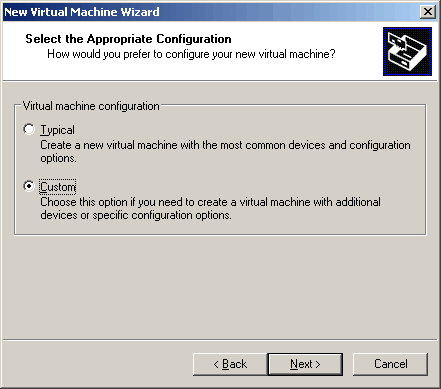
Next, select Custom. The default is Typical and I simply do not understand
logic behind it. The default (or typical) virtual machine, at this time, is Windows 2000. Who the hell
is still building Windows 2000 servers? There really should be no default configuration. VMware should
eliminate this step from configuring a new virtual machine, in my humble opinion.
|
|
|
|
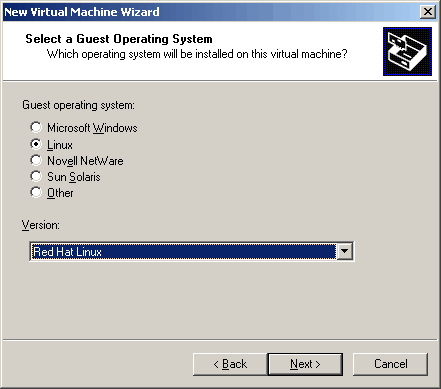
Choose the appropriate operating system for the virtual machine. While we are given a plethora
of choices, none of them are "Fedora". The appropriate choices seem to be one of the Redhat
Linux servers and there are a few. I have found success choosing as follows:
|
|
|
|
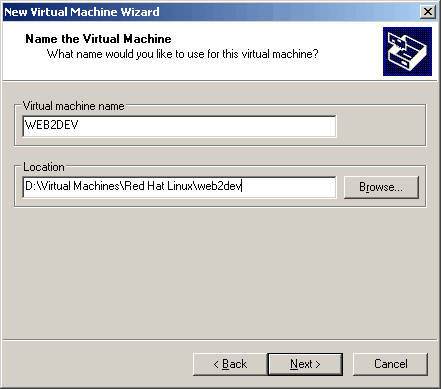
Here we simply name the virtual machine and specify a location for the files that make
up the virtual machine. I like to use all caps for the virtual machine name and all lower
case for it's location. In my view consistency, even at this level, is always a good
thing.
|
|
|
|
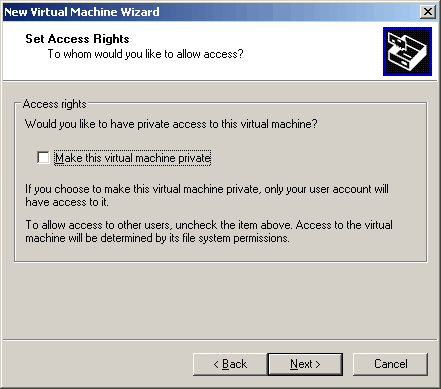
Making a virtual machine "private" is somewhat of a new feature in VMware. I choose not
to use it. Choosing it to be private appears to place it in the inventory of the creator
only, and not in anyone else's. You can change this later if you like. I think that the
default should look like below. It is not, so "uncheck" the selecion and continue.
|
|
|
|
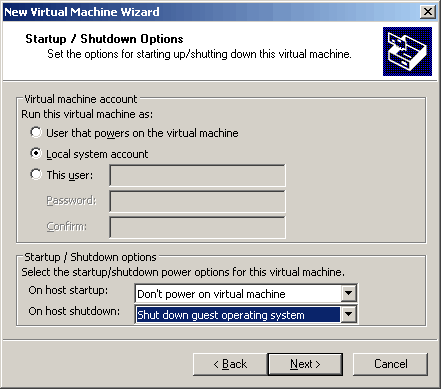
Here we have virtual machine startup/shutdown options to configure. And as usual I will not
take the defaults. In a Windows environment, we must deal with "services" as opposed to "daemons" as
in a UNIX environment. I have found it most desirable to allow the "Local system account" to always
start a Windows service, so let's do that here. As to wheter or not the virtual machine starts when
the host starts, I only allow starting when the virtual machine is a production server. You can
certainly choose whatever you like here. I do think it is essential to choose "Shut down the guest
operating system". If you do not choose it, when the host shuts down the virtual machine is rudely
powered off, like pulling the power cord from your desktop PC.
|
|
|
|
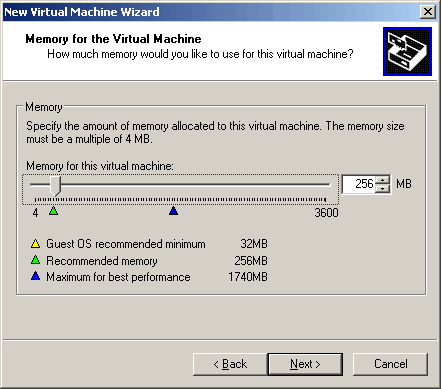
Choose the amount of memory that you want to allocate for the new virtual machine. I will go
with the default of 256MB for this Linux server.
|
|
|
|
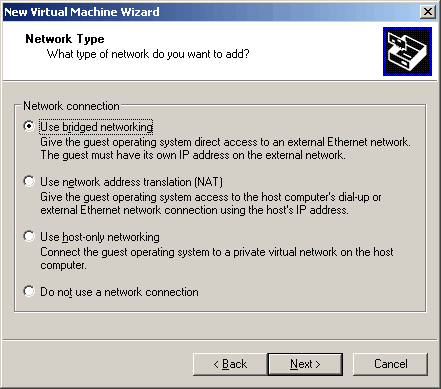
Select a network connection here. VMware has many different ways to configure the
network, including private networking options. The selection made below, the default, is
to allow the virtual machine to share the network connection of the host. It will share
the network hardware, but it will still require it's own logical configuration information
like IP address, network mask, default gateway, etc.
|
|
|
|
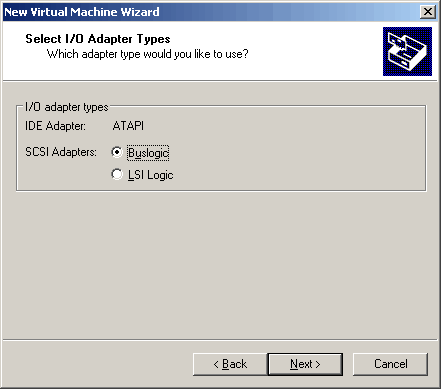
I am not certain of the advantages and/or disadvantages of the choices for I/O
hardware, so I just go with the defaults here.
|
|
|
|
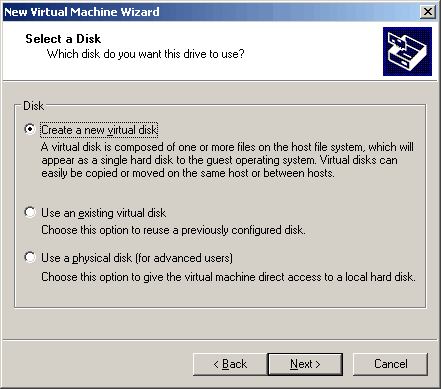
Create a new disk for this new virtual machine.
|
|
|
|
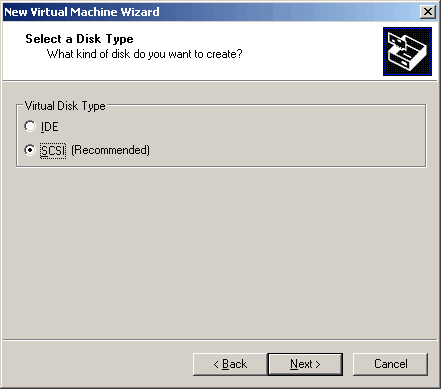
Here we are again with a hardware choice. The host uses IDE, and we are being told that
SCSI is recommended. They must mean virtual SCSI, right? Well, let's go with the recommendation
from VMware.
|
|
|
|
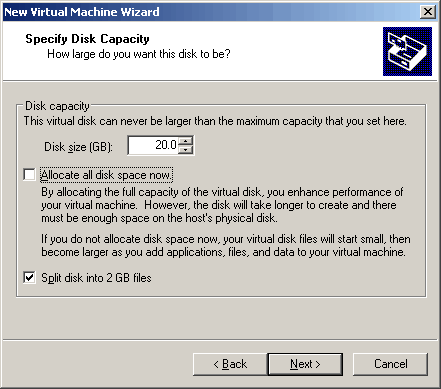
Now I am back to NOT taking the defaults. I choose to make the virtual disk size 20GB as
opposed to the default of 2GB. And I will not allow VMware to create the space now. The obvious
advantage to allocating all the disk space now is that you stand a better chance of getting
contiguous disk space if you create it now. We will not because space on the host is precious
and small. We will allocate the space in 2GB chunks. When you check this option, VMware creates
all the files necessary (in our case 10 files of 2GB each) but does not fully allocate the size
(20GB in our case), rather creates many zero length files as "place markers". I may be wrong
about the exactness of that statement, but that is what appears to happen.
|
|
|
|
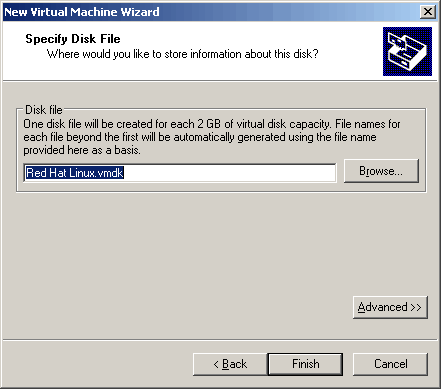
The name of the disk file(s) is irrevalent to me since I have specified a directory to
contain the virtual machine files. I will take the default naming convention here.
|
|
|
|
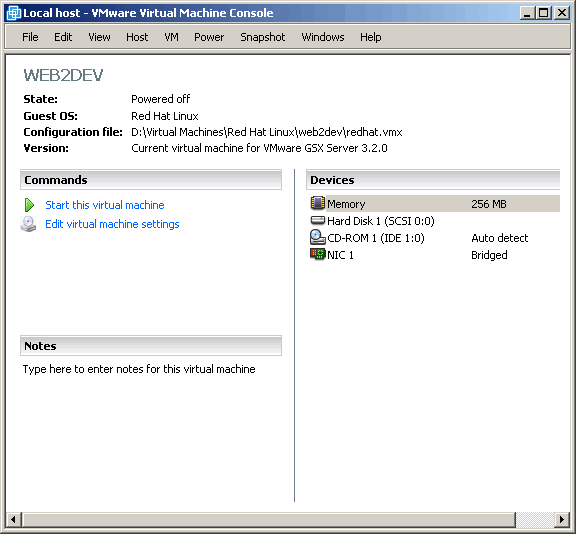
The VMware virtual machine has now been created. Theoretically we are ready to power it
on. However, we will make one modification, which is to tell the VM from where to boot. Click
on "Edit virtual machine settings" to continue.
|
|
|
|
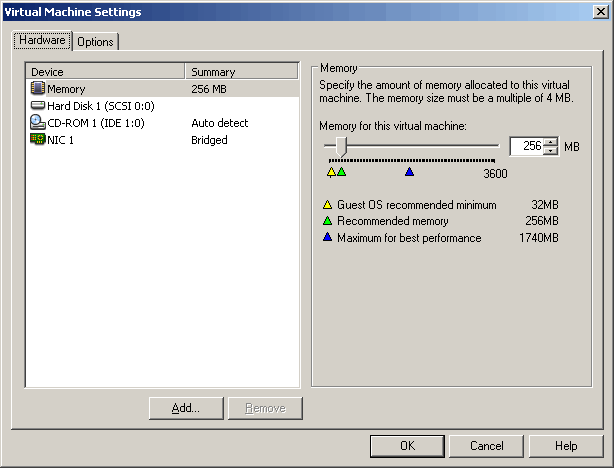
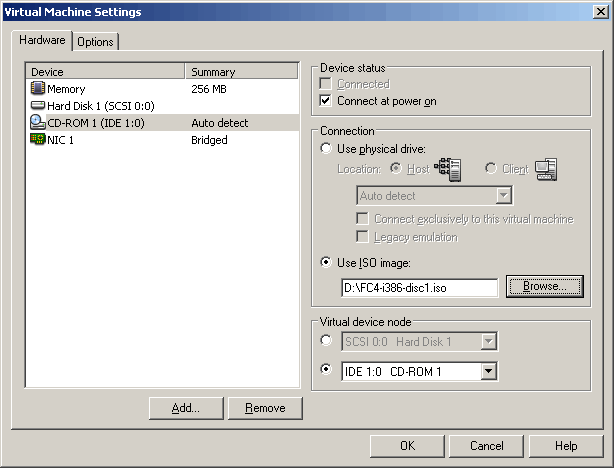
Notice that the CD-ROM1 is set to "Auto detect" as shown in the picture below. If you intend
booting from the host CD-ROM, this is perfectly fine. However we will boot from CD-ROM images
(ISO's) that I downloaded to the D:\ drive on the host. If you are not familar with CD-ROM images
then get familer, because they are very convenient not only here but almost everywhere. CD-ROM
images come in many forms but the most popular seem to be ISO's and BIN/QUE's, however there are
others. Since we are using ISO's, we will need to configure the VM accordingly. Click on
"CD-ROM1" below to continue.
|
|
|
|
As shown below, configure the virtual machine to use an ISO image as CD-ROM1. Then click
"OK" to continue.
|
|
|
|
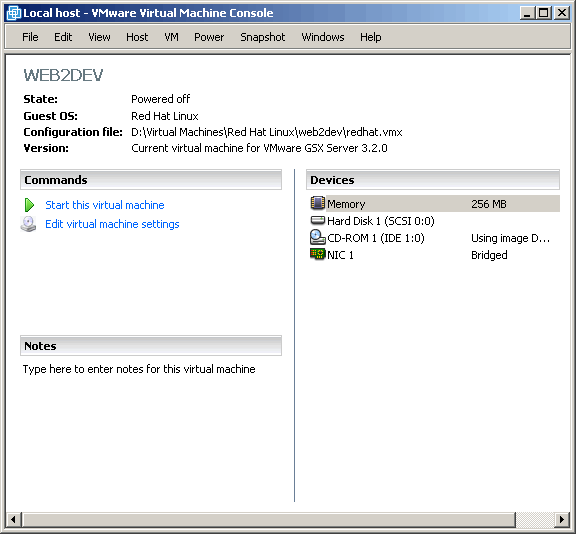
A quick glance will show you that CD-ROM1 has been successfully changed to boot from a disk
image. This concludes the VMware portion of this article. Click on "Start this virtual machine"
to begin the Fedora Core installation.
|
|
|
|
Install Fedora Core
|
|
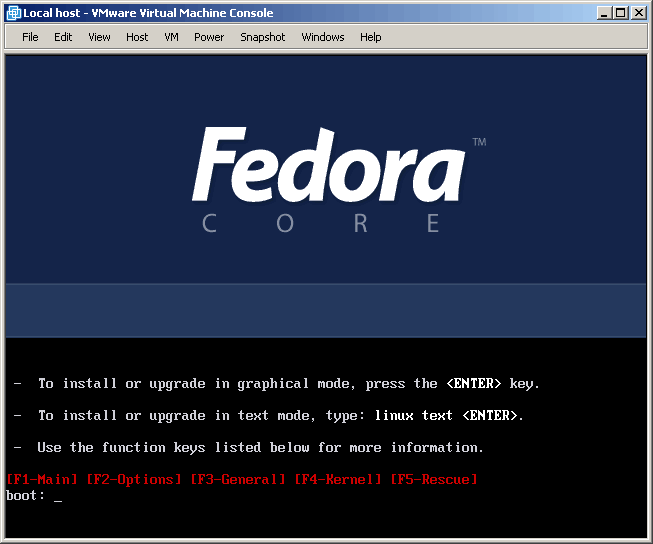
If you skipped the section "Build The Virtual Machine", then you are
installing Fedora Core directly to an available piece of hardware. In any case, whether you
are using VMware or not, you the very first screen you will see is as follows. Press the "Enter"
ke to continue the installation.
|
|
|
|
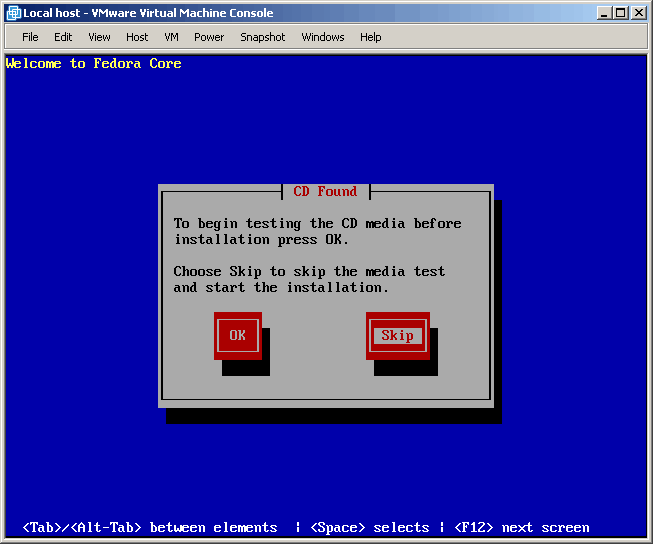
If you would like to test your media, do so here. Or you could live dangerously, like me,
and "Skip" this step.
|
|
|
|
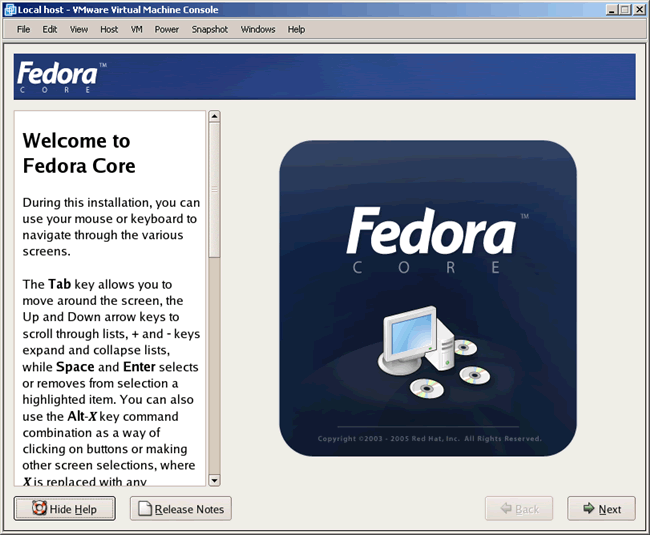
At the welcome screen, you can read the release notes if you like. Click "Next" to continue
the installation.
|
|
|
|
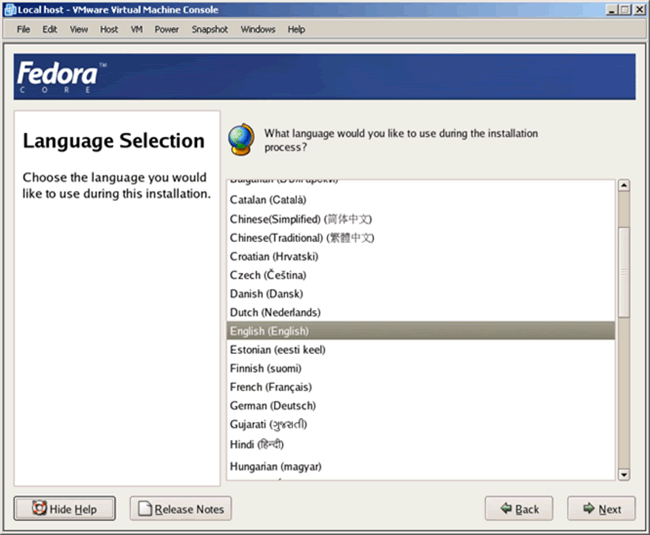
Select your desired language and click "Next" to continue.
|
|
|
|
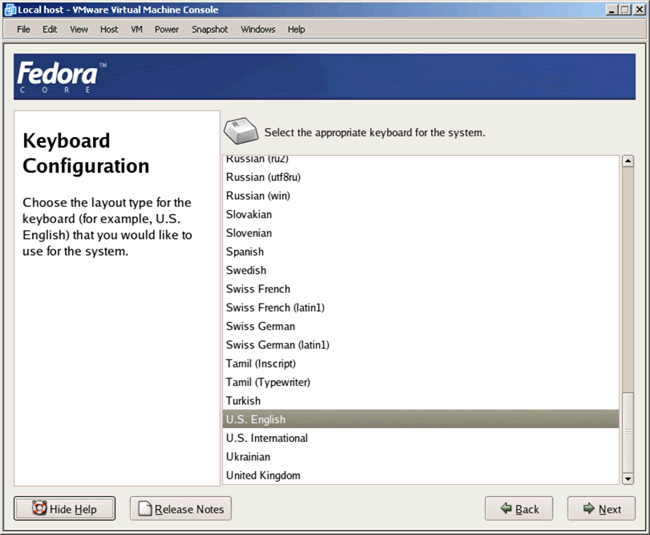
Select the appropriate keyboard mapping language and click "Next" to continue.
|
|
|
|
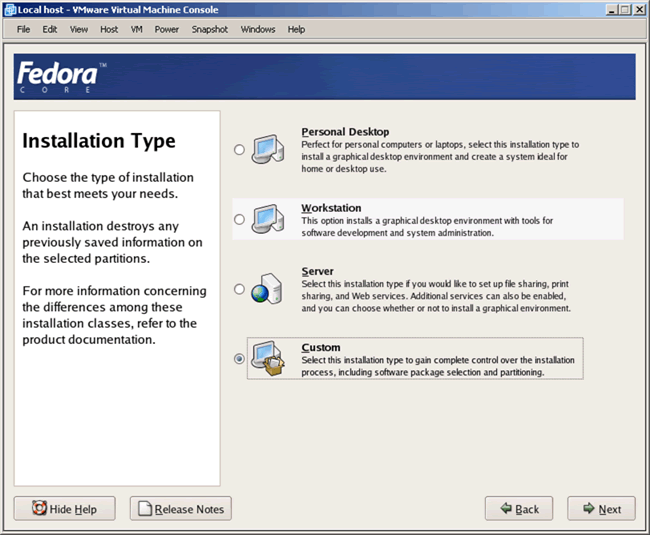
Now choose the type of server install that you want. There are many ways to install
Fedora Core and many arguements for each particular way. The "hardcore" UNIX way to
install an operating system has always to install the "bare bones" minimum and then
simply install whatever product is needed. While this is still my preferred method,
there can be good arguments for installing one of these predetermined configurations.
Interestingly enough, even if you choose a "bare bones" minimum installation of Fedora
Core, packages that you probably did not want (like Sendmail) still get installed. So
if you want a real "bare-bones" install, my advise if to look over what really got
installed (perhaps the "rpm -aq" command) once you have completed the steps in this
section of the article. For now, choose "Custom" and "Next" to continue.
|
|
|
|
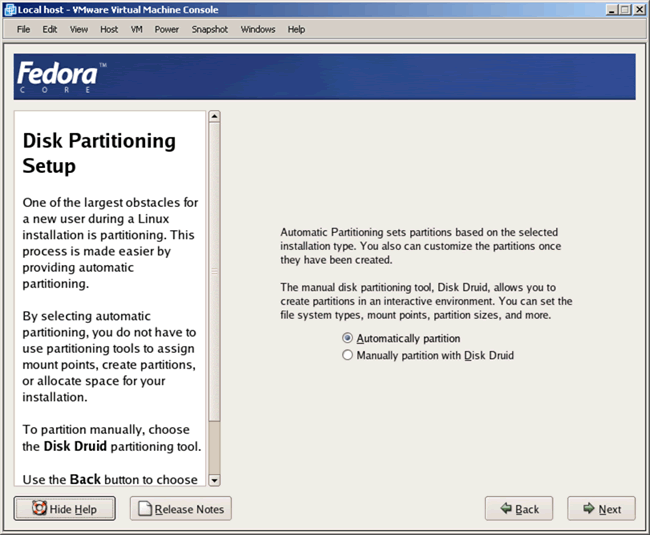
I have assumed all along that whether using a virtual machine or not, there is nothing
we are protecting data-wise on the system. I am going to simply take the defaults at these
disk partitioning screens. Perhaps in the future, we will take a closer look at disk
partitioning in detail. Click "Next" to continue.
|
|
|
|
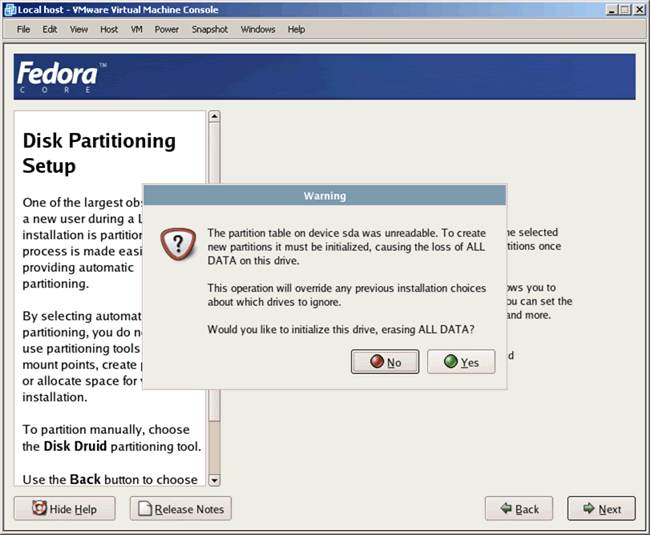
Ignore the warning and click "Yes" to continue. Remember not to hold me responsible
for the destruction of any data that you will lose here. I repeat that I am assuming you are
OK with what will amount to a "formatting" of the drive or partition that you have indicated.
|
|
|
|
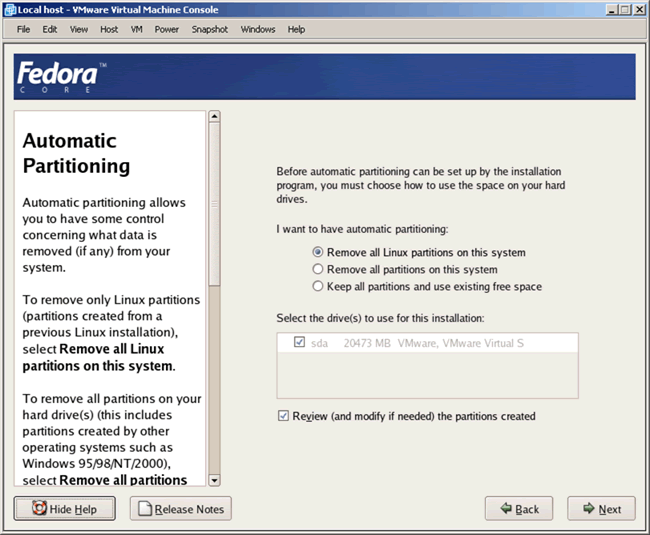
Now pull the trigger on the format by clicking "Next".
|
|
|
|
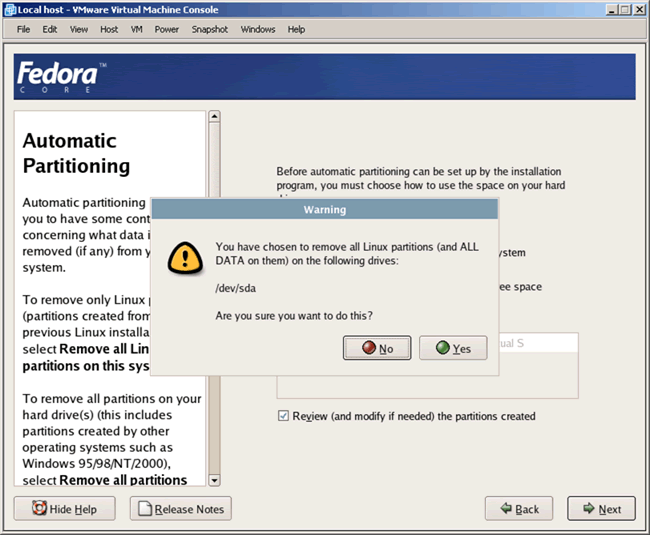
Ignore the warning and click "Yes" to continue.
|
|
|
|
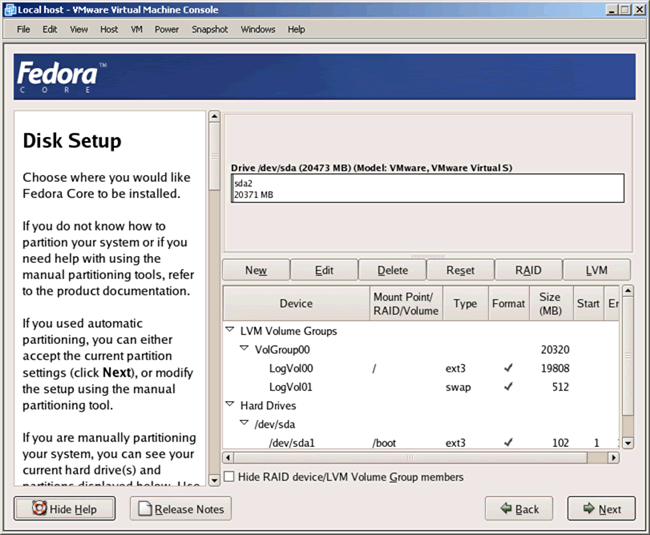
Look over your disk setup, if you like, and if satisfied (we are) click Next to
continue.
|
|
|
|
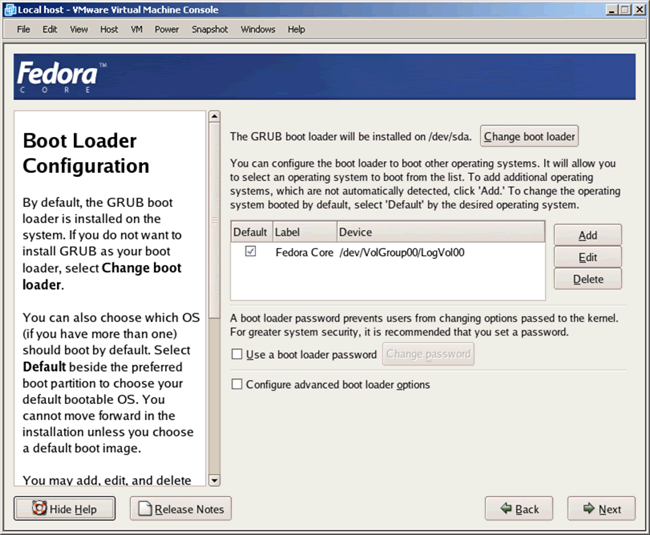
Here you can modify your boot loader configuration and/or set a password. We will not be changing
anything and simply take the defaults. Click Next to continue.
|
|
|
|
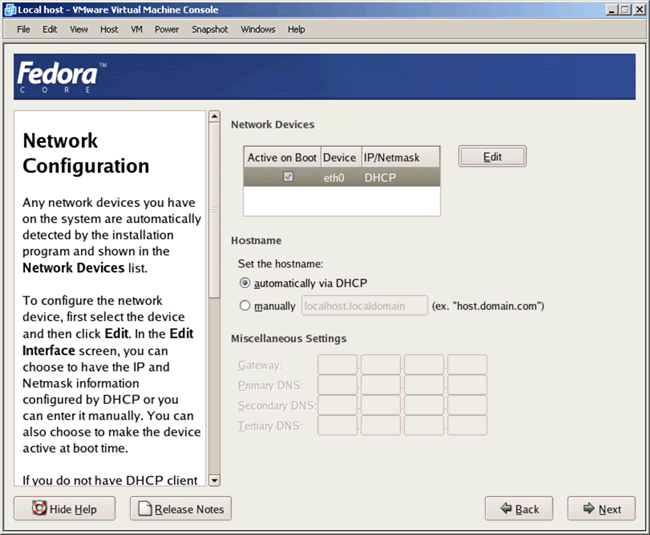
This is an important step and is totally site-specific in the way it is addressed. In
our case, based on the NIC address, we use a DHCP server to assign a permanent IP address, hostname, default
gateway and DNS server entries. We also have the DHCP server update the DNS server as
well. This may not be the typical method used and most likely you will be filling in
all of this information manually during this step. In any case, when finished, click
Next to continue.
|
|
|
|
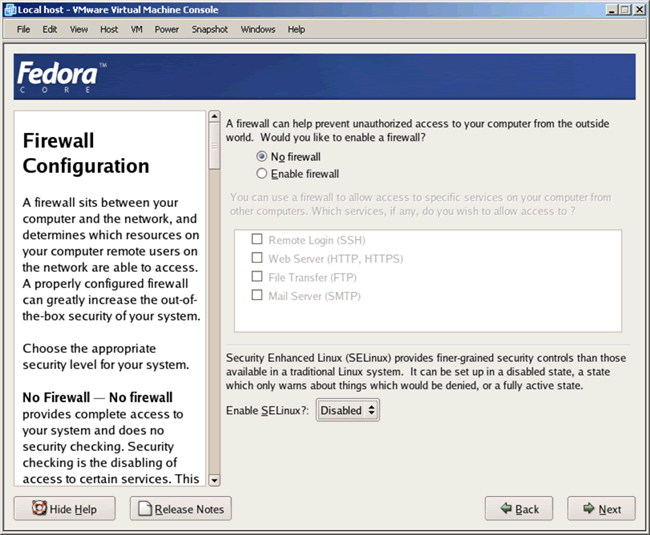
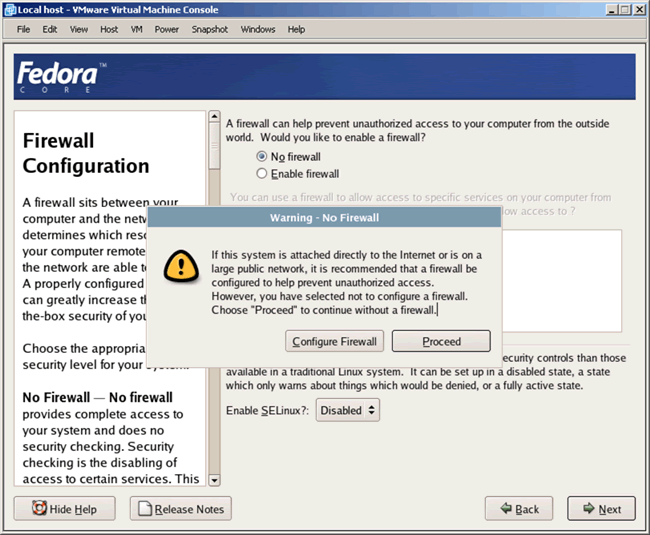
As in the last step, this one is very much site-specific. In our case, this server we are
building already sits behind a pair of firewalls that we suspect will offer adequate
protection. Of course we could still enable another firewall for additional protection
but we will not. We will also not require SELinux either. As a matter of fact (experience)
we have encountered an issue with Apache and PHP on a similar Fedora Core server configured
with SELinux. And since we will be using this particular Fedora Core server in a later article
with Apache/PHP, we will not enable it here. Click Next to continue.
|
|
|
|
Ignore this warning and click Proceed to continue.
|
|
|
|
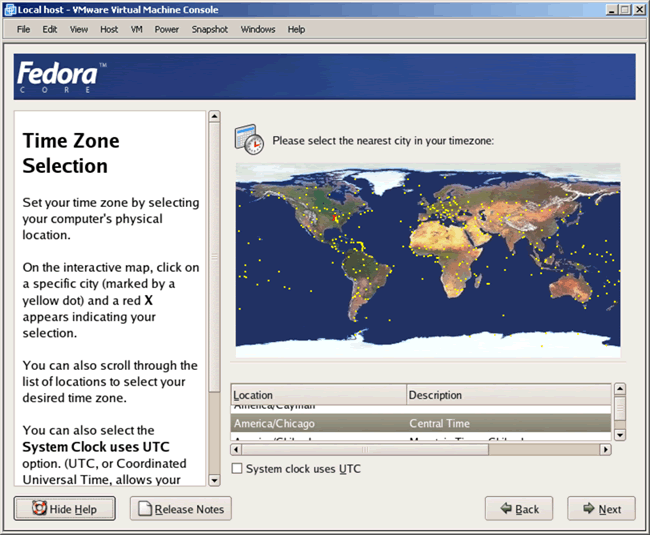
Select your appropriate time zone and click Next to continue.
|
|
|
|
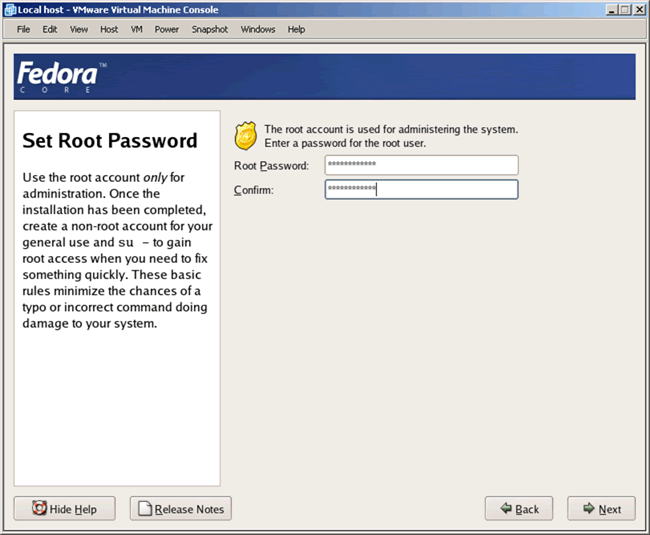
Enter (and re-enter) your root password and click Next to continue.
|
|
|
|
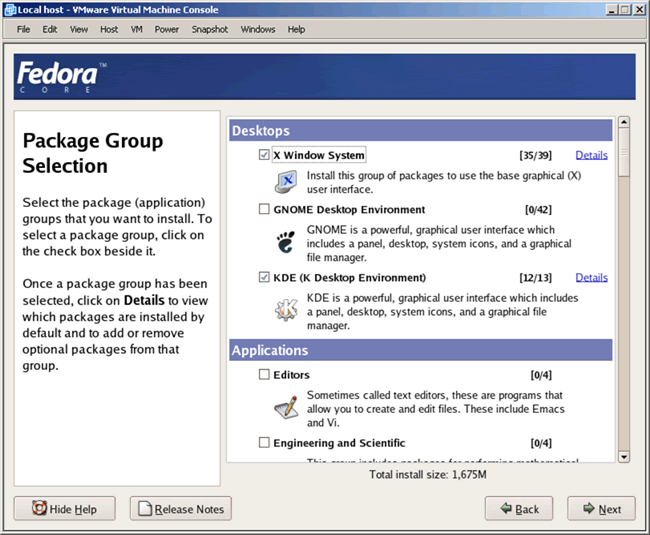
It's now time to select packages for installation. Remember that we earlier discussed
not being able to "trust" the Fedora Core installer to install a minimal amount of
packages? Actually we probably cannot trust any installer to ever install only what we
want. In any case, I have selected "X Window System", "KDE (K Desktop Environment)" and
"Desktop Tools" (not shown below). These are the only package "bundles" we will install
here. I don't even usually install the "X Window System" but I will make an exception
for this article. Then, click Next to continue.
|
|
|
|
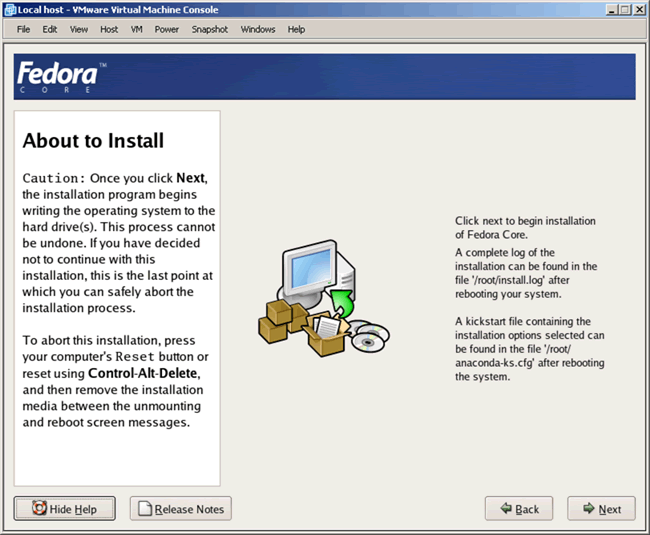
You are now set to begin the actual product installation. Click Next to continue.
|
|
|
|
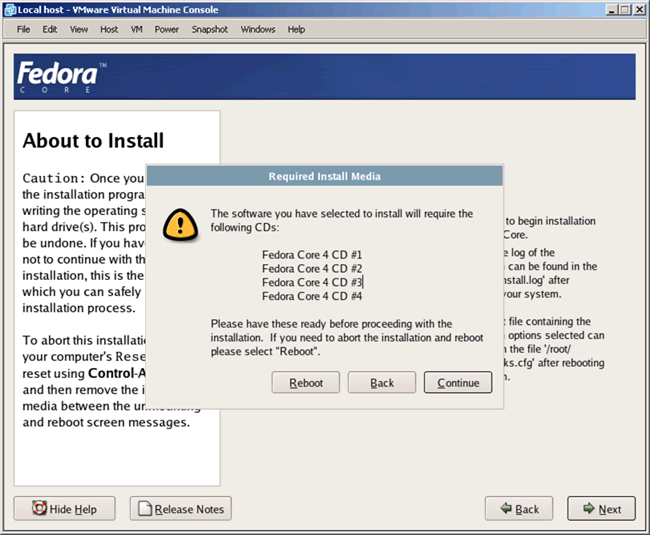
Assuming that you have a complete media set, click Continue.
|
|
|
|
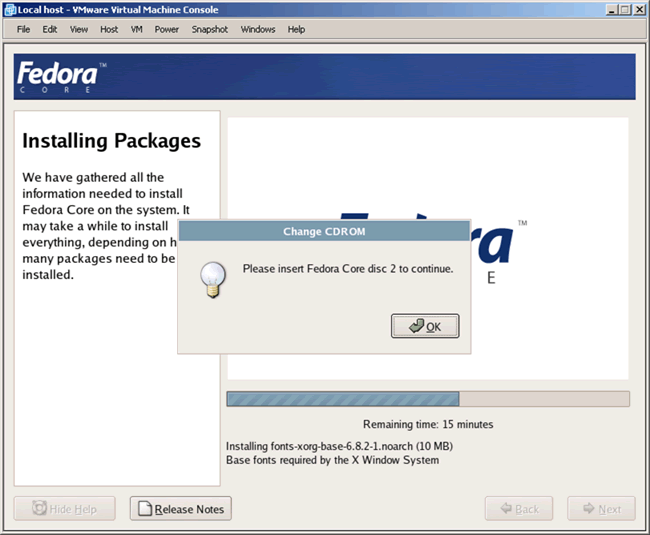
Three times you will see the following screen. Once for disc 2, disc 3 and disc4. If you are
not installing with VMware, simply change the disc and click OK to proceed. If you
are installing on VMware, see the next screenshot in this article.
|
|
|
|
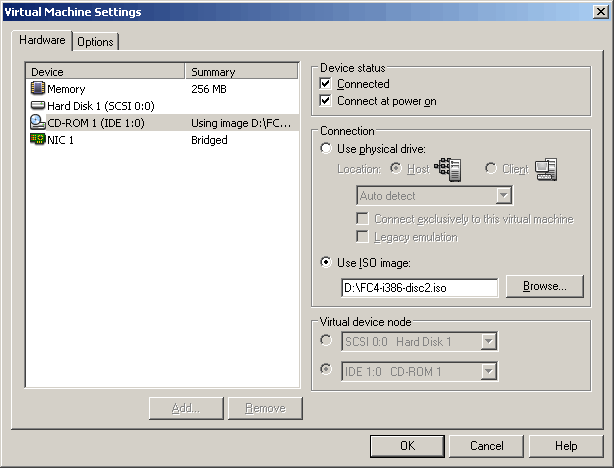
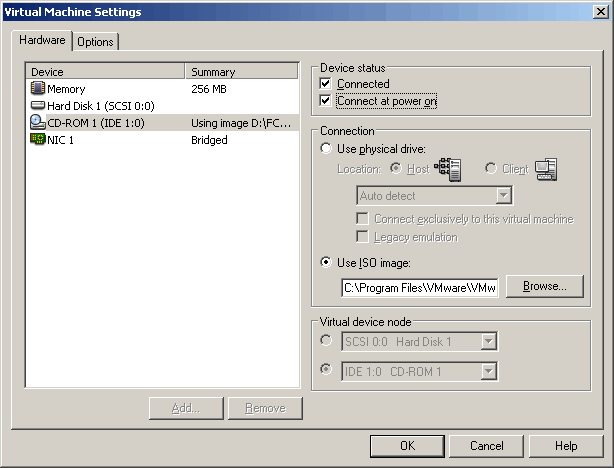
To change a CD (ISO image) in VMware, either select "VM => Settings..." or press "CTRL-D" to
get to the "Virtual Machine Settings" configuration screen shown below. Once there, change the
name of the ISO image file and click "OK" to continue, then click OK to proceed with
the product installation.
|
|
|
|
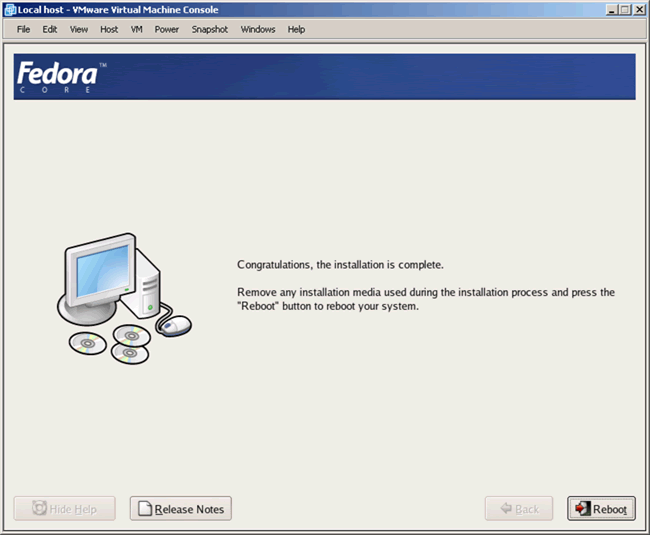
After the installer is finished with all of the required CD's, you will see the following
screen. Click Reboot to continue. The server will then reboot, and then we will
perform some post-installation configuration steps.
|
|
|
|
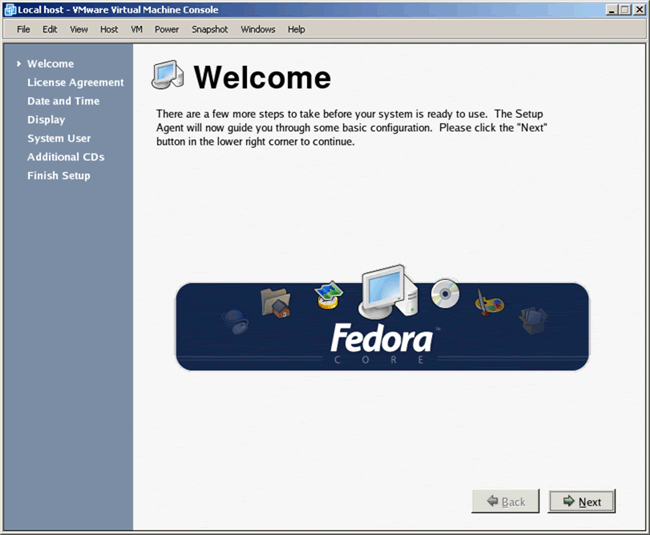
Post Installation
After the system reboots successfully, it is time to perform some post installation tasks. Click
Next to begin.
|
|
|
|
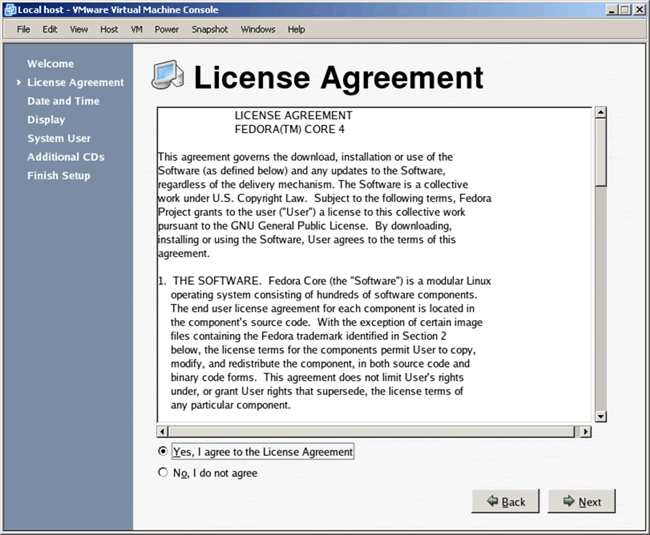
Agree to the license agreement and click Next to continue.
|
|
|
|
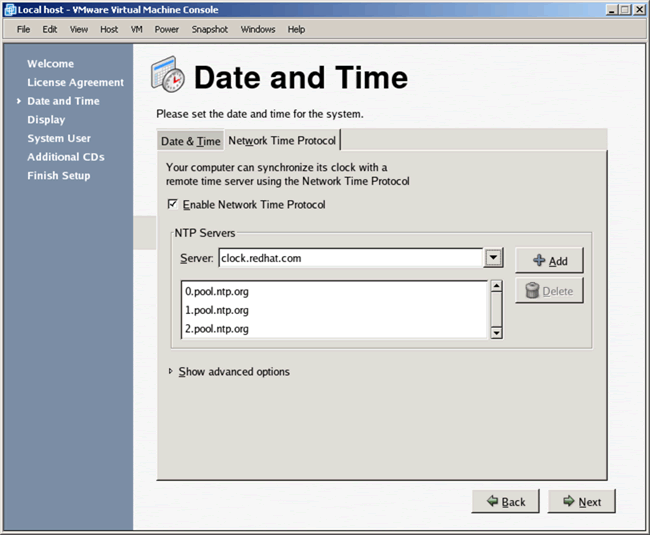
If you want to use NTP (recommended) do so and click Next to continue.
|
|
|
|
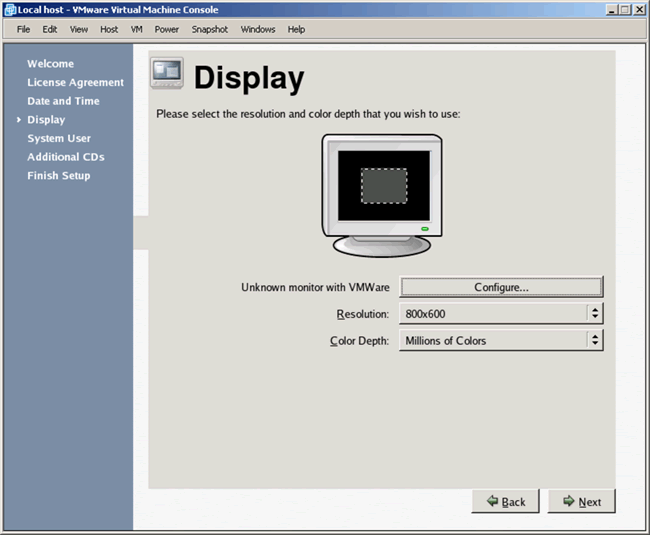
Choose your display settings and click Next to continue. We are going with the defaults
because later we will install VMware Tools and that will blow away whatever we do here, so what
would be the point to set things here right?
|
|
|
|
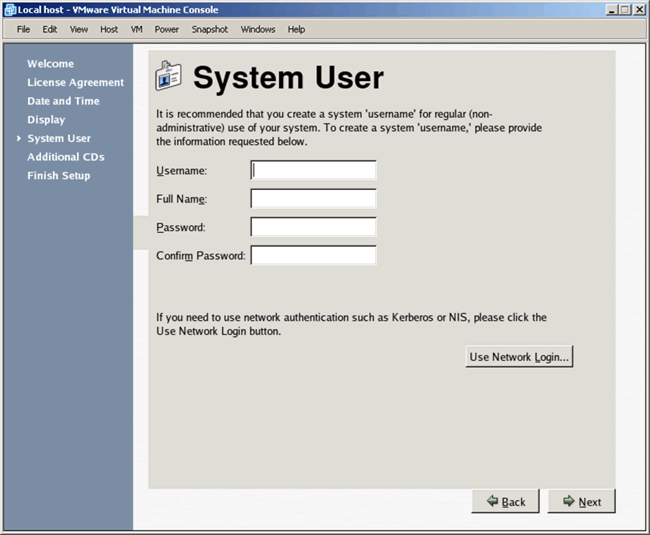
We will not be creating other accounts at this time. So we click Next to continue.
|
|
|
|
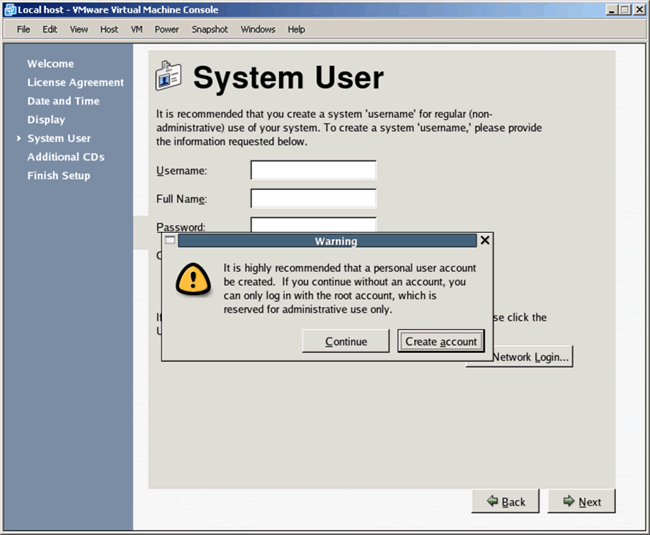
Ignore the warning by clicking Continue.
|
|
|
|
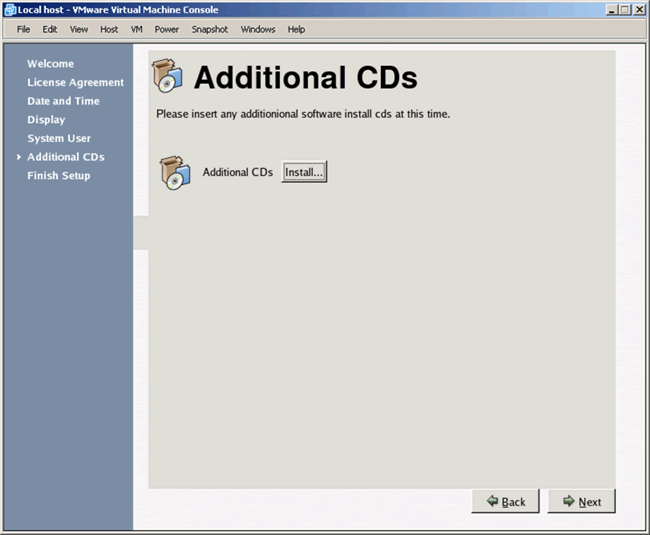
We have no additional stuff to install. Click Next to continue.
|
|
|
|
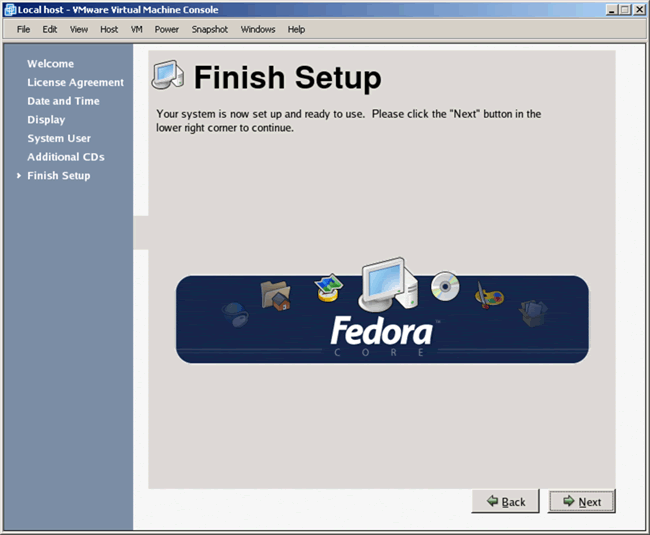
OK, we are now really finished with the basic install so click Next to continue.
|
|
|
|
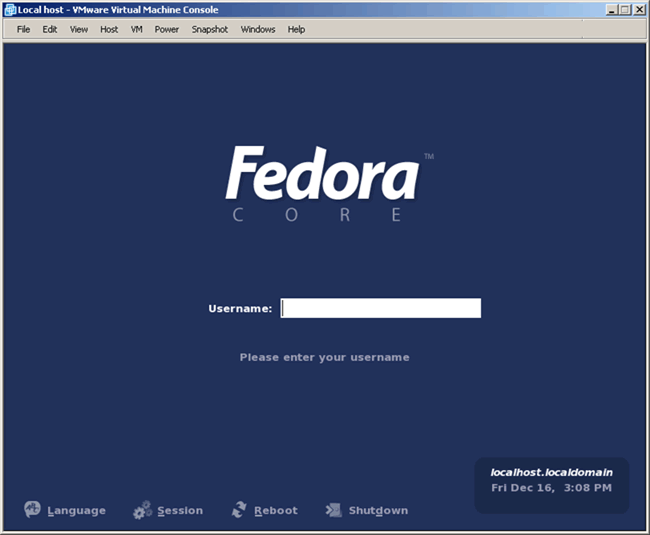
Now we have a system that is ready to accept a login as shown below.
|
|
|
|
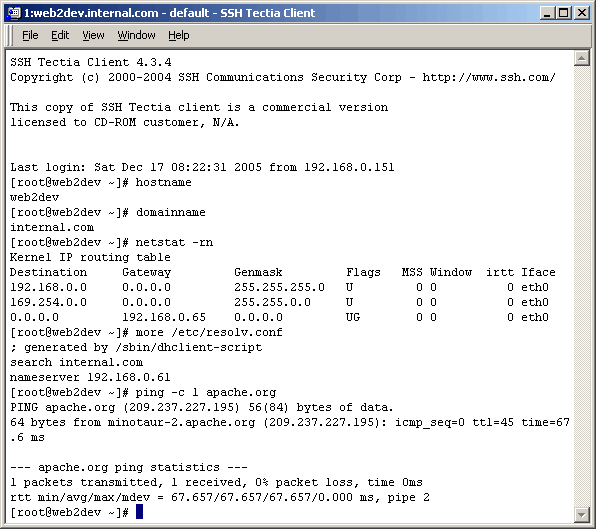
You will find that telnet, by default, is unavailable on your newly build Fedora Core
system, as it should be. You will also find that ICMP is active and that you can ping
the system. We, as shown below, will test and use ssh to connect, verifying that secure
shell is indeed working.
After logging in to the newly build system, we need only check certain things to
ensure that basic functionality exists. In our case we need to verify that the DHCP
server/client relationship is fully functional. So we execute some basic commands
including "hostname", "domainname", "netstat" and "ping" as shown below.
|
|
|
|
Install VMware Tools [Optional]
We say that this section is optional, however if you are working with VMware it is highly
recommended that you not skip these steps. VMware Tools will make your life easier whether
some people in the community believe it or not. I personally have only had good experiences
with it. And besides, VMware recommends its use. I do not work much from the system console
of a VMware virtual machine but when I do, VMware Tools makes it much more enjoyable of an
experience. I recommend VMware Tools for another reason altogether. As seen
above, when setting
up the virtual machine, I chose to have the host "Shut down guest operating system" when
shutting itself down. This means that the host server (Windows XP) shuts down the virtual
machine gently by running the Unix "shutdown" command. The host waits for the virtual machine
to complete shut down prior to shutting itself down. I don't believe this is possible without
installing the VMware Tools.
|
|
|
|
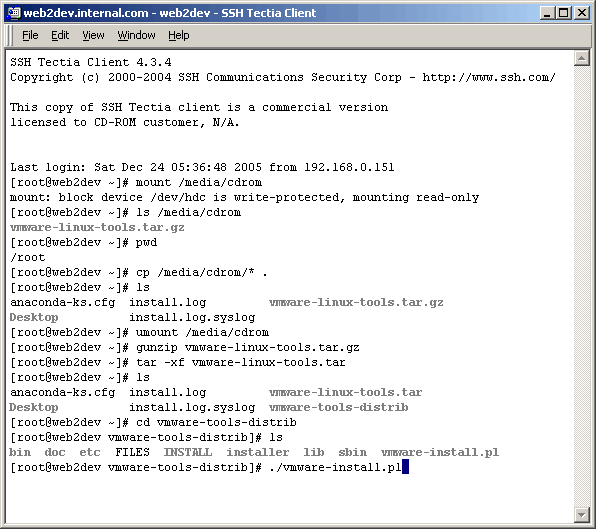
Now that the virtual CDROM is available, we login (ssh) as root, mount it, copy over
the VMware Tools archive, expand it and perform the build as shown below. You will be asked
many questions during the building of VMware Tools. Simply take the default answer for all of
them. The only question that you might want to answer differently concerns the screen
resolution.
|
|
|
|
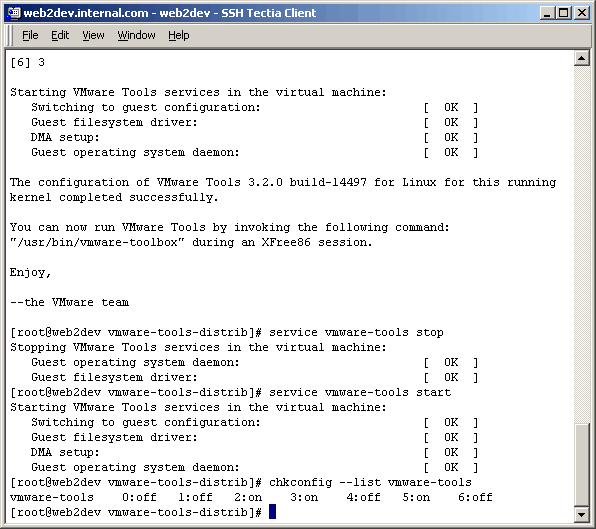
As it turns out, the script we executed to build vmware-tools not only builds everything
for us, but also starts the associated daemons and sets them up to auto-start at system
boot. We now test the daemons by stopping and starting them with the "service" command. We
also use of the "chkconfig" command, as shown, to see that the daemons associated with
"vmware-tools" are set to start in run levels 2, 3, and 5.
|
|
|
|
Conclusion
Well, there you have it! A basic Fedora Core installation, with a bonus of learning a little
something about VMware.
In future articles we will be building on this basic installation. The next article will focus
on installng the lasted Apache web server, and PHP. Stay tuned because after that we will install
forum software (based on PHP) that requires MySQL.
|
|
Printing This Article
If you have trouble printing this article, be sure to set your browser Page Properties correctly. Go
to File -> Page Setup and set your left and right margins to .125 inches.
|