|
ISA Server 2000/2004: Route The Web Proxy Log To MSDE 2000
Author: Mark Hopkins Email Date: 01.26.2004
Storing ISA Server Logs to MSDE 2000 via ODBC has been covered many times before, I am sure. However, we will do it
again because we will be building on it later. ISA Server 2000/2004 has three different logging components: Firewall,
Packet Filters, and Web Proxy. Although the title of this article indicates Web Proxy Logging, it could just as
easily be used for the other two.
Background Having multiple standalone Microsoft ISA Server 2000/2004 nodes, I find myself looking at log files on all three nodes. And the "real time" capabilities of the product are almost non-existent. One way to overcome the product deficencies is to route logs from all three servers to a central location. Once stored centrally, I can view the data in several interestingly different ways. ISA Server allows me to log to a SQL Server database via Open Data Base Connectivity (ODBC). Assumptions There are no specific assumptions to be made here. Of course, a solid understanding of networking, databases and other Microsoft technologies is helpful. Requirements Performing the steps outlined in this article will require the following resources:
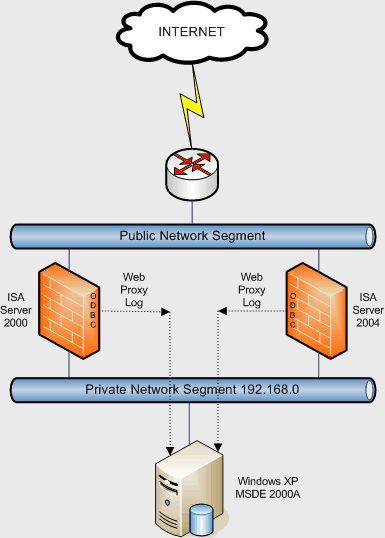
Architecture The architecture for this article is quite simple as is shown by the diagram below. |
|
|
|
Procedure The procedure surrounding this article is very short and to the point. All we need to accomplish is (defining an ODBC connection from the ISA Server to the database, test it, and then tell ISA Server to use it. Database Configuring MSDE 2000 is outside the scope of this article. However, it just so happens that I have written a rather extensive article on the subject. So if you require help in this area, I refer you to MDSE 2000 Release A: Setup And Configuration. Create The ODBC Datasource
Now we can get into the "meat" of this article and describe the steps that will tie ISA Server 2000/2004 logging
to our SQL Server database.
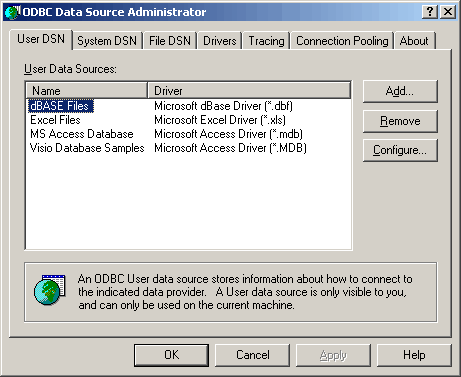
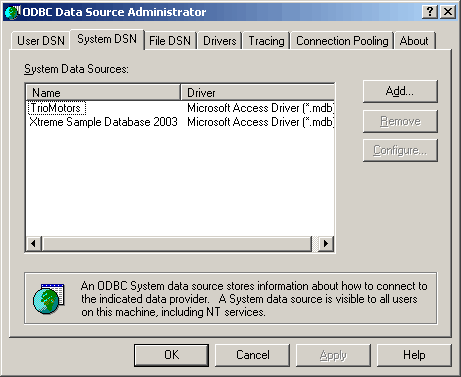
Click on the System DSN tab. We will need a system level definition since the application using the connection is a Windows Service.
Click Add to create an new System DSL.
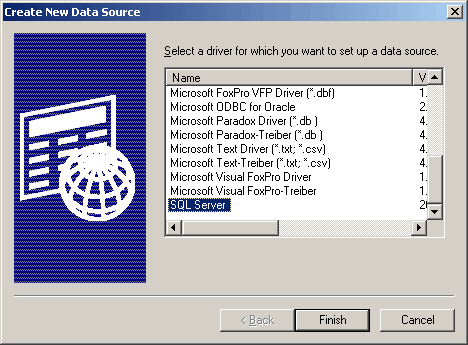
Select the SQL Server driver to set up the data source, and click Finish to continue.
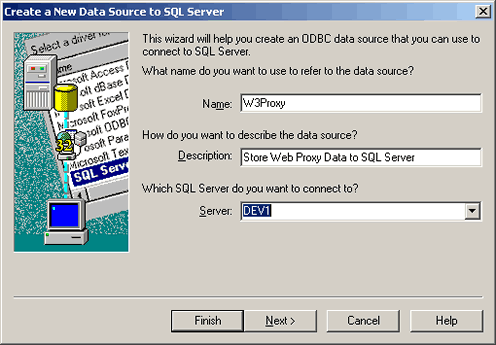
In the dialog box above, enter the appropriate information for your site. The "Name" field simply needs to be unique to the server that you are currently logged on to. You will refer to this name later. The "Description" field is optional but I recommend completing it for documentation purposes. The "Server" field contains the databse server that you will connect to. Click Next to continue.
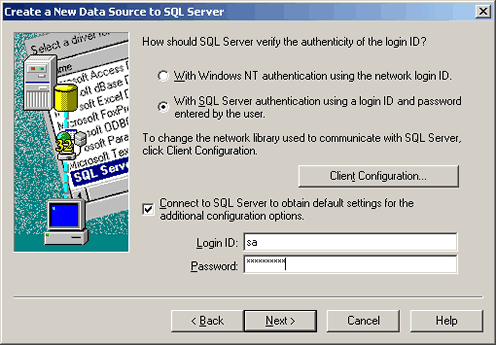
I configured my SQL Server (MSDE 2000) for mixed-mode authentication, because there are times when I want to use a database-specific account as opposed to a domain account, such as now. Of course, you can proceed as you wish. The above dialog box is completely site specific. I also supply the "sa" credentials to allow for a change at the next step in this process. Click Next to continue.
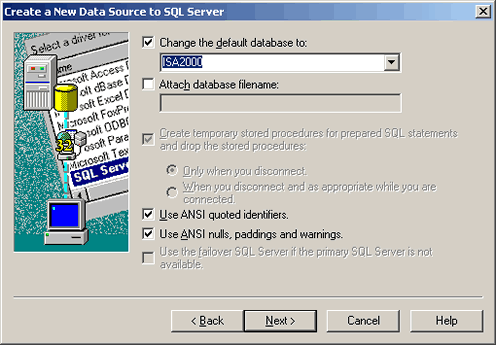
In the dialog box above, change the default database to where you will store log data. At this point the table does not need to exist. Click Next to continue.
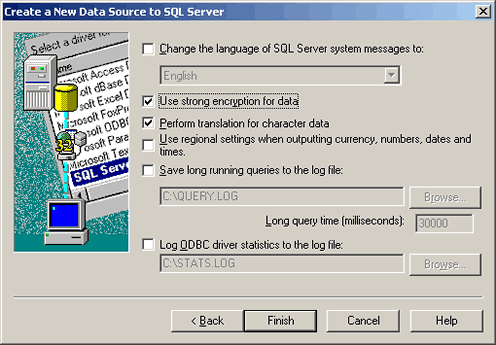
Changes to the above dialog box are optional. Click Next to continue.
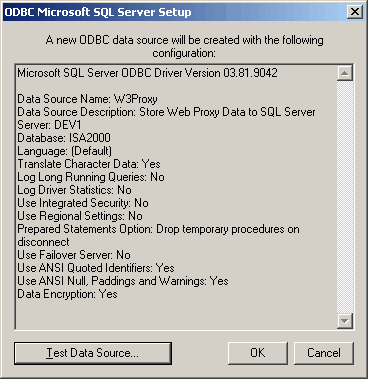
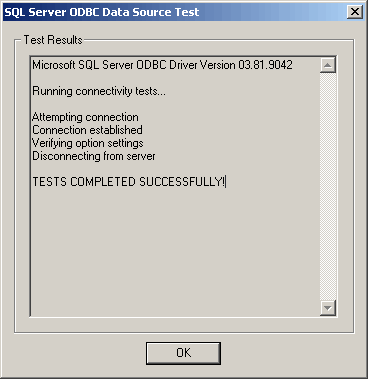
Click Test Data Source.... If the information suplied thus far is correct and database connectivity is available, the test will be successful and you will see the following:
You are now finished with the ODBC protion of this article. Click OK as many times as necessary to complete the process. Connect Using The New ODBC Datasource
The next, and final, step is to configure ISA Server2000/2004 to use the new ODBC datasource for logging
Web Proxy data. The ISA Server 2000 and ISA Server 2004 user interfaces are much different in appearance. However,
once you navigate appropriately, the dialog boxes are identical.
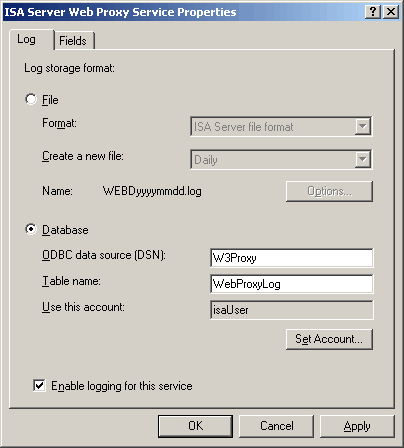
Complete the above dialog box similar to what I have done. "W3Proxy" is the name of the datasource
we created a few moments ago. The Table name and Use this account fields contain
information from my article
MSDE 2000 Release A: Setup And Configuration. These fields must all be filled in, and the information must
be correct.
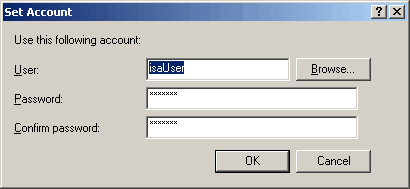
After completing the "Set Account" dialog box, click OK and then Apply and OK and the setup is complete.
NOTE: ISA Server 2004 requires confirmation as to whether you really want to save these changes. Click
the Apply button to dynamically save this change.
Summary In my opinion, this exercise is really a "no brainer". However it is our endeavor to supply complete information and this article is a necessary piece of that completeness. I hope that this article has been helpful to those in need. Thanks for visiting my website! |