|
Oracle 11g: Installation and Configuration On Redhat Enterprise Linux 4.7 AS
(c) brokenribgolfer.com
Author: Mark Hopkins Email Date Published: 08.02.2009 Date Last Modified: 03.14.2026 (formatting) This article is the result of a need for an IBM Tivoli Enterprise Monitoring (TEM) data warehouse, as well as a repository for IBM WebSphere Portal and Process Server, and as a tutorial for my good friend Maurice. As the title suggests, we will provide a step-by-step guide to installing the Oracle 11g relational database management system (RDBMS) on Redhat Enterprise Linux 4.7 AS. Breaking it down, the following will be performed:
To all you DBA's out there, while we do appreciate constructive criticism, please keep in mind that we are NOT database administrators. We are also not security administrators. So, we are well aware that there are many aspects to Oracle that we are not touching on with this article, as well as security related topics being ignored. Let's just say that these topics are not in the scope of this article. If anyone would like them covered, drop me an email and I will add it to the already long list of requests.
Background Background Almost every organization that has a need to store data uses a relational database solution. It is amazing, just since the publish date of this article, many choices have been added as companies look for solutions that better fit their needs. These days, while Oracle still lays claim to highest market share, two of the top four are now open source. While we will always write articles that are either requested and/or are interesting, our main future focus will be on open source offerings like PostgreSQL, MySQL and others. Assumptions We assume that you have already provisioned a fully functional Redhat Enterprise Linux (RHEL) 4.7 AS server. We are quite certain that ES would work as well. This server should be functional with respect to DNS and network connectivity. While perhaps not a complete list of files to be modified, there are the ones that our kickstart configuration added or modified. Failrly typical and kickstart is not the only way to provision the server.
You may or may not need to modify any or all of the above mentioned files. One thing is for certain however. If your system does not meet certain requirements, the Oracle installer will let you know. It's also good about telling you what you need to do to fix the issue(s). Requirements
As for requirements, we can begin with the filesystem layout. I am sure that Oracle will tell you everything
necessary in their documentation and surely it is well written. OFA (Oracle Flexible Architecture) was
once a concept worth mentioning, however we do not know if it even still exists. If you are planning some elaborate
database you will certainly want to consider disk layout for performance reasons. However, once again this is a basic
install and configuration procedure, thus we will not bother.
The remainder of our requirements (some repetition) is as follows:
|
||||||||||||||||||||||||||||||||||||||||||||||||
|
Architecture
|
||||||||||||||||||||||||||||||||||||||||||||||||
|
Procedure
Now that we have laid the groundwork, let's get going with the actual steps. |
||||||||||||||||||||||||||||||||||||||||||||||||
Pre Installation
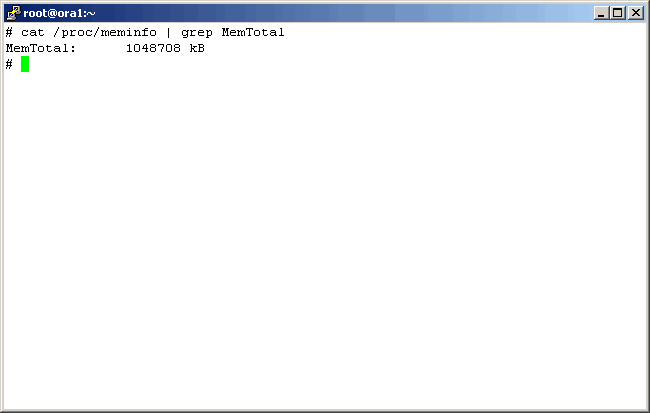
Command(s)
|
||||||||||||||||||||||||||||||||||||||||||||||||
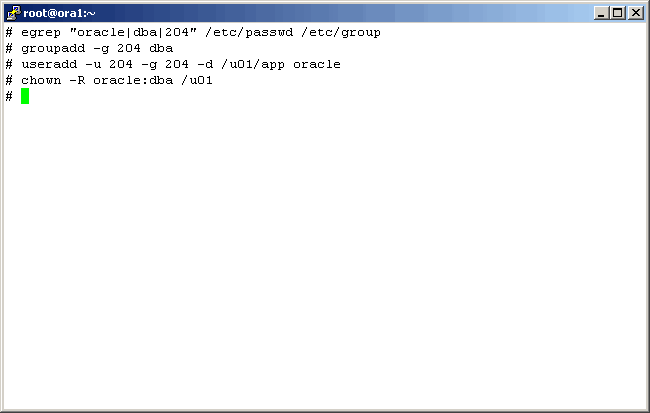
Command(s)
|
||||||||||||||||||||||||||||||||||||||||||||||||
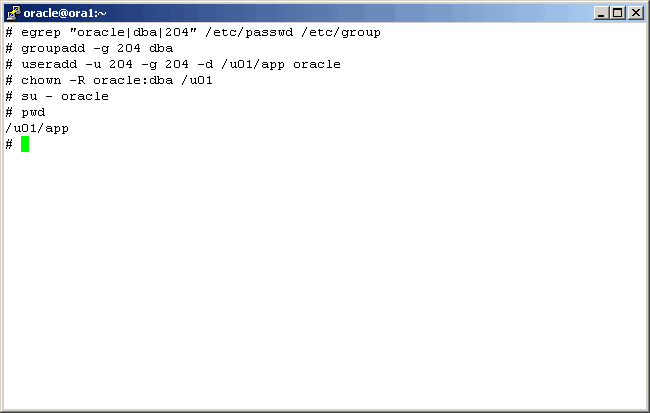
Command(s)
|
||||||||||||||||||||||||||||||||||||||||||||||||
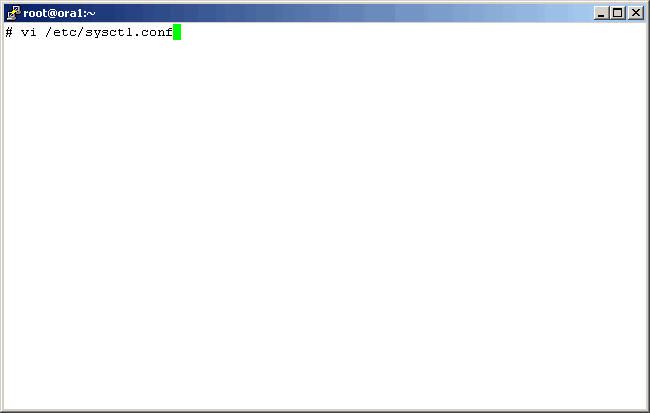
Command(s)
|
||||||||||||||||||||||||||||||||||||||||||||||||
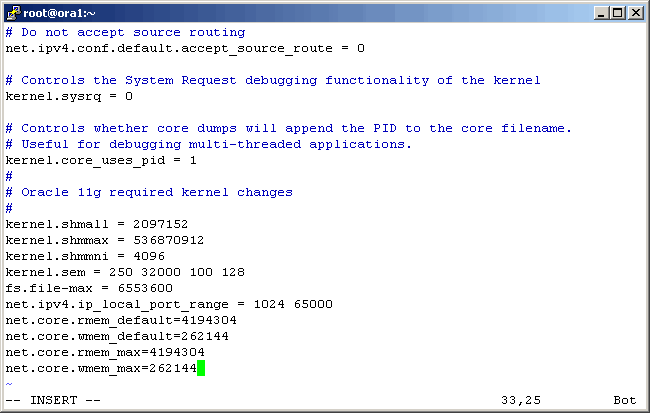
|
||||||||||||||||||||||||||||||||||||||||||||||||
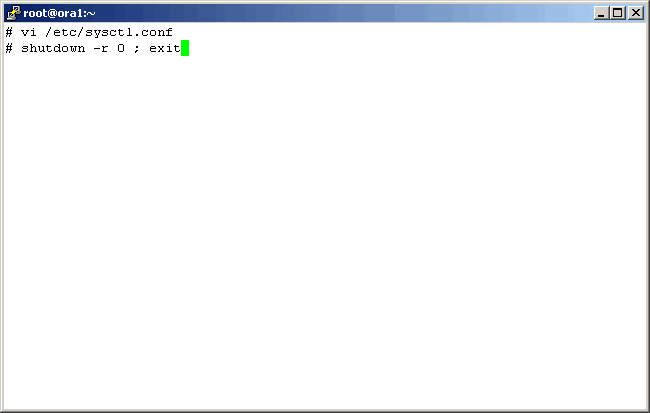
Command(s)
|
||||||||||||||||||||||||||||||||||||||||||||||||
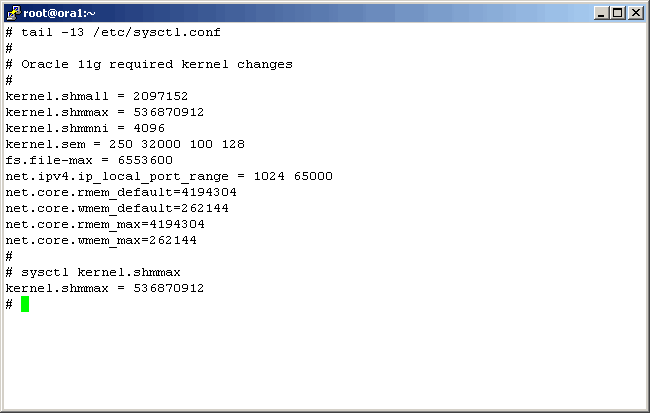
Command(s)
|
||||||||||||||||||||||||||||||||||||||||||||||||
|
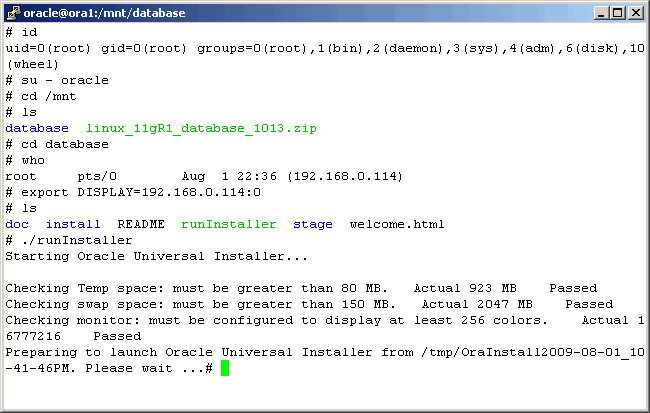
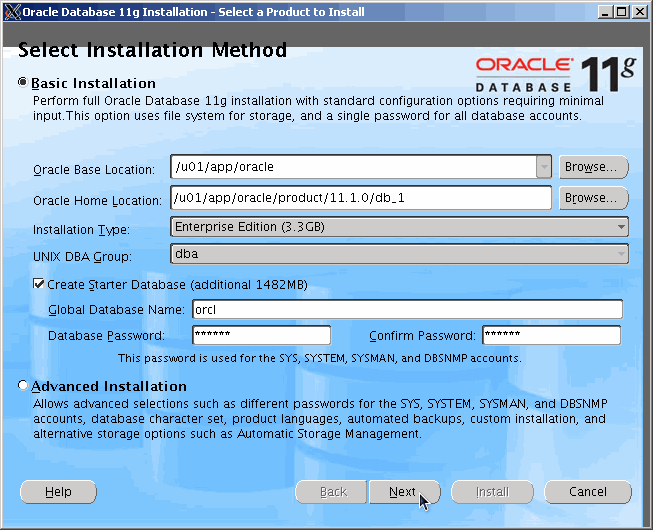
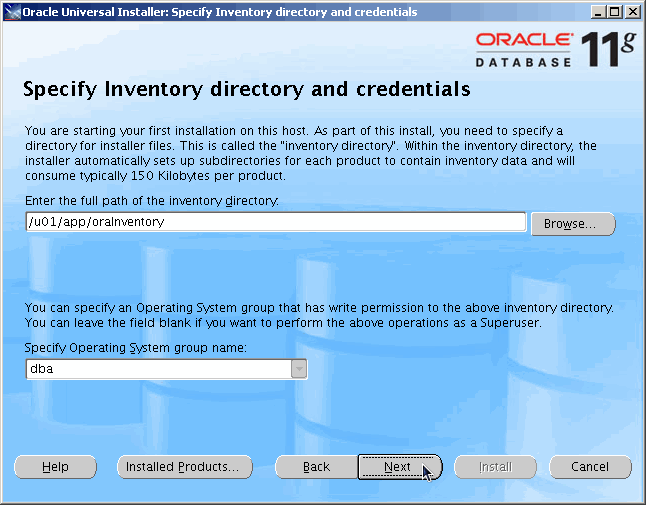
Install Oracle 11g
|
||||||||||||||||||||||||||||||||||||||||||||||||
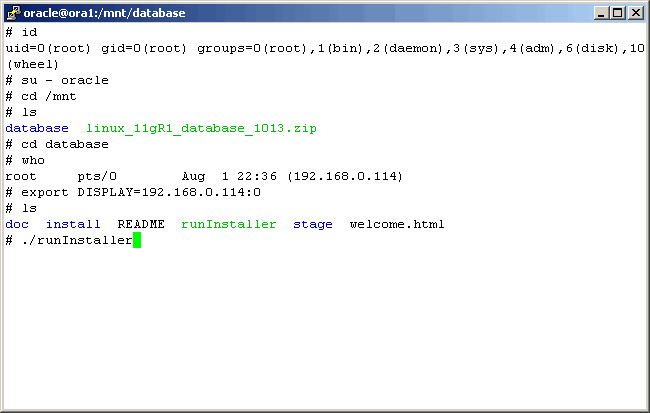
Command(s)
|
||||||||||||||||||||||||||||||||||||||||||||||||
|
||||||||||||||||||||||||||||||||||||||||||||||||
|
||||||||||||||||||||||||||||||||||||||||||||||||
|
||||||||||||||||||||||||||||||||||||||||||||||||
|
||||||||||||||||||||||||||||||||||||||||||||||||
|
||||||||||||||||||||||||||||||||||||||||||||||||
|
||||||||||||||||||||||||||||||||||||||||||||||||
|
||||||||||||||||||||||||||||||||||||||||||||||||
|
||||||||||||||||||||||||||||||||||||||||||||||||
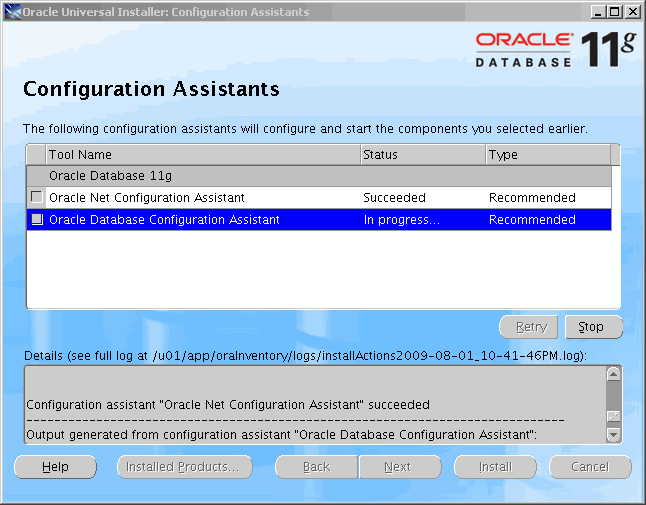
|
||||||||||||||||||||||||||||||||||||||||||||||||
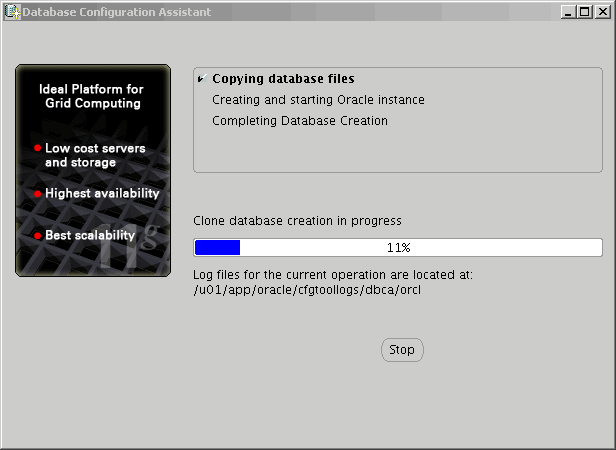
|
||||||||||||||||||||||||||||||||||||||||||||||||
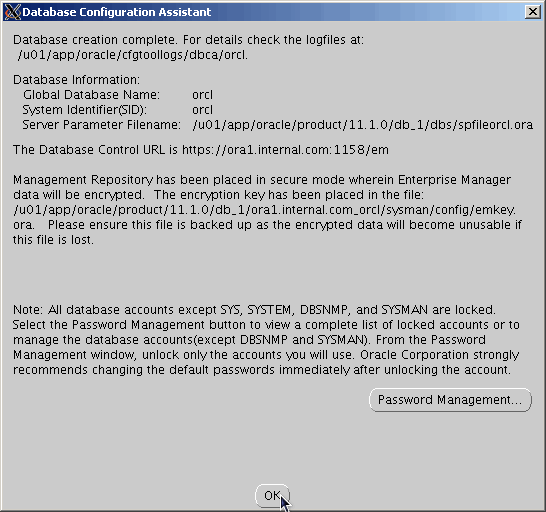
|
||||||||||||||||||||||||||||||||||||||||||||||||
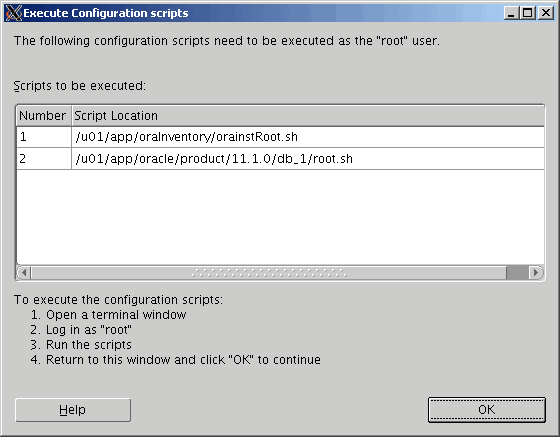
|
||||||||||||||||||||||||||||||||||||||||||||||||
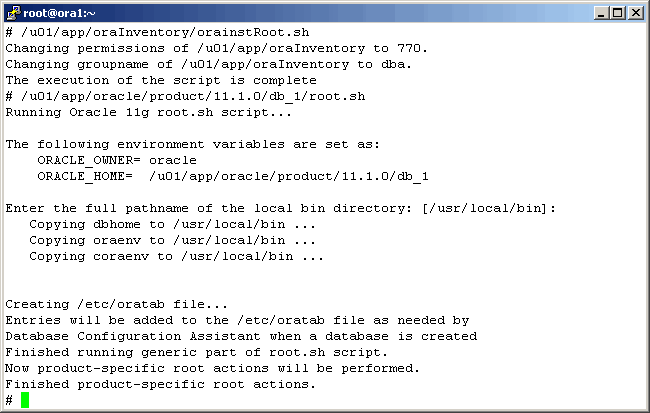
Command(s)
|
||||||||||||||||||||||||||||||||||||||||||||||||
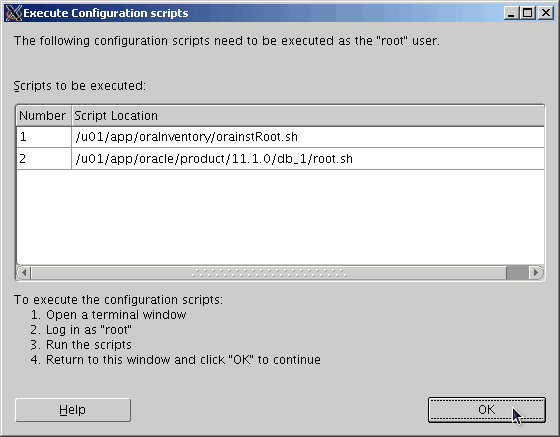
|
||||||||||||||||||||||||||||||||||||||||||||||||
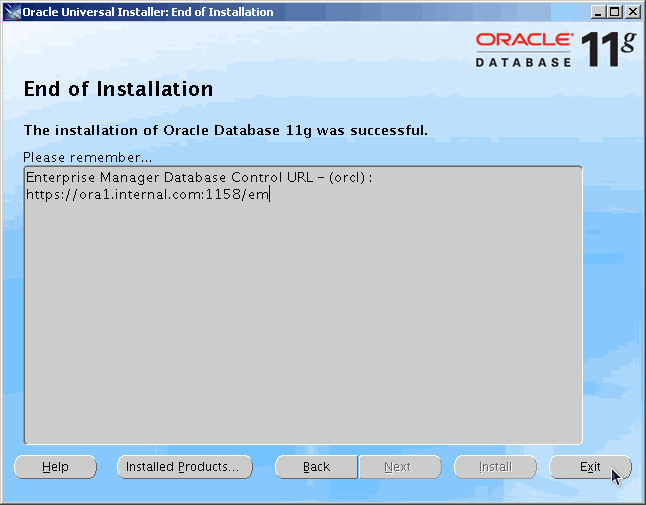
|
||||||||||||||||||||||||||||||||||||||||||||||||
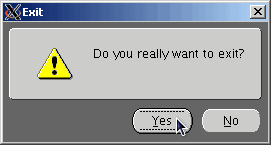
|
||||||||||||||||||||||||||||||||||||||||||||||||
Post Installation
Command(s)
|
||||||||||||||||||||||||||||||||||||||||||||||||
Command(s)
|
||||||||||||||||||||||||||||||||||||||||||||||||
|
||||||||||||||||||||||||||||||||||||||||||||||||
|
||||||||||||||||||||||||||||||||||||||||||||||||
Command(s)
|
||||||||||||||||||||||||||||||||||||||||||||||||
|
||||||||||||||||||||||||||||||||||||||||||||||||
Command(s)
|
||||||||||||||||||||||||||||||||||||||||||||||||
|
||||||||||||||||||||||||||||||||||||||||||||||||
Command(s)
|
||||||||||||||||||||||||||||||||||||||||||||||||
Command(s)
|
||||||||||||||||||||||||||||||||||||||||||||||||
Command(s)
|
||||||||||||||||||||||||||||||||||||||||||||||||
Command(s)
|
||||||||||||||||||||||||||||||||||||||||||||||||
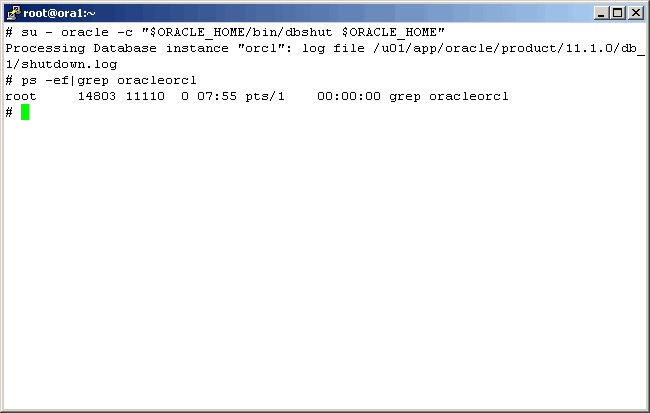
Command(s)
|
||||||||||||||||||||||||||||||||||||||||||||||||
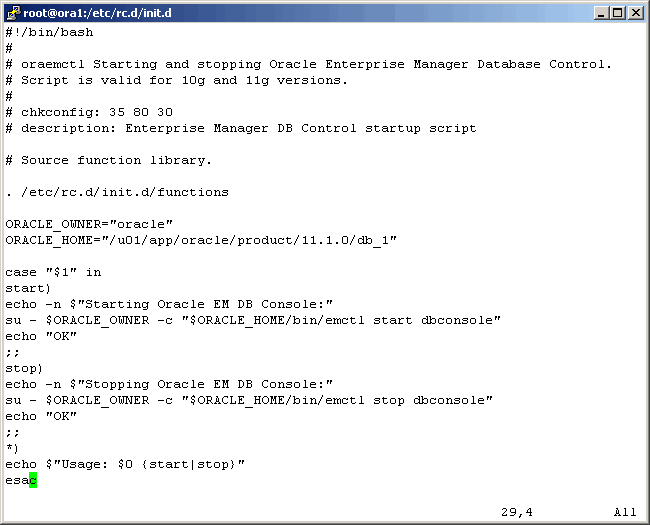
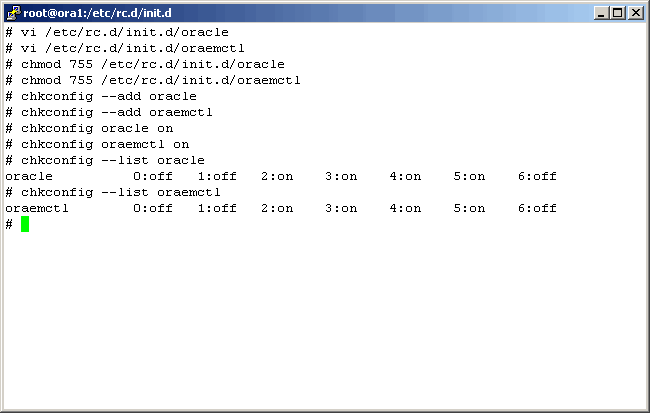
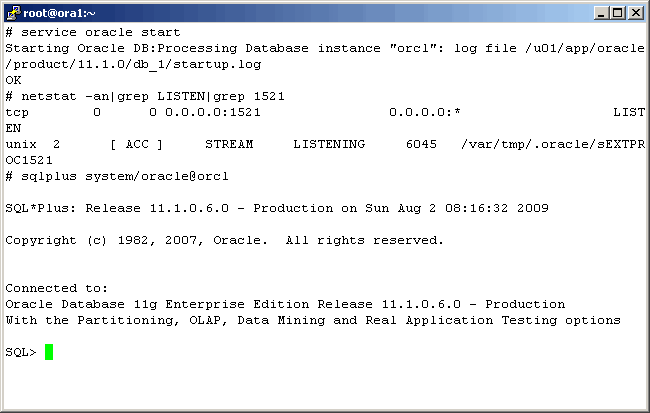
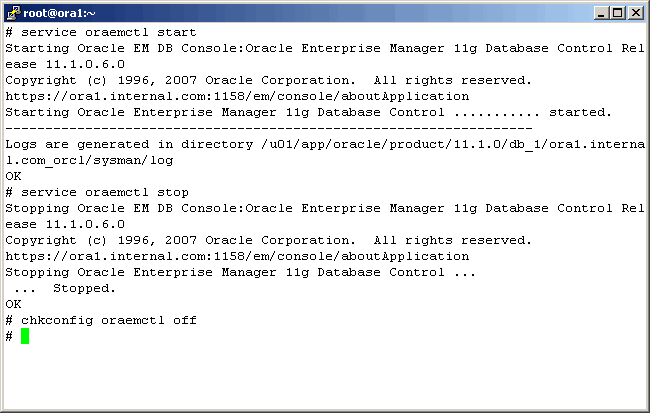
Startup and Shutdown Scripts
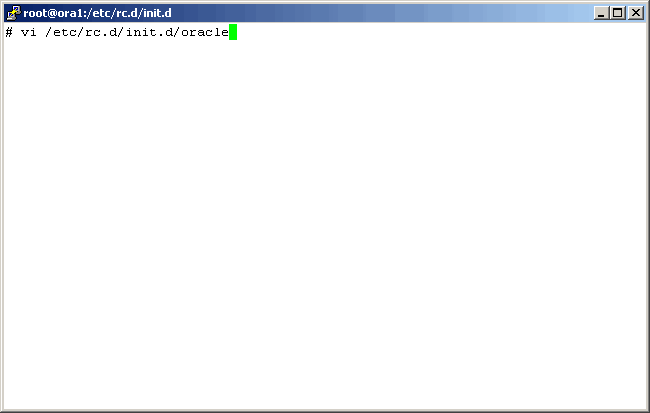
Command(s)
|
||||||||||||||||||||||||||||||||||||||||||||||||
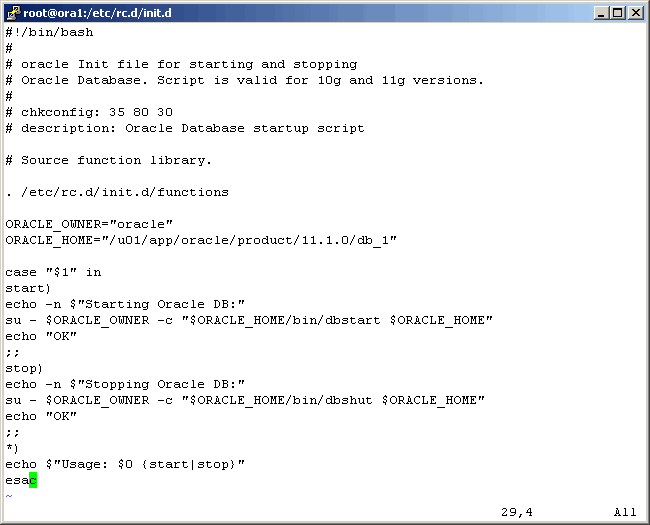
|
||||||||||||||||||||||||||||||||||||||||||||||||
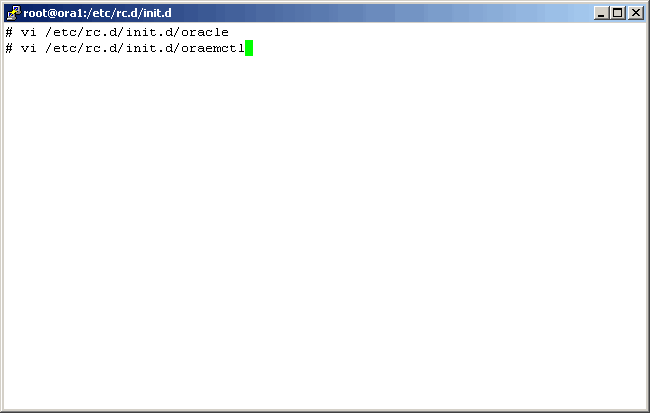
Command(s)
|
||||||||||||||||||||||||||||||||||||||||||||||||
|
||||||||||||||||||||||||||||||||||||||||||||||||
Command(s)
|
||||||||||||||||||||||||||||||||||||||||||||||||
Command(s)
|
||||||||||||||||||||||||||||||||||||||||||||||||
Command(s)
|
||||||||||||||||||||||||||||||||||||||||||||||||
|
||||||||||||||||||||||||||||||||||||||||||||||||
|
Conclusion
|
||||||||||||||||||||||||||||||||||||||||||||||||
|
Printing
As it turns out, as we are busy working on the HTML/CSS/php/Java Script formatting of our articles,
pretty printing is not yet possible. We are working on it at a low priority.
|
