|
Tivoli: TDI 6.1.1 - Configuring The Netscape/iPlanet Changelog Connector
(c) brokenribgolfer.com Author: Mark Hopkins Email Date: 02.27.2008 We have touched somewhat on Tivoli Directory Integrator 6.1.1 FP2 in a previous article. However that was simply the steps necessary to install and update the product on Windows XP. Now we will embark, slowly, on using the product. Our first artcle will be simply (?) the creation of a Changelog connector to Sun Microsystem's Netscape/iPlanet Sun ONE Directory Server, Version 5.2, Patch 4. Article Index
Background As for a little bit of background, along with atempting to be experts using TDI, we have a need in the "pipeline" to synchronize LDAP objects from iPlanet Directory Server to openLDAP. So, as opposed to waiting for this project to start, we thought that we'd do a little "up front" work. And it is a good thing that we did, as iPlanet Directory Server does not, by default, activate change logging. So we did a little digging throught Sun's documentation, and found out how to configure it. Stick around and you can benefit form what we have learned. Assumptions / Requirements In this article/exercise we assume a certain level of expertise and experience using Tivoli Directory Integrator, LDAP, Sun ONE Directory Server and UNIX. Requirements to duplicate this exercise are as follows:
|
|
Procedure Now that we have laid the groundwork, let's get going with the actual steps. |
|
Create New TDI Configuration and Changelog Connector |
|
Execute the TDI Interactive Development Environment (IDE) on your platform of choice. As
already mentioned, we are using Windows XP SP2.
|
|
|
|
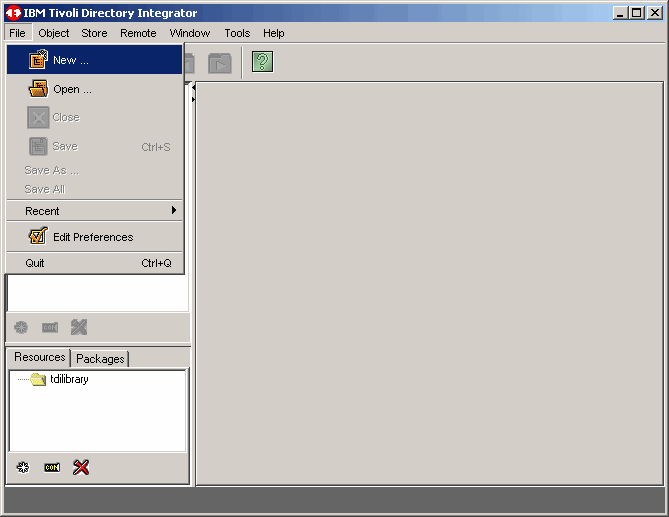
Let's start by opening a new TDI config as shown here.
|
|
|
|
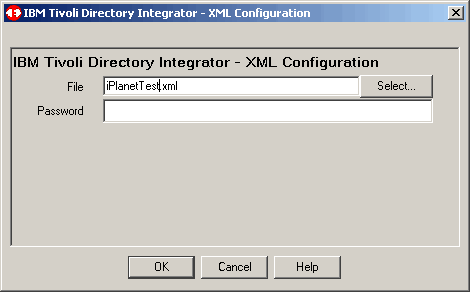
We will name the new config iPlanetTest.xml. Then click OK to continue.
|
|
|
|
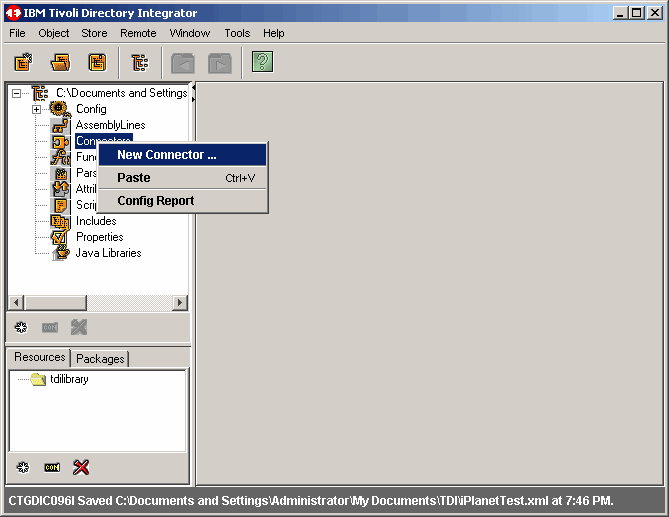
Here we create a new connector.
|
|
|
|
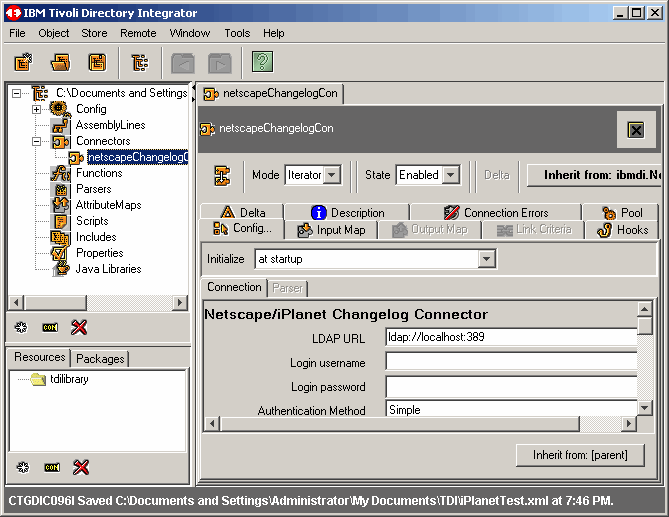
Select the ibmdi.Netscape.Changelog connector. Name is whatever you like, or follow our
lead and call it netscapeChangelogCon. This connector type can only run in itereator
mode. Then click OK to continue.
|
|
|
|
Here we are trying to keep our screen shots small for the web article, so we will
close the left panel by clicking the very small left arrow just next to the
netscapeChangelogCon tab.
|
|
|
|
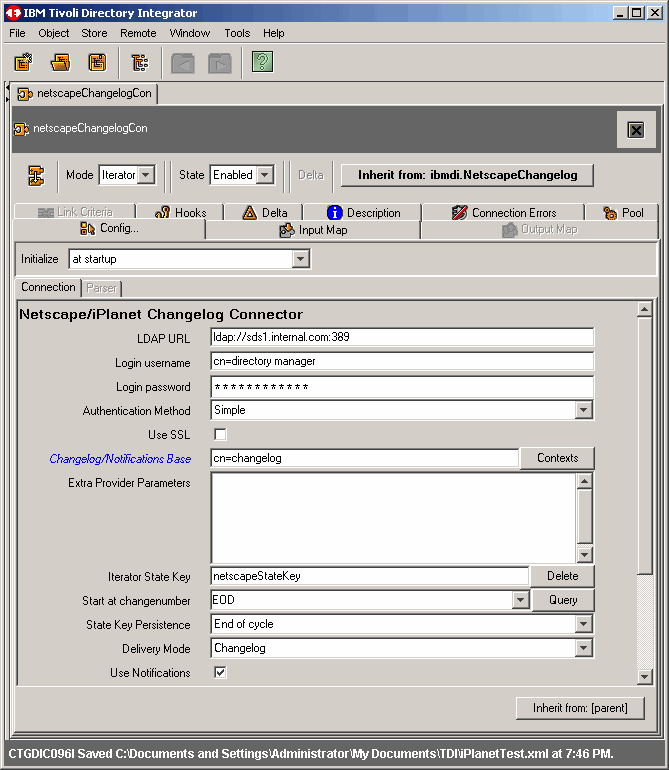
Now our screen width remains the same but reveals more information. Here, fill out the appropriate
authentication information in the first three fields. This of course, is information pertaining to
our Sun ONE directory server. Next, choose a UNIQUE Iterator State Key. This variable keeps
track of where TDI is (or was) in the Netscape directory server change log. This is important if
and when an associated assembly line were to stop for some reason. When restarted, the assembly line
will simply begin from the next change record. For this process to be effective, select EOD
as the value for Start at changenumber. Lastly, check Use Notifications to have the
directory server notify us when a change has occured.
|
|
|
|
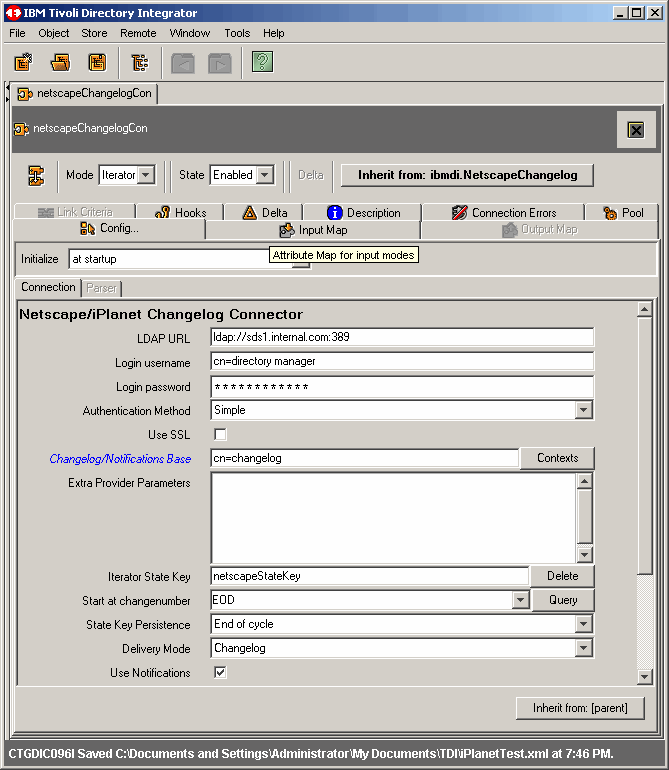
Now click on the Input Map tab to continue.
|
|
|
|
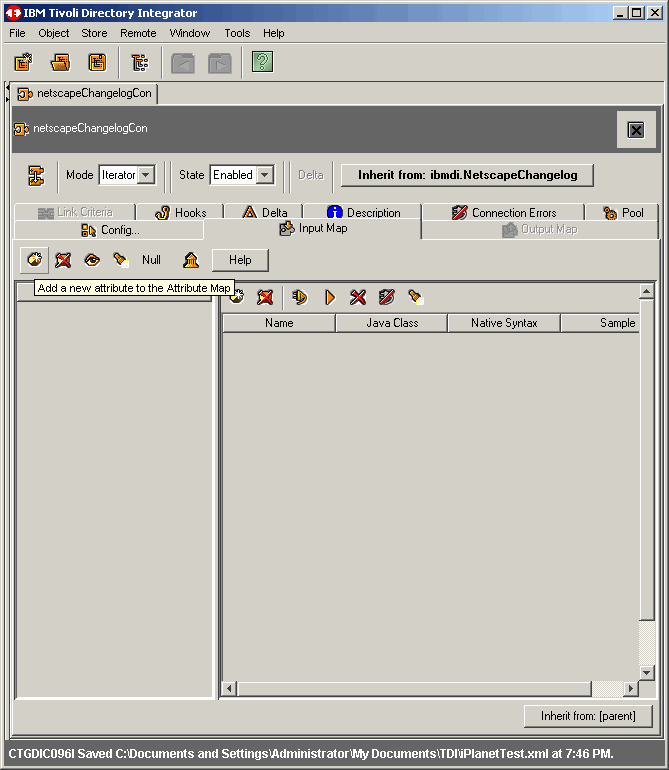
Here we want to define the attributes returned from a directory server object change. Click
on the Add a new attribute.... button to continue.
|
|
|
|
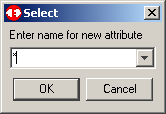
We will use "*" to see them all. Then click OK to continue.
|
|
|
|
Test Changelog Connector |
|
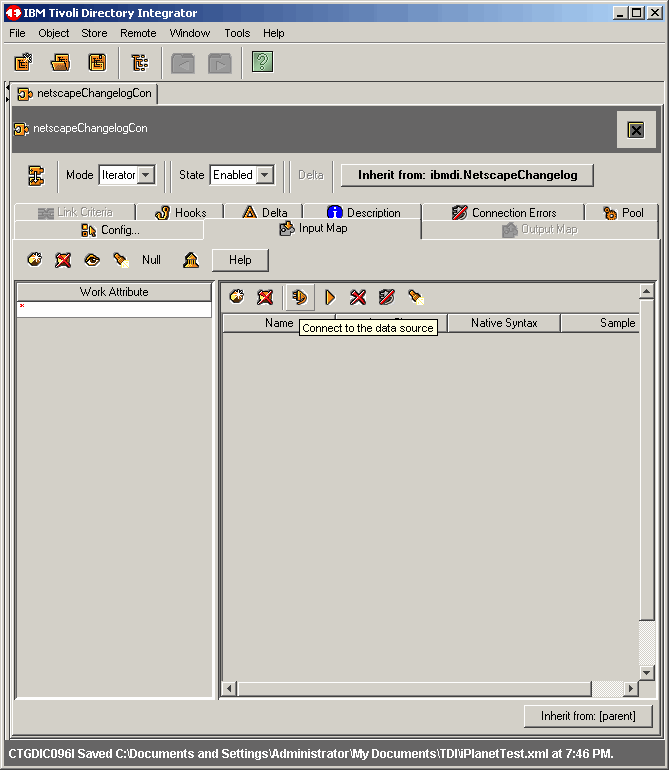
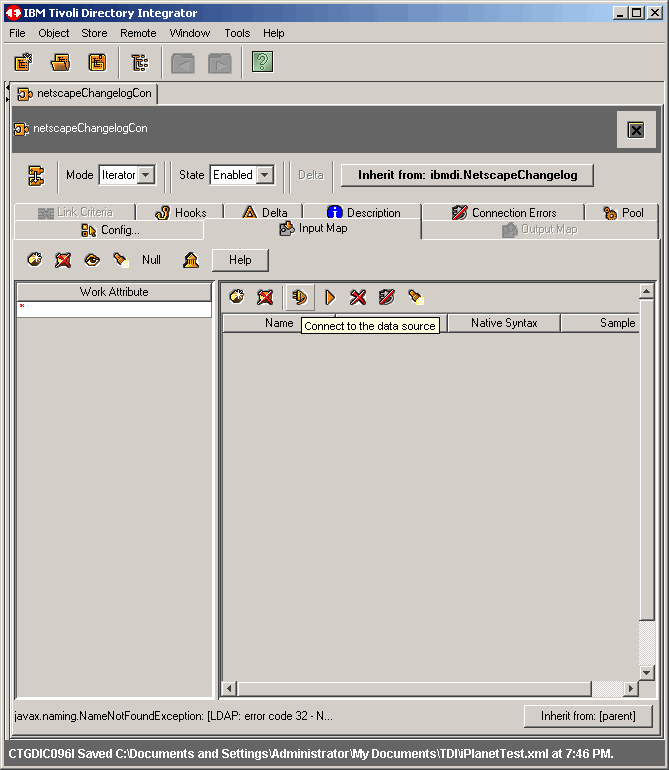
Now let's test the changelog connect to the directory server. First click on the
Connect to the data source button as we show here.
|
|
|
|
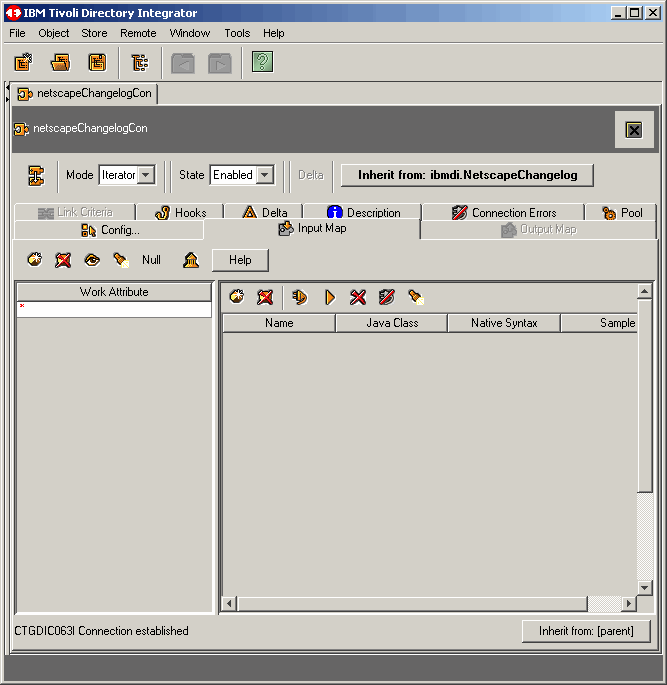
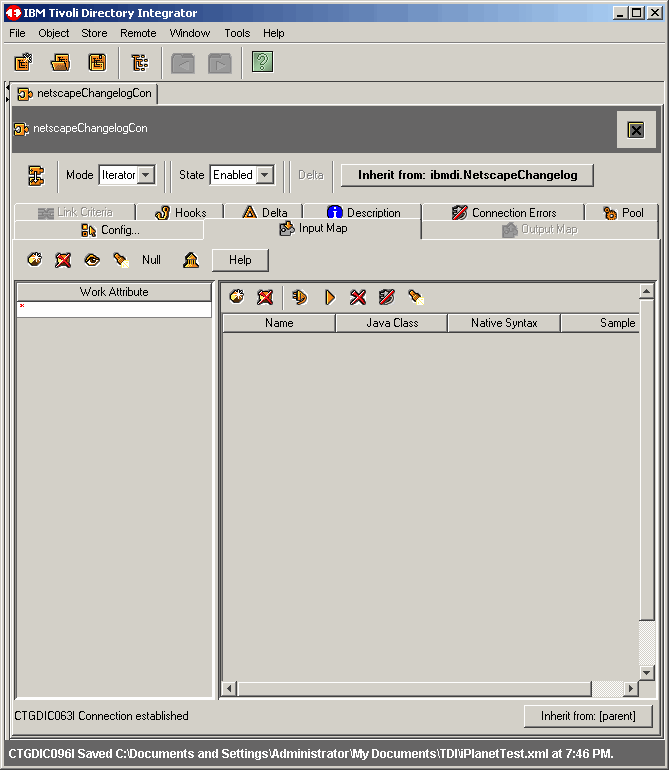
If the connection is successful, as is the case here, notice the message
CTGDIC063I Connection established as shown.
|
|
|
|
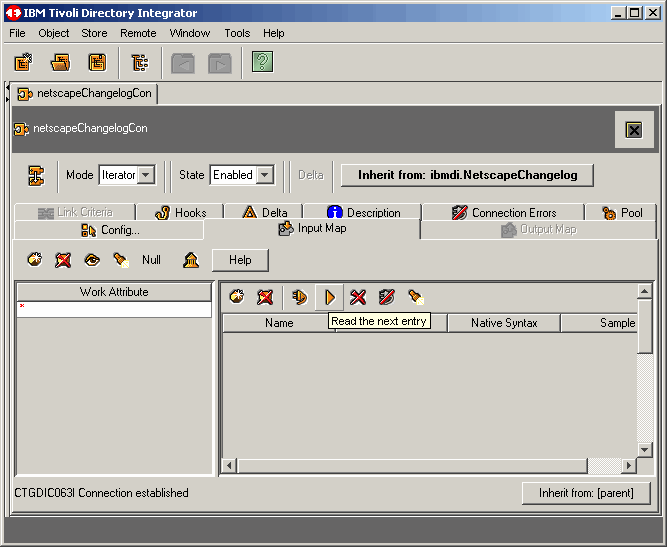
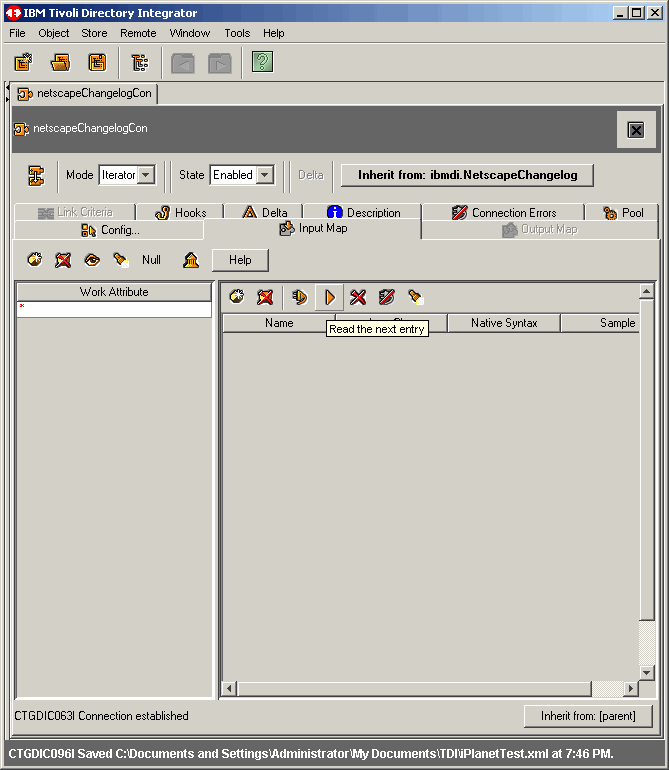
Now let's attempt to get a change from the directory server changelog, by clicking on the
Read the next entry button as shown.
|
|
|
|
OOPS - What Went Wrong? |
|
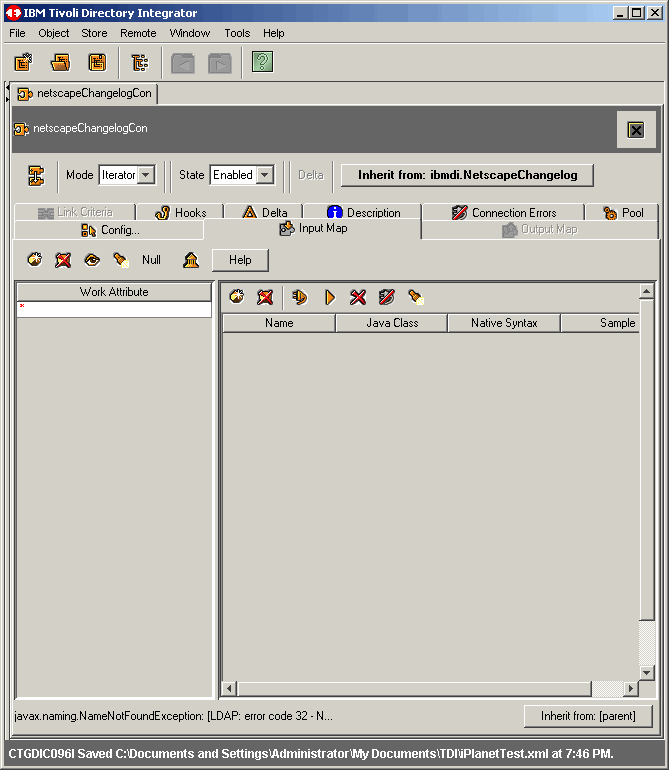
Have you ever seen nastier, more cryptic error messages than ones that come from Java? Well, we had
absolutely no idea what was meant by javax.naming.NameNotFoundException: [LDAP: error code 32 - N...
as shown here. Actually we still do not know what it means. But we do have enough experience to check
the directory server first. The thought was "gee I wonder if logging changes is not the default behavior
of Sun ONE Directory Server", and it was not. So let's fix that..............
|
|
|
|
Configure Change Logging on Sun ONE Directory Server |
|
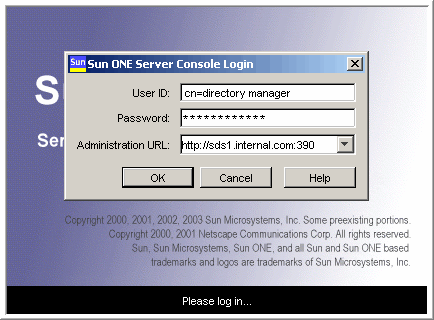
Let's begin configuring the directory server by login in as shown here. Bring up the
server console, fill in the blanks and click OK to continue.
|
|
|
|
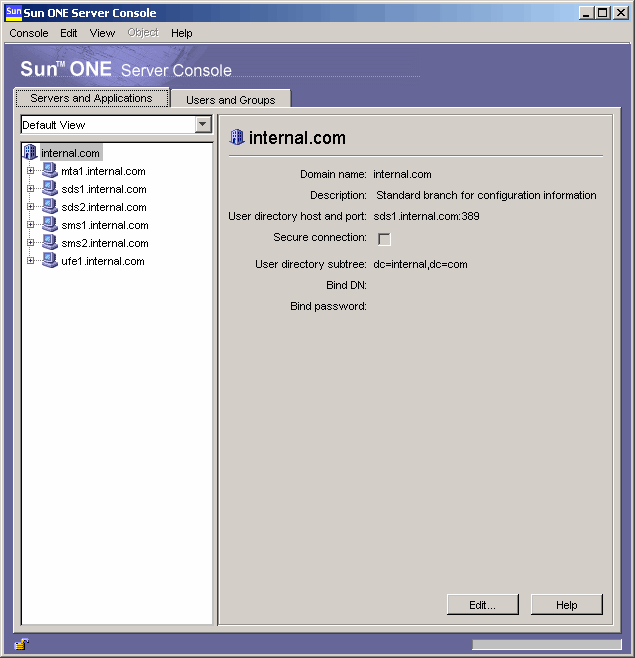
Successful authentication will get you here.
|
|
|
|
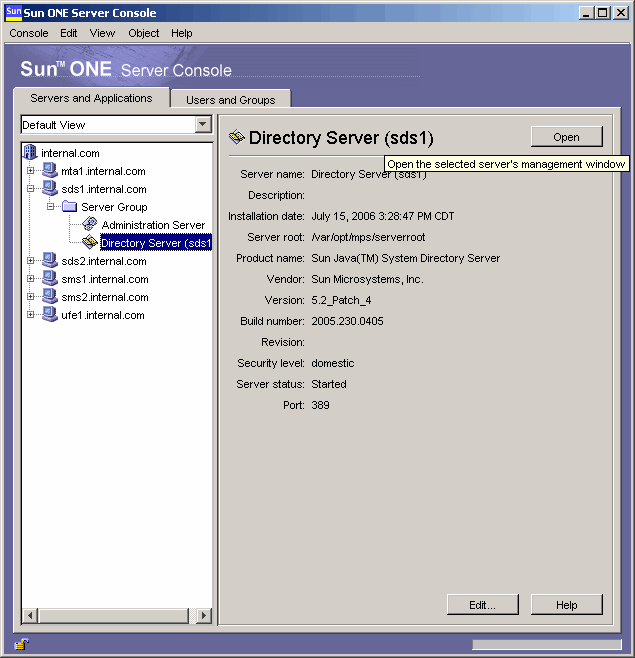
Drill down as shown here and than click Open to continue.
|
|
|
|
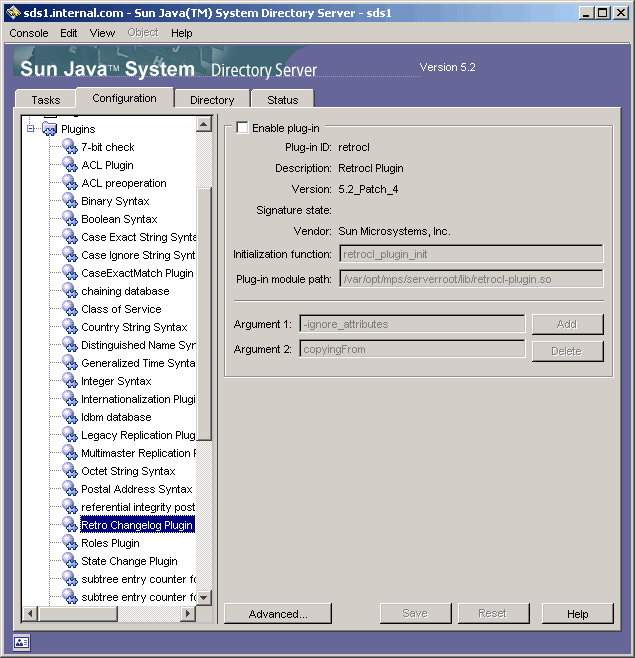
Drill down more, to the Retro Changelog Plugin. Notice that the plugin is
not enabled. This was our OOPS, above.
|
|
|
|
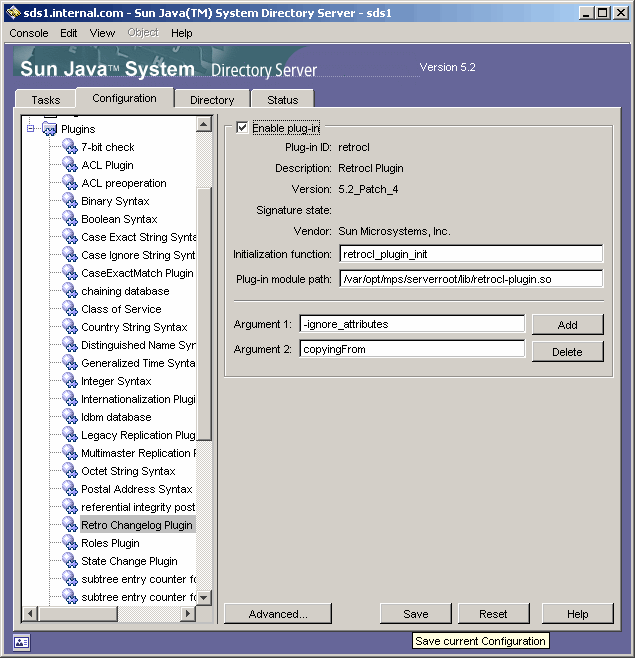
Enable the plugin and then click Save to continue.
|
|
|
|
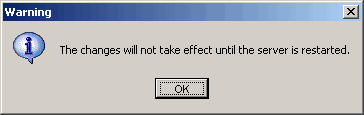
Click OK to continue.
|
|
|
|
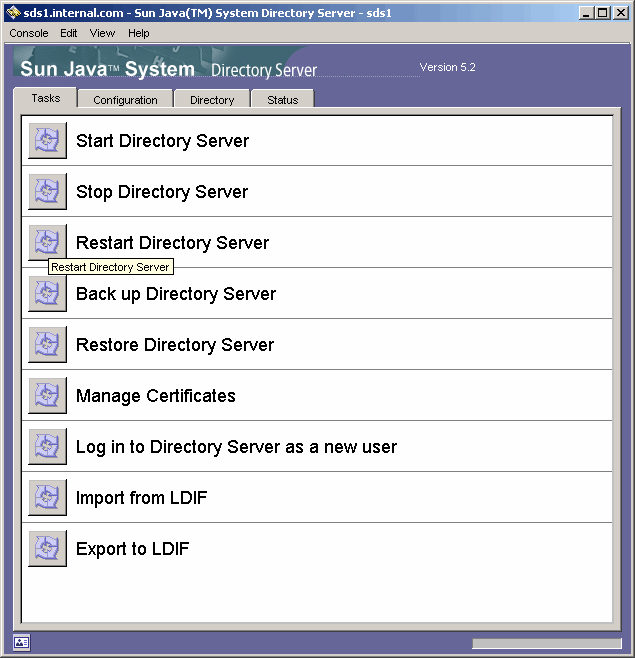
Now click Restart Directory Server to begin logging changes.
|
|
|
|
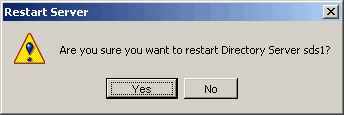
Click Yes to continue.
|
|
|
|
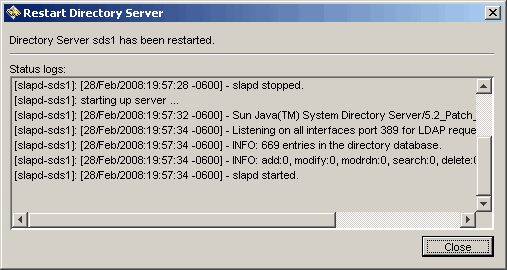
Success! Click Close to continue.
|
|
|
|
Re-Test Changelog Connector |
|
Now, back in TDI, let's reconnect to the data source.
|
|
|
|
Success.
|
|
|
|
Now, let's try to read the next changelog entry again as shown here.
|
|
|
|
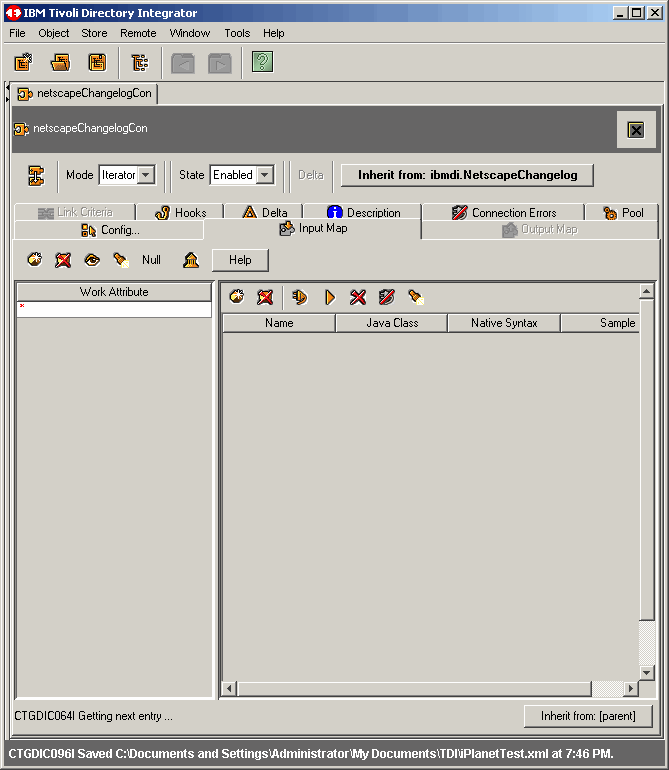
Success. Notice the difference this time? See the CTGDIC064I Getting next entry.... message
at the bottom of the screen shot, instead of the nasty Java error message. So at this point, TDI is
waiting for the next object-level change on the directory server.
|
|
|
|
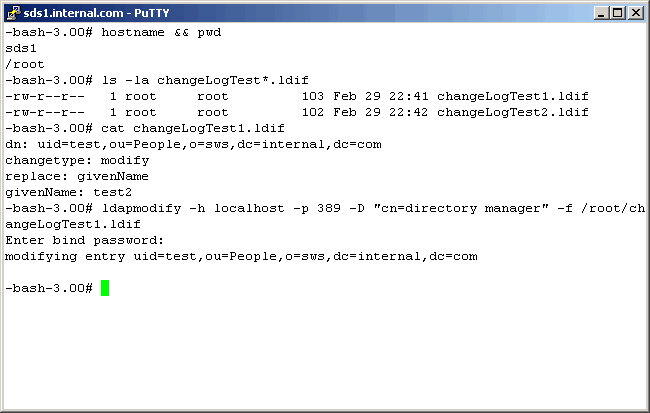
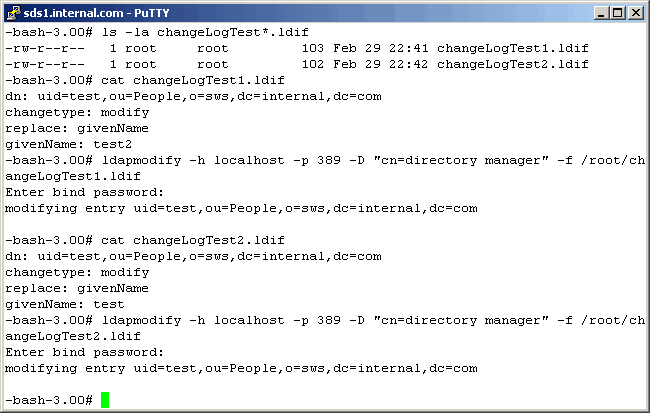
Let's now force a change on the directory server using the "ldapmodify" command. Log into
the directory server via SSH. Shown below is the content of the ldif file used to force a change
and it is self-explanatory. Take a close look at it and you will see the change to the object
attribute "givenName". Notice we executed the change successfully.
|
|
|
|
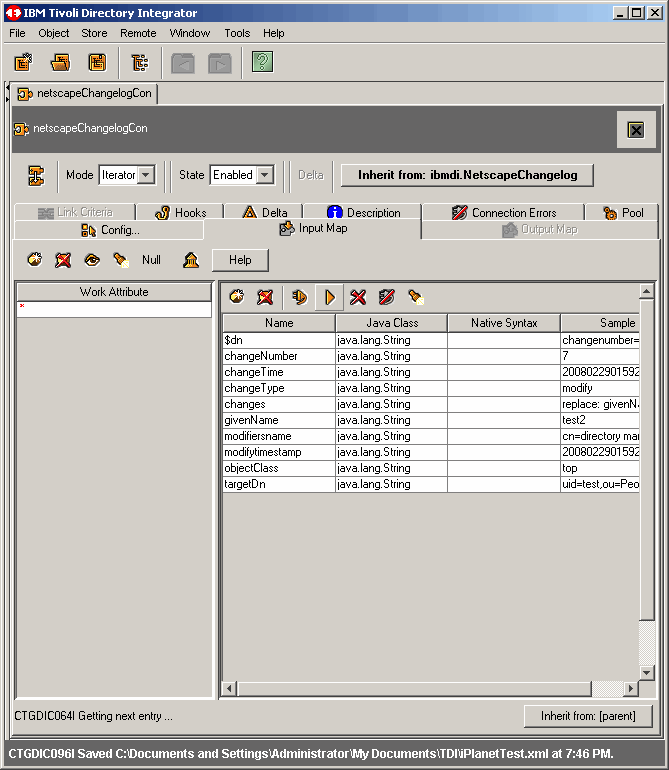
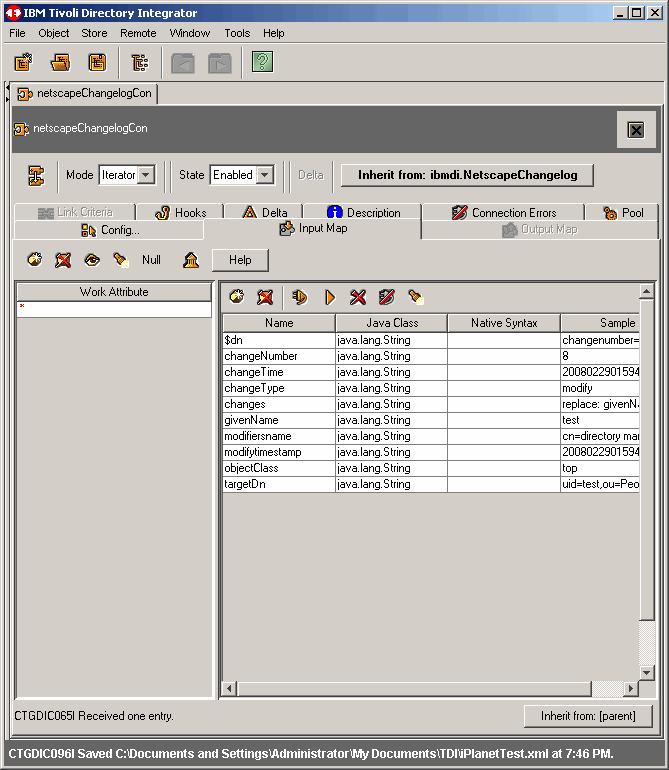
As soon as we made the attribute change, back on the IDE, we see the changelog entry.
|
|
|
|
Now let's change the givenName attribute back to its original value. Once again, this is
performed from the UNIX command line with the ldapmodify command.
|
|
|
|
Since we are operating in a manual mode, we do not see the change in the TDI IDE until we
click on the Read the next entry button. Do so, and you will see the successful changelog
entry in the IDE. Notice the LDAP attribute "givenName" has been changed back to its initial
value.
|
|
|
|
Conclusion
This ends our first article on using the Tivoli Directory Integrator IDE. Hopefully you have
learned, as we have, a little more about the product.
|
|
Printing This Article
If you have trouble printing this article, be sure to set your browser Page Properties correctly. Go
to File -> Page Setup and set your left and right margins to .125 inches.
|