|
Tivoli: Installing Tivoli Directory Integrator 6.1.1 On Windows XP
(c) brokenribgolfer.com
Date Published: 02.23.2008 Date Last Modified: 02.12.2026 (formatting) Tivoli Directory Integrator (TDI) 6.1.1 is a powerful interface engine for the manipulating and transferring of data. It is not only for moving data between directory servers such as IBM's Tivoli Directory Server (TDS), Sun Mocrosystem's iPlanet Directory Server, and Microsoft's Active Directory. It can also be used in conjuntcion with databases and files such as XML and LDIF. There are also many other sources and destinations not mentioned here. In this article we will walk you through the installation process for TDI 6.1.1 and IBM's Fix Pack 2. Once again, installing an IBM product via Java is a bit frustrating, but we have managed to make it happen. In future articles we will demonstrate how to use TDI effectively with specific examples like populating TDS from Active Directory.
Background Although we have yet to post articles on the topic of data interfacing, we have quite a bit of experience with it, especially with HL7 interface engines. This time around however, we have a current need to (1) populate a Tivoli Directory Server (TDS) instance with data from Active Directory, and (2) using a change log connector on the AD side, replicate changes from AD to the same TDS instance. While we will not demonstrate how to build these interfaces in this exercise, we will do so in future offerings. TDI can be installed on many platforms including Linux and AIX, and we have done so, but for mobility we also need it installed on Windows XP. Stick around and we'll show you how. AssumptionsThe process of installing TDI 6.1.1 and the fixk pack is not exactly rocket science, so we will not expect any particular amount of specific expertise. However, basic Microsoft Windows XP experience is a definite plus. RequirementsAs for specific requirements, they are as follows:
|
|
Procedure
Now that we have laid the groundwork, let's get going with the actual steps. |
Install TDI 6.1.1
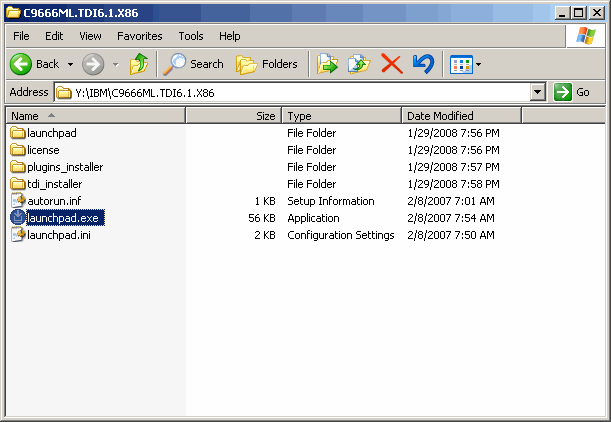
Navigate to where you have expanded the TDI media, and run launchpad.exe as shown here.
|
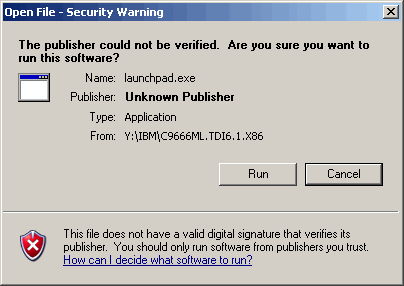
You may or may not see this security warning. If you do, click Run to continue.
|
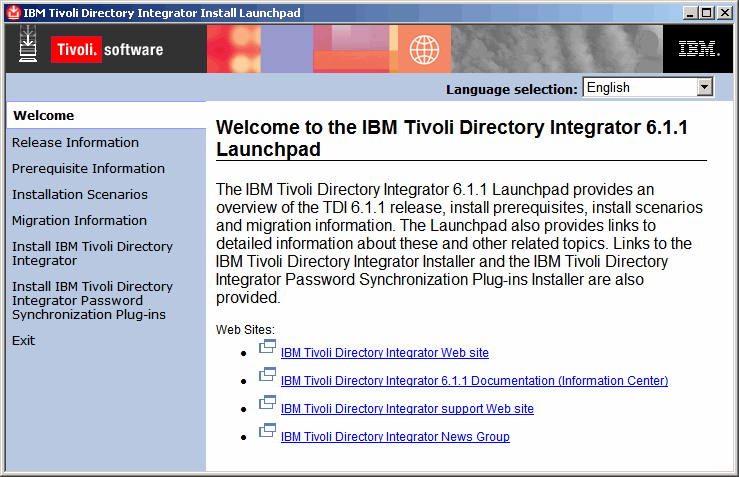
Check out your options here at the main installer menu. To proceed with the installation click, on
the left panel, Install IBM Tivoli Directory Integrator
|
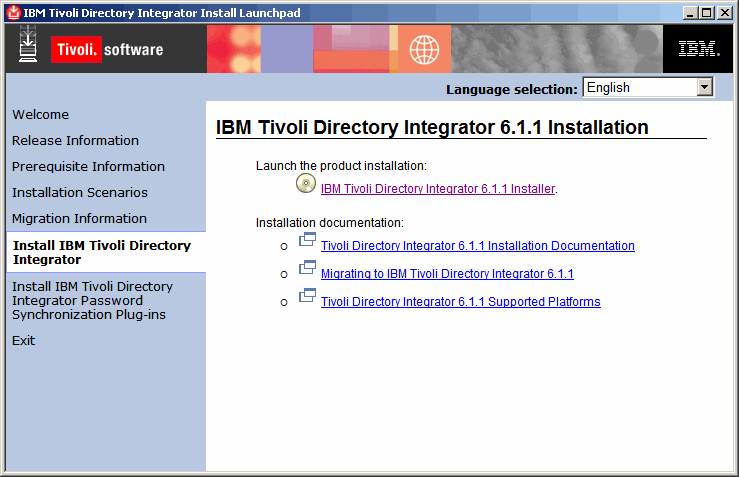
When this screen appears, begin the installation by clicking, on the right panel,
IBM Tivoli Directory Integrator 6.1.1 Installer.
|
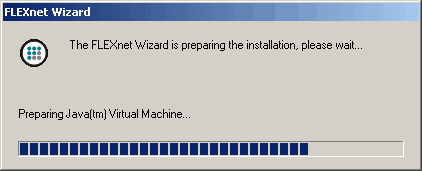
As this process continues, you should see this:
|
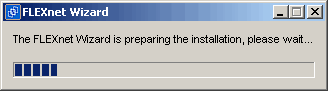
...and this:
|
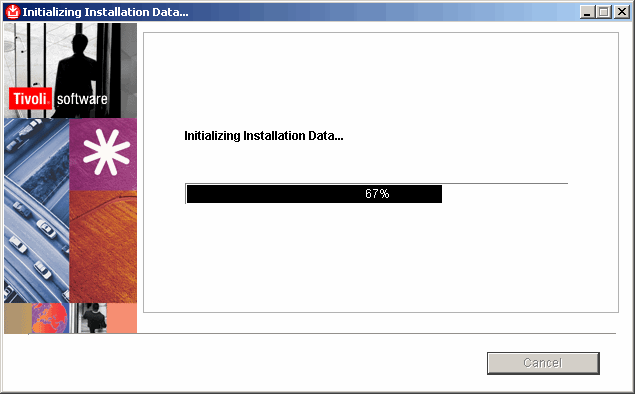
...and this:
|
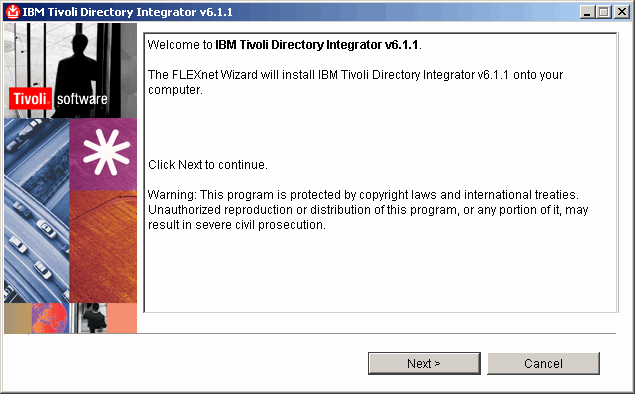
Here, click Next to continue as shown.
|
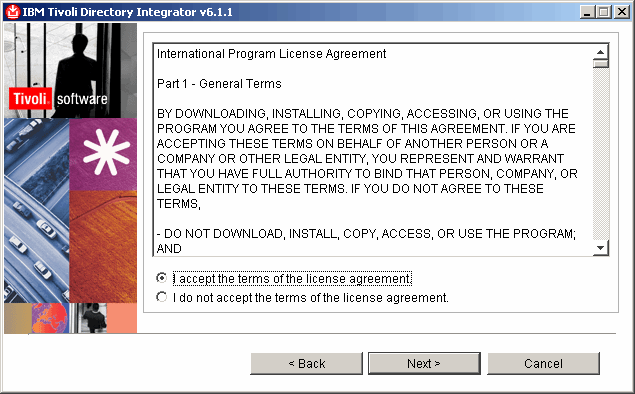
Accept the license agreement and click Next to confinue.
|
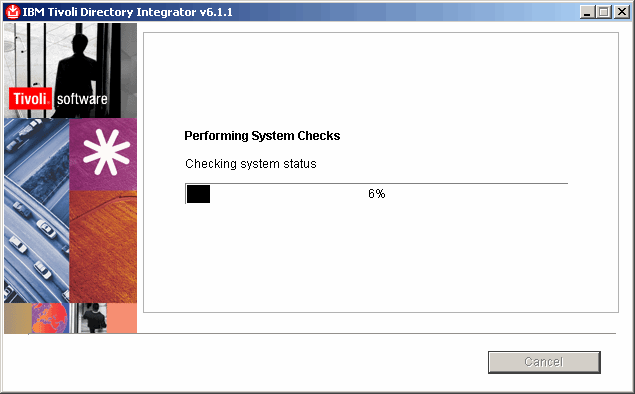
As the installer checks things out on your PC, you should see the following:
|
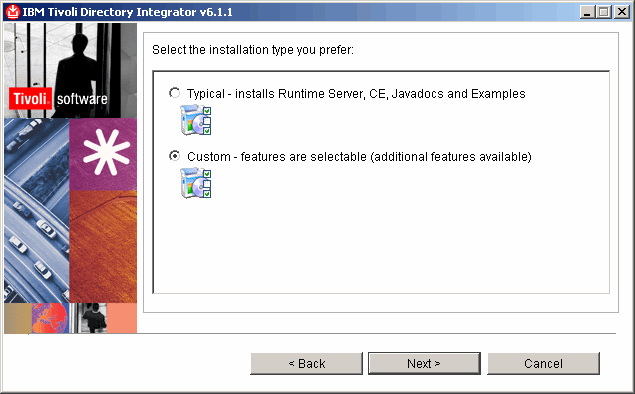
Decision time; and I don't know about you but we ALWAYS choose custom installs on all Microsoft
systems. It is always good to see what the installer plans to install, just in case there is
something you do not wish to install. Click Next to continue.
|
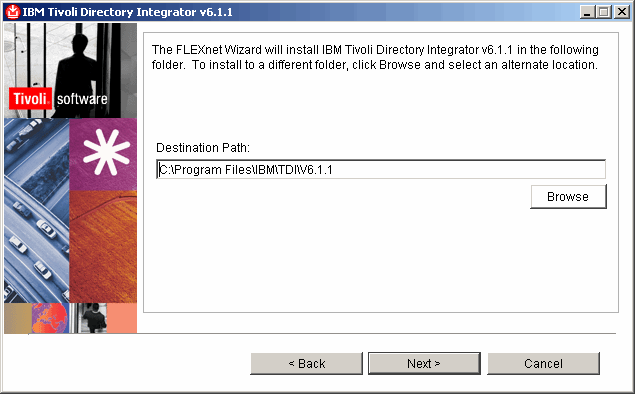
Accept the default path as we have done, or change it to whatever you like. Then click Next
to continue.
|
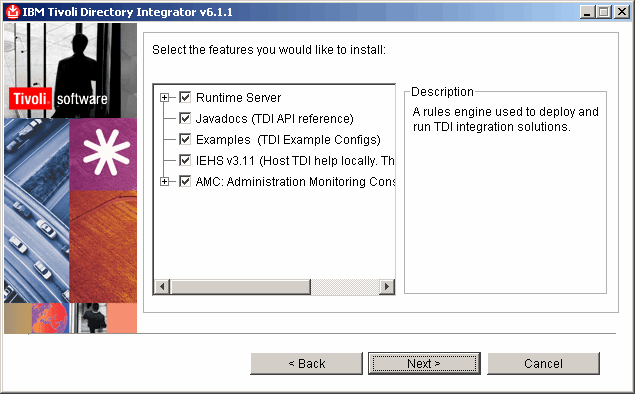
In this case we do want to install everything, so simply click Next to continue.
|
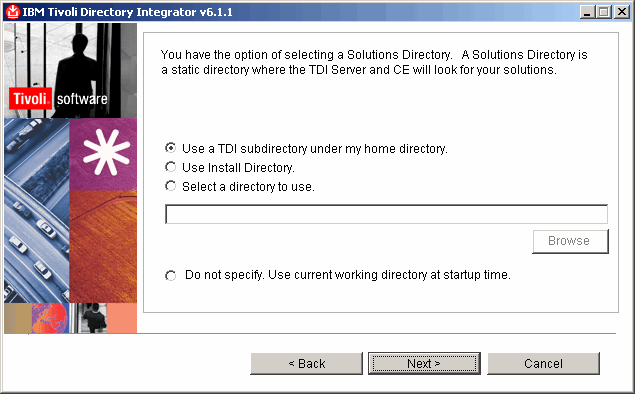
If you are installing TDI on a multi-user system we might want something other than the default here.
However, for the most part, Windows XP is a single user system and we might as well keep our creations
in our home directory. Click Next to continue.
|
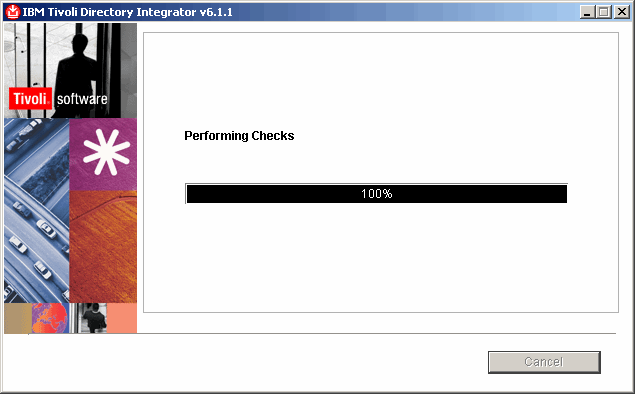
Another informational screen here:
|
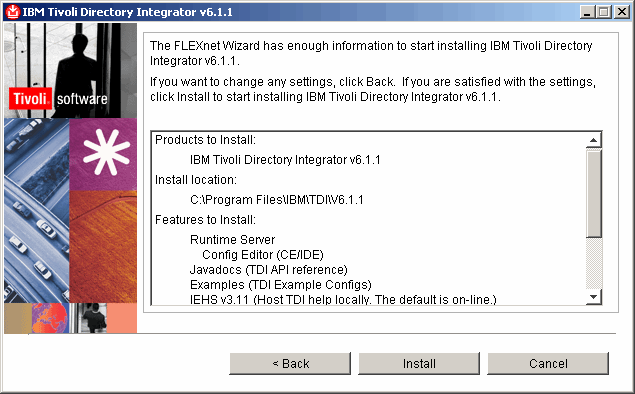
Last chance to make installation changes here. If ready, pull the trigger by clicking Install.
|
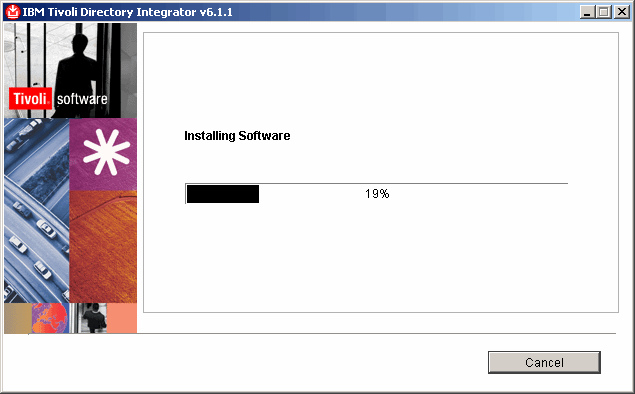
More informational stuff here:
|
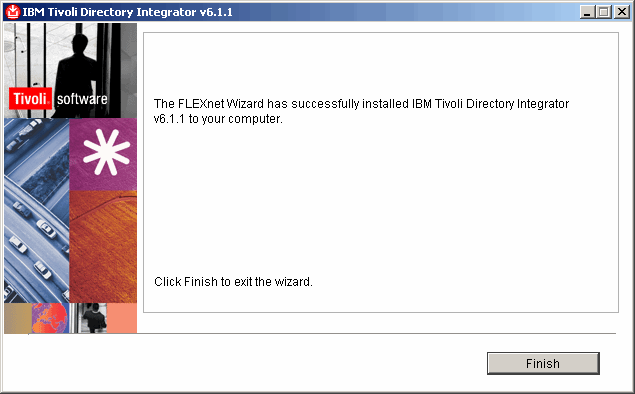
When we see the following screen, installation of TDI 6.1.1 was successful.
|
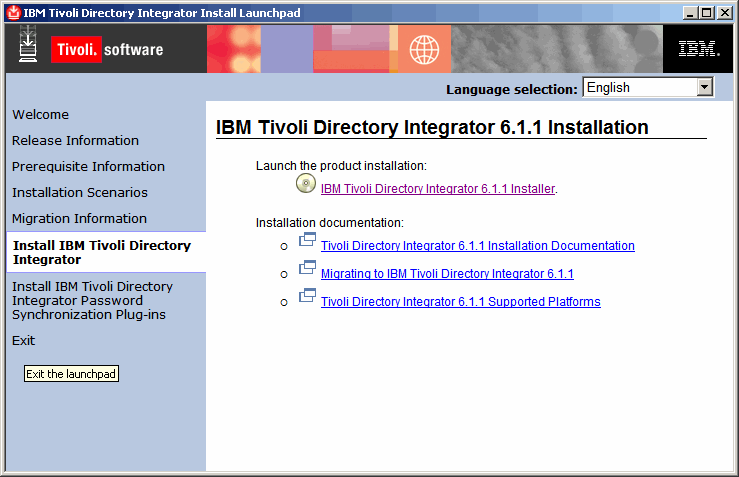
Once we are brought back to the initial install screen, click Exit, on the left panel,
to continue.
|
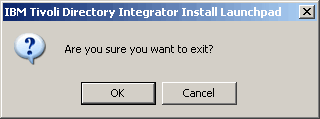
Click OK to confirm that we really want to exit.
|
|
Install Fix Pack 2
|
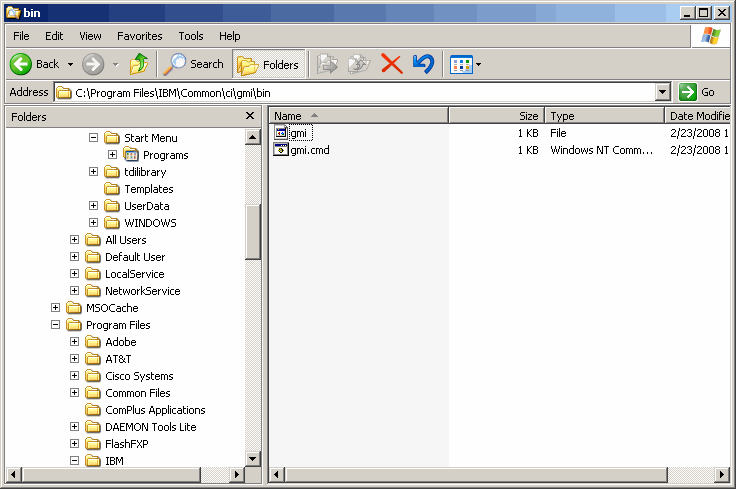
To install a fix pack, find gmi.cmd, as shown below, and execute it.
|
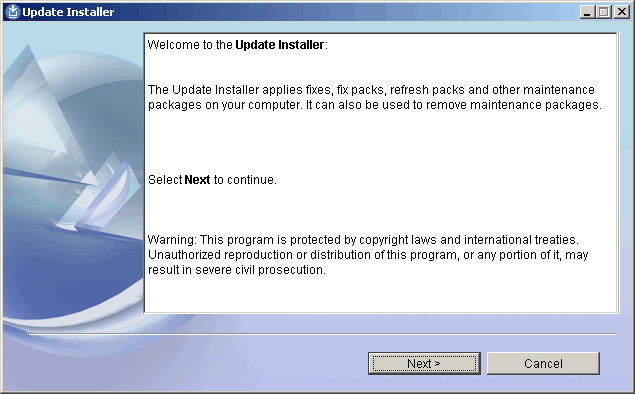
Another Java installer. Click Next to proceed.
|
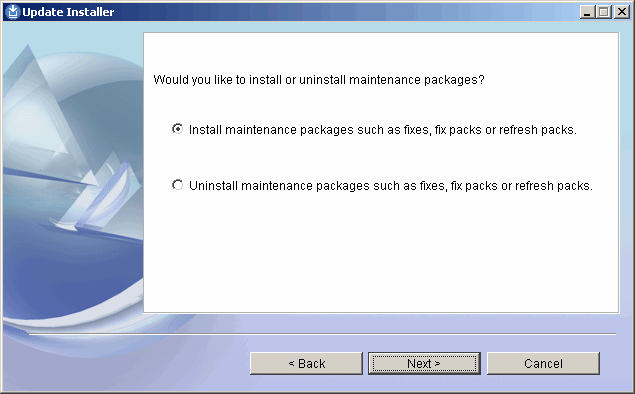
The default action is to install a maintenance pack. Take it and click Next
to continue.
|
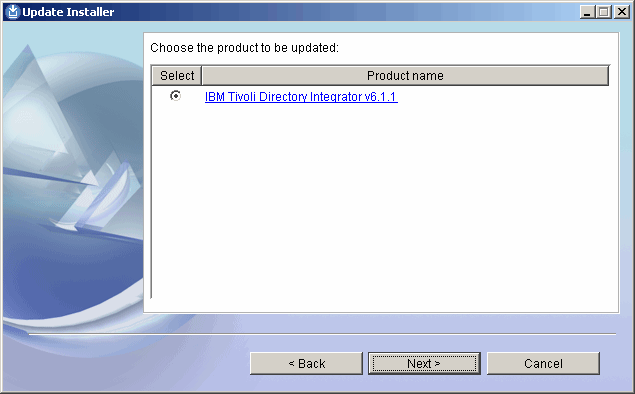
The installer identifies what prducts are installed. In our case it is easy. In any
case, select TDI and click Next to continue.
|
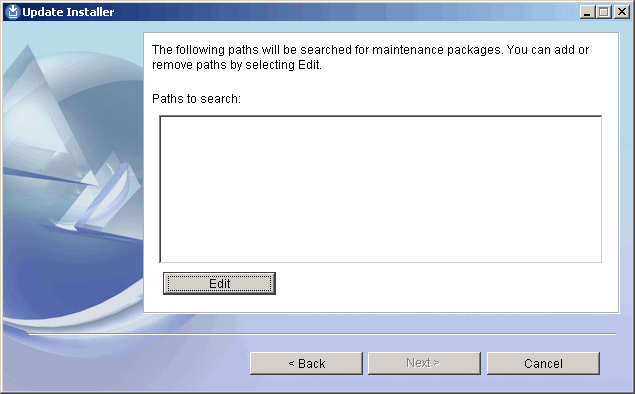
This would not be an IBM installation without a little confusion, so let's start it here.
As we see, the installer cannot find any fix packs to install, so it needs help. We click
Edit to tell the installer the location of the fix pack.
|
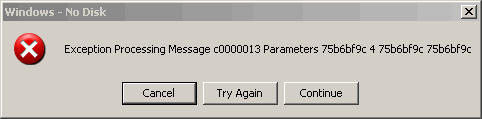
Bogus error message here. Click Continue to proceed.
|
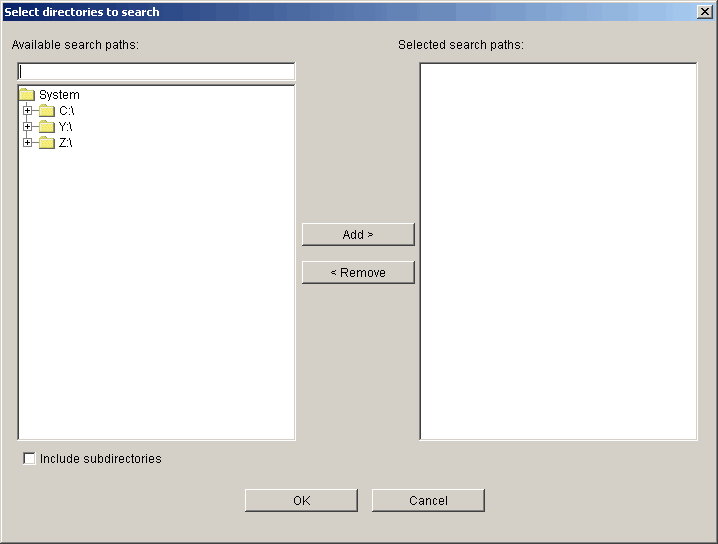
Somehow this brings us beyond the error message. We need to select the location of the fix pack.
|
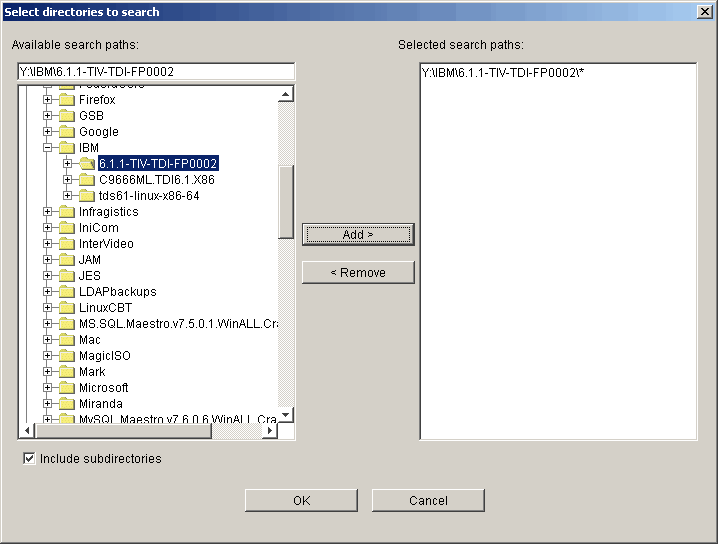
Drill down to the fix pack location and be sure to click the "Include subdirectories" check box
at the bottom of the screen. By the way, this seemed to be incredibly slow and required much
patience.
|
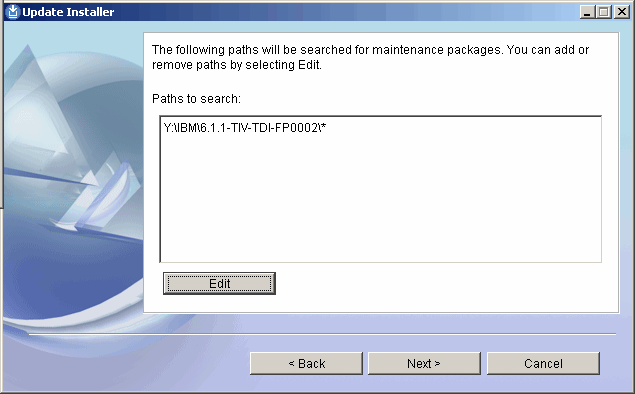
The installer found the fix pack. Click Next to continue.
|
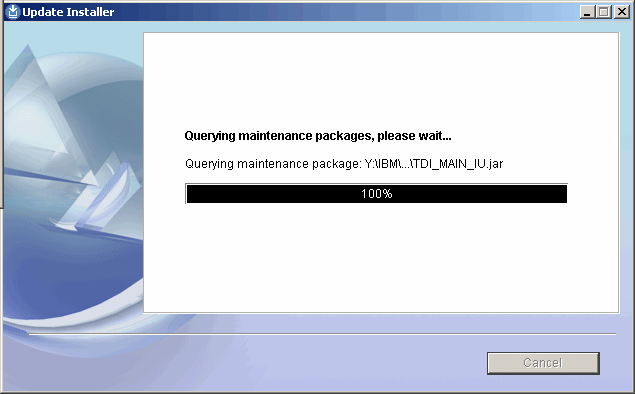
Another informational display:
|

Select the package to install, and click Next to proceed.
|
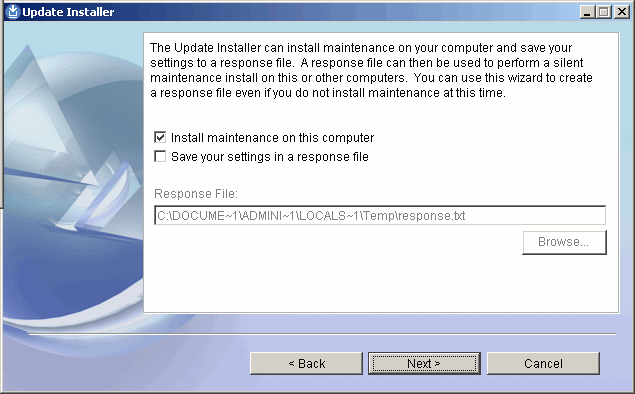
Take the default action as shown here and click Next to continue.
|
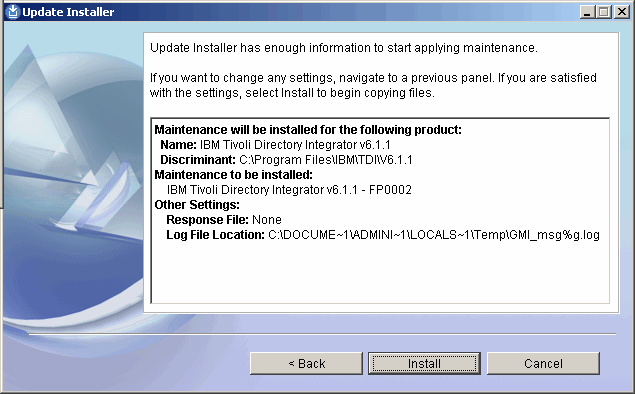
Last chance to stop this upgrade. If ready, click Install to continue.
|
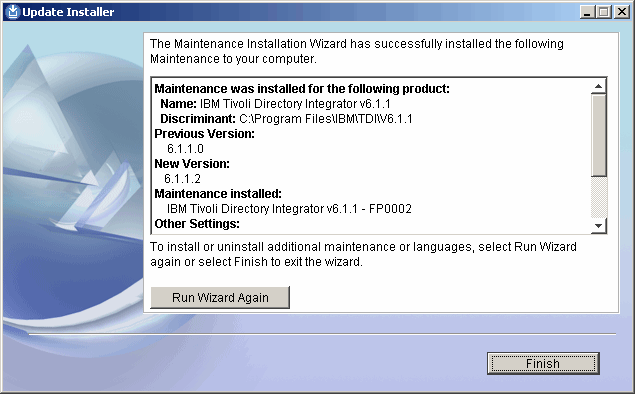
If you see the folowing screen, the fix pack installed sucessfully. Click Next
to continue.
|
|
Verify The Installation
|
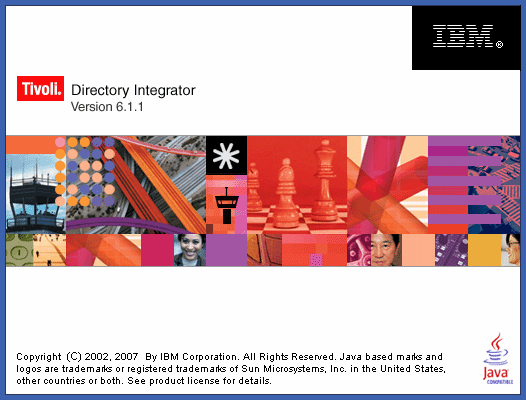
Start TDI. You will see the following splash screen.
|

The following should only appear once per system install. Click Yes to continue.
|
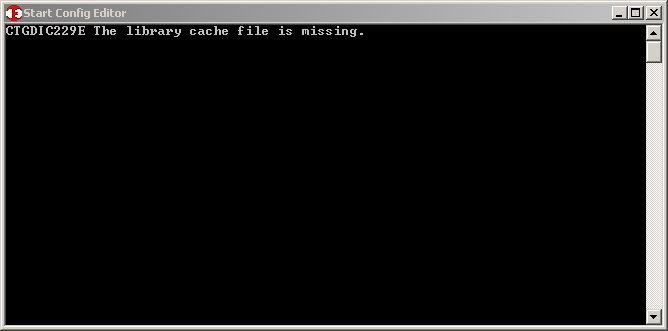
Not sure what this indicates, but it seems harmless enough. Dont you just love Java error
messages?
|
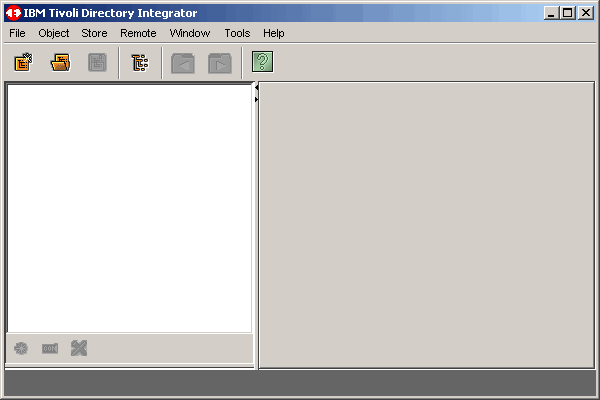
If you have come this far successfully, you have verified everything. The following screen
is the TDI IDE. We will go into the IDE in detail in later articles.
|
|
Conclusion
We have now completed the installation of TDI and FiX Pack 2. As always, IBM just has
to make it interesting with Java installation errors.
The product works just fine after the installation.
|
|
Printing
As it turns out, as we are busy working on the HTML/CSS/php/Java Script formatting of our articles,
pretty printing is not yet possible. We are working on it at a low priority.
|
