|
Tivoli: ITM 6.2.3 - Migrate the TEPS Database to a Remote DB2 Server
(c) Symmetric Web Sites, Inc. Author: Mark Hopkins Email Date: 02.18.2012 The Tivoli Enterprise Portal Server (TEPS) uses a database for storing information (user accounts, roles, groups, situations, etc.). Currently there are only two supported database types, DB2 and embedded. It is our understanding that the embedded database is Derby and only used for small environments. Neither option allows for the database to exist on a remote server, i.e. is "unsupported" by IBM. In most DB2 environments, the DBA's would prefer to have all databases on dedicated, highly available, centrally administered database server "farms". This article will describe a method for migrating a TEPS database to a remote DB2 database server. Article Index
Background
We have been deploying IBM Tivoli Monitoring (ITM) solutions for the past several years. Along
the way, we have also deployed Netcool/OMNIbus as a MOM (Monitor Of Monitors). Most components
of ITM and OMNIbus are highly available, without clustering software. For example, the concept
of a backup TEMS, multiple Remote TEMS, dual Object Servers, etc. Even the Tivoli Integrated
Portal can be configured as highly available. The exception to these has always been the TEPS.
Our guess is that the TEPS will eventually be phased out in favor of the TIPS (or WebTop). If
this is true, it would explain several things, including a lack of support for the TEPS using
a remote database server.
Assumptions / Requirements
In this article we are going to assume that you already have a configured ITM environment including
a TEMS and a cnfigured TEPS as well as a remote DB2 database server. We are also going to assume that
you have a good understanding of ITM, Linux as well as DB2.
|
|
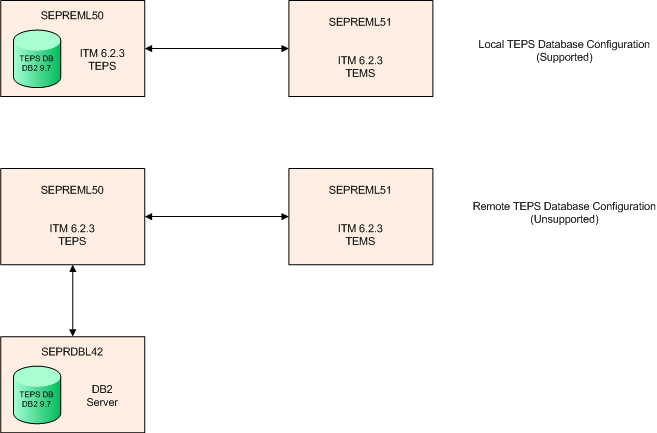
Architecture The following simple, self explanatory diagram depicts the architecture of this article. |
|
|
|
Commands Used
The following commands are used in this article:
|
|
Procedure Now that we have laid the groundwork, let's get going with the actual steps. |
|
Backup The Local TEPS Database |
|
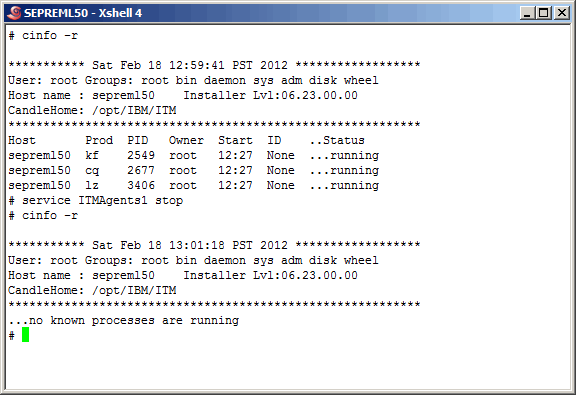
Before we perform the TEPS database backup, let's make sure that no applications are
using the database. Since we know that the only application using it is the TEPS, let's
shut it down. We are going to use the Linux "service" command to stop all ITM related
processes on the TEPS.
|
|
|
|
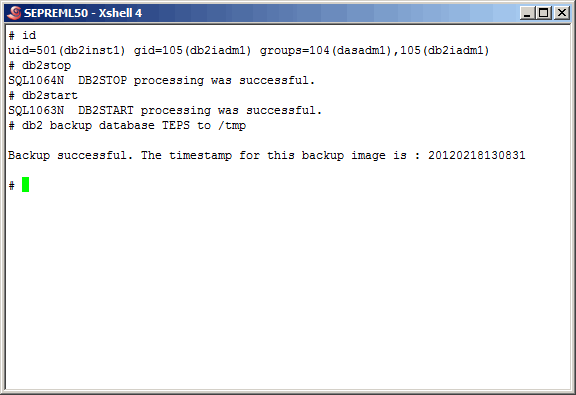
To make sure that all applications are disconnected, let's stop and then start the local TEPS database.
Actually, if the database still thinks that there are still connections active, the db2stop command
would not work. At that point we could force the issue, however in this case it was unnecessary as
you can see here.
|
|
|
|
Restore The Local TEPS Database To Remote DB2 Server |
|
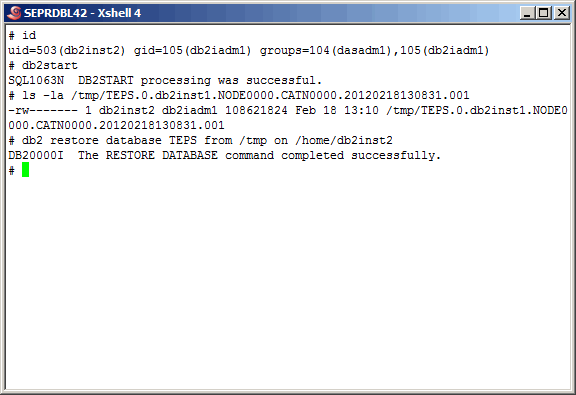
Before we continue, we must mention that we left out a couple of basic Linux steps. After
the local database backup, we copied the backup to the DB2 database server (seprdbl42) and
changed the file ownership to "db2inst2". On the remote DB2 server, there are two versions
of the DB2 Enterprise Server running. The "db2inst1" account is used by DB2 V9.5, and the
"db2inst2" account is the owner of the DB2 V9.7 instance. We of course want to use V9.7.
Having said all that, perform the database restore as shown here. Again, notice that these
operations are performed by the "db2inst2" user.
|
|
|
|
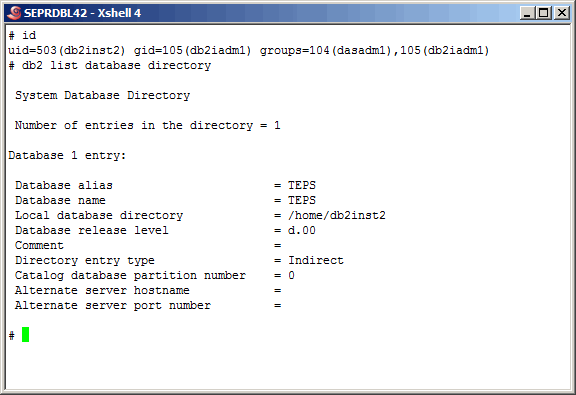
A database directory listing shows that the database restore also cataloged the database.
|
|
|
|
Verify Local Connectivity On Remote DB2 Server |
|
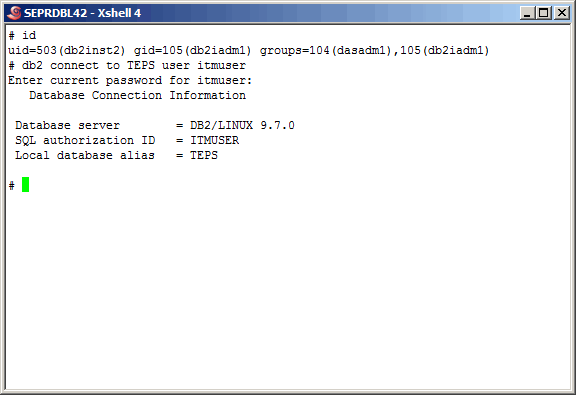
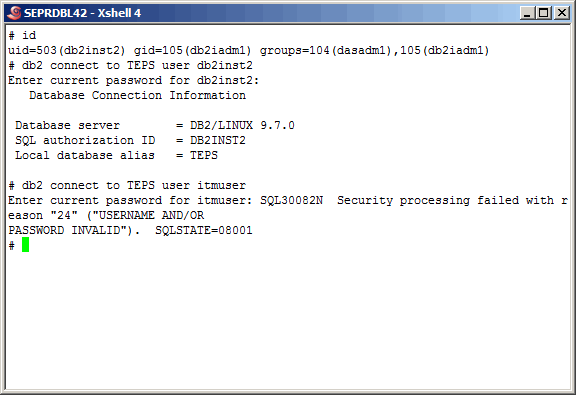
At this point we need to verify that we can connect to the restored TEPS database,
locally on the DB2 database server. After all, if we cannot authenticate locally
we won't be able to from the TEPS. We also must not forget that the most important
account is "itmuser". As you can see here, we easily connect as the instance owner
"db2inst2" but fail using "itmuser". We expected this as the "itmuser" account does
not exist (yet) on this server.
|
|
|
|
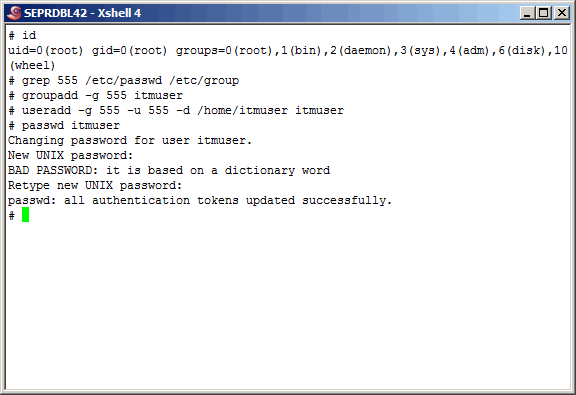
Here we create the "itmuser" group and user, and assign it the appropriate password. It is
not obvious here, but we do not have to synchronize the user/group id with the "itmuser" on
the TEPS. Notice that all of this must be done by the "root" user.
|
|
|
|
All now seems well on the remote DB2 server, authentication wise.
|
|
|
|
Configure The TEPS For Remote Database Connectivity |
|
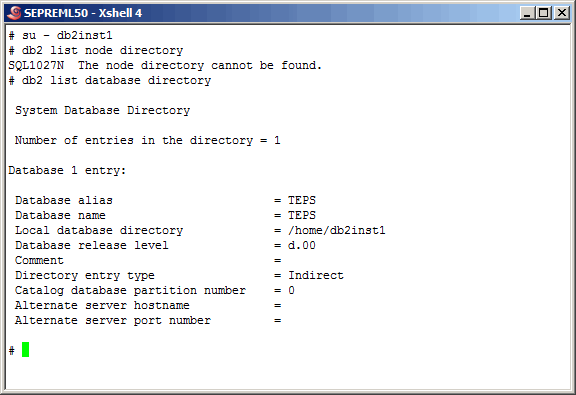
Back on the TEPS, switch to the "db2inst1" user and list out the currnet node and database
directory. As we expect there are no nodes defined. We will need to catalog a node and a
remote database.
|
|
|
|
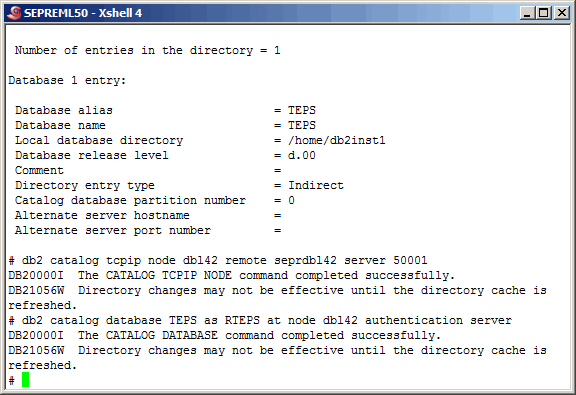
Catalog the node and the remote database as shown here.
|
|
|
|
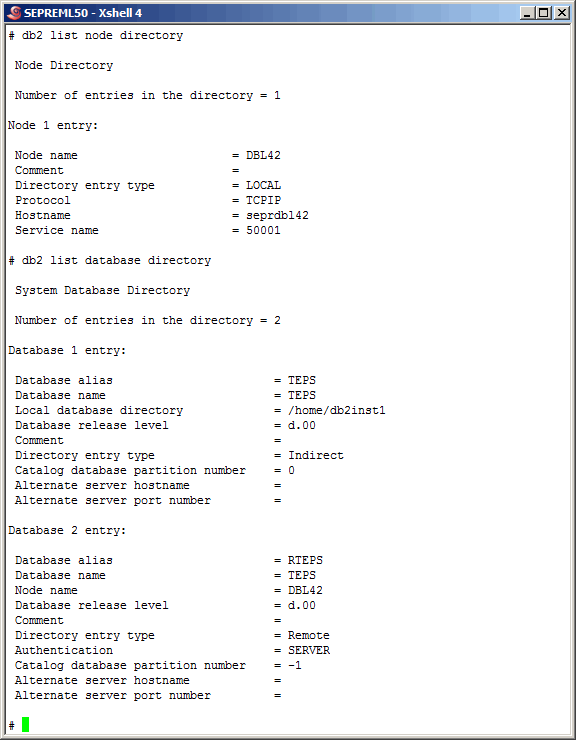
List the node and datbase entries again. This looks good.
|
|
|
|
Verify Remote DB2 Connectivity |
|
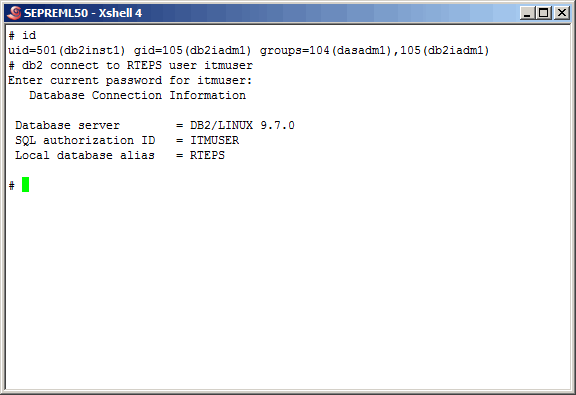
Here we show that we can successfully connect to the remote TEPS (RTEPS) database
with the "itmuser" account.
|
|
|
|
Configure The TEPS Against Remote Database |
|
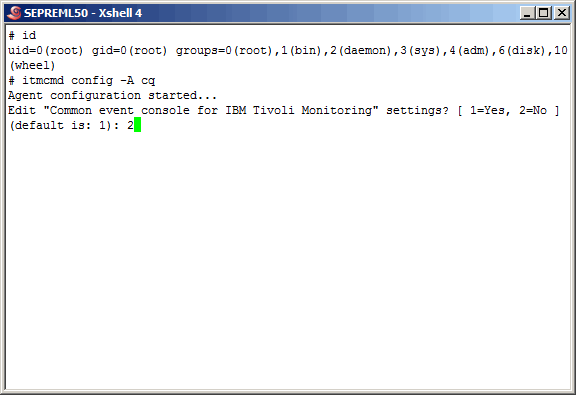
Now that everything has been configured from a remote database perspective, let's put it
to the test by configuring the TEPS (CQ TEMA) against the remote TEPS (RTEPS) database. We
start with the "itmcmd config -A cq" command issued on the TEPS by the "root" user.
|
|
|
|
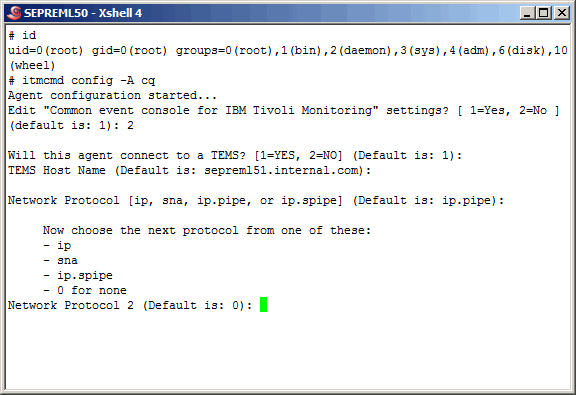
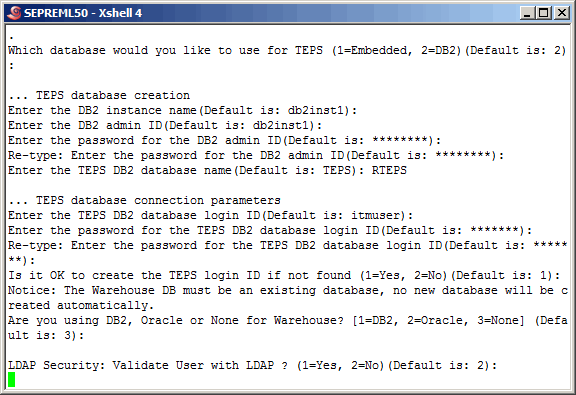
Take the defaults as shown here.......
|
|
|
|
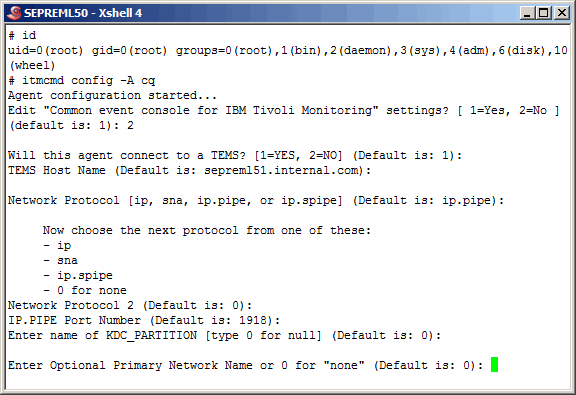
More defaults here...........
|
|
|
|
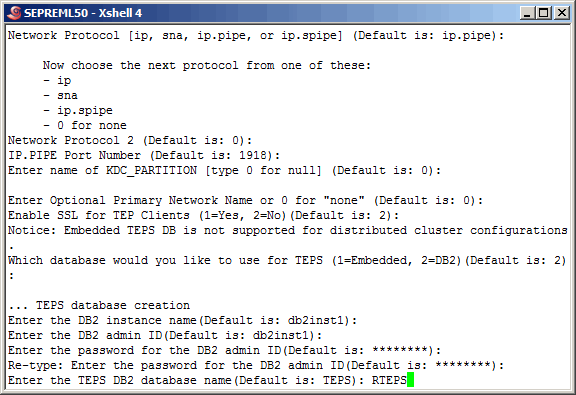
More defaults, until we reach the point of entering the TEPS database. We will use the defined
DB2 alias "RTEPS".
|
|
|
|
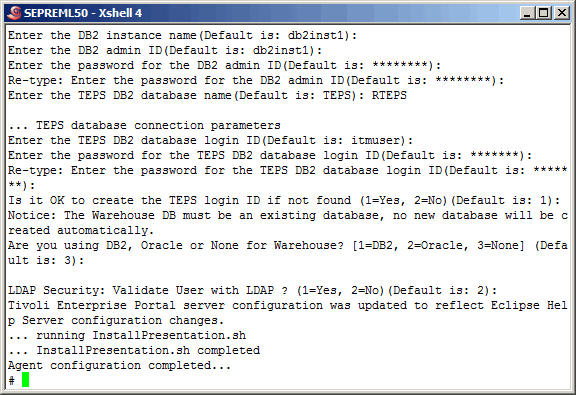
And again, more defaults.......
|
|
|
|
It appears that we have a successful TEPS configuration.
|
|
|
|
Verify The TEPS Against The Remote DB2 Database |
|
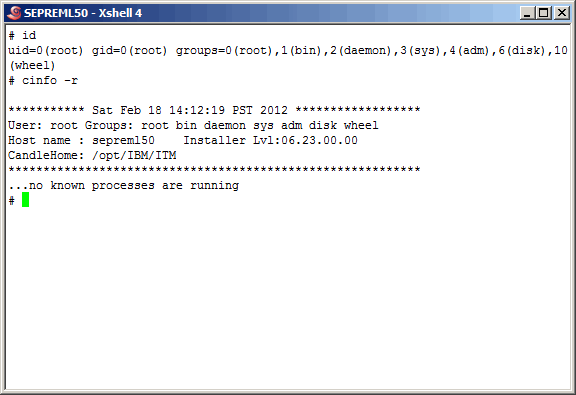
On the TEPS we see that there are no ITM processes running, as we would expect.
|
|
|
|
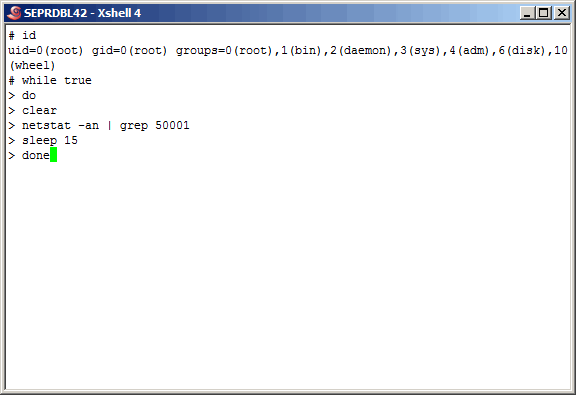
On the remote database server, we start a loop that checks for connectivity to the remote
TEPS database, as it listens on port 50001.
|
|
|
|
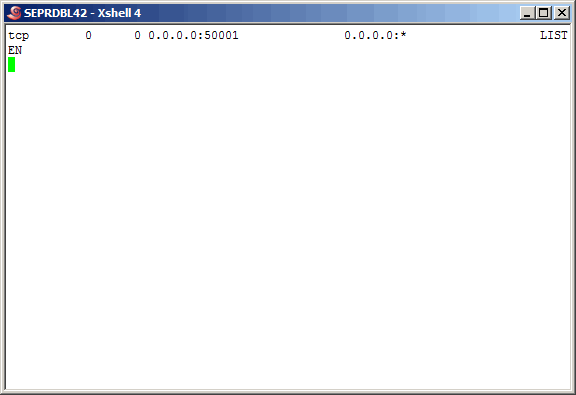
At this point we see no connections, as expected.
|
|
|
|
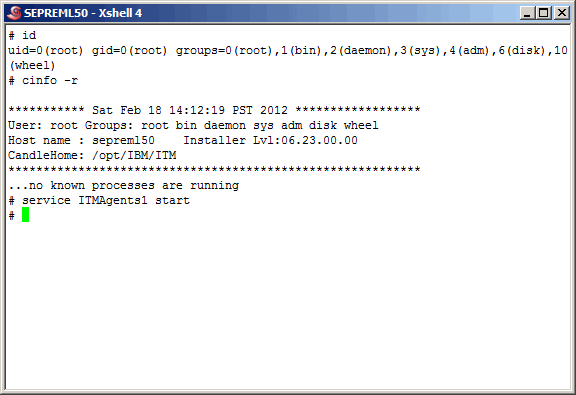
Now that we have "set the table" on the remote DB2 server, let's start the ITM processes
on the TEPS server (sepreml50).
|
|
|
|
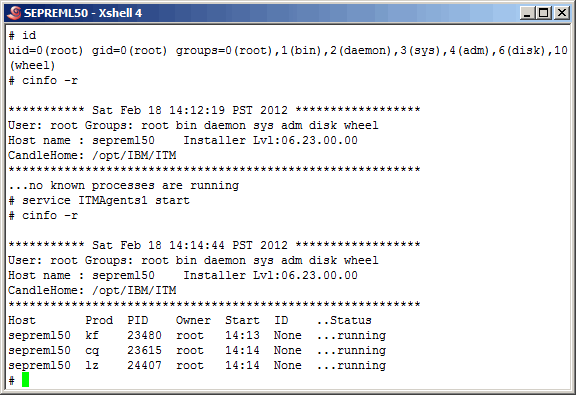
Verify that the processes are running.
|
|
|
|
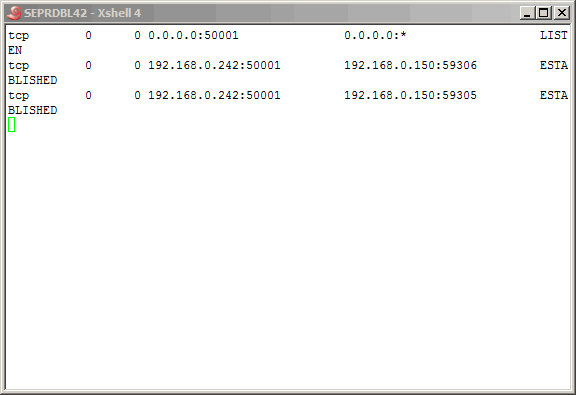
In a few minutes we see new conections on the remote database server, and they originate
from the TEPS.
|
|
|
|
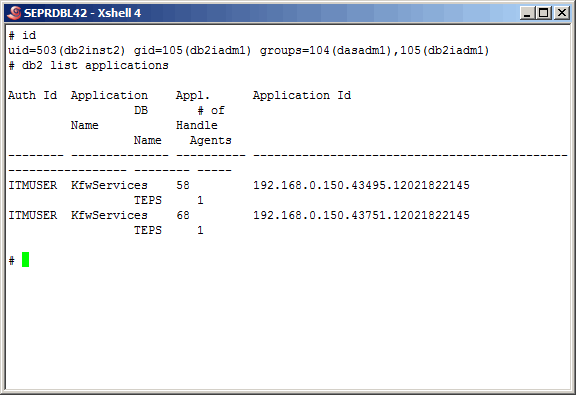
As more proof we can list the db2 applications as shown here.
|
|
|
|
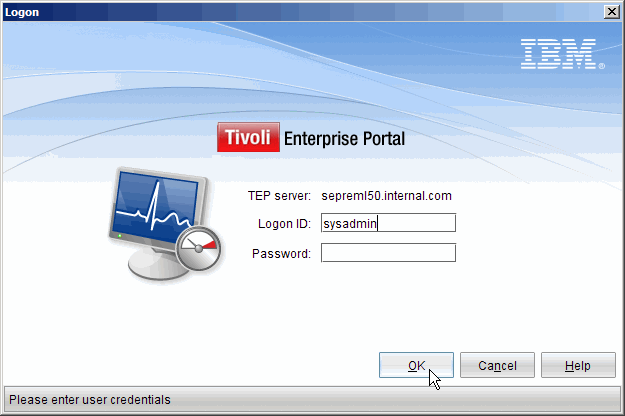
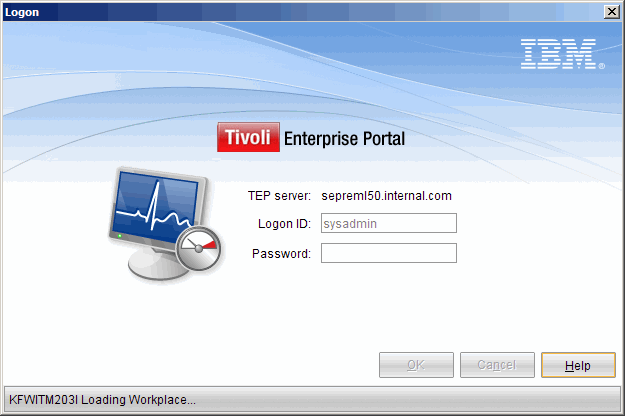
Now let's log in to the TEPS.
|
|
|
|
As we all know, once we see the "Loading Workplace" we can assume a successful connection. We will
not show any more of the GUI. Rest assured that it did start completely.
|
|
|
|
Verify Export/Import Scripts Against The Remote DB2 Database |
|
As stated earlier in this article, we have been working with ITM for several years. During that
time, the only two TEPS DB related functions we have ever done is to (1) reconfigure it, and (2) backup
and restore it. This section will focus on the later. First, to ensure that the IBM supplied scripts
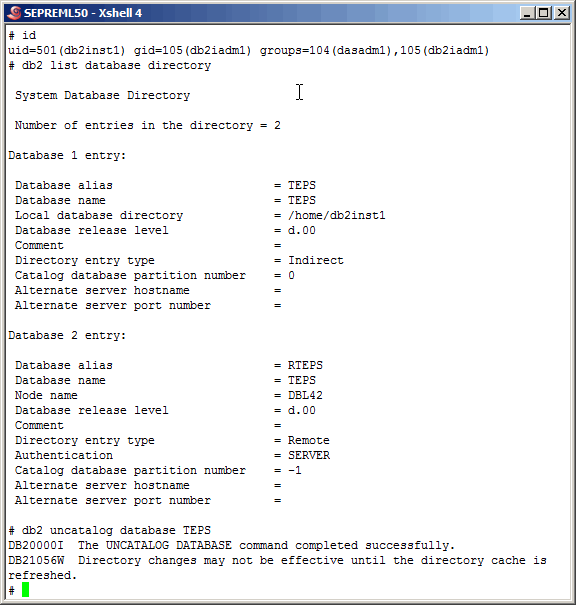
are not "hard wired" to the name "TEPS" and that we can use the DB2 alias "RTEPS" we will uncatalog
the TEPS database. This step does not delete the database, rather disables it.
|
|
|
|
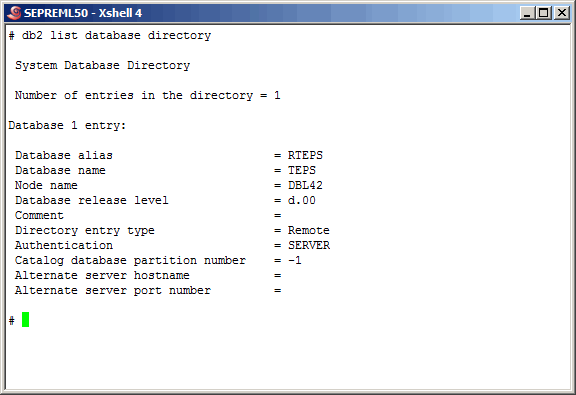
Listing the database directory again verifies that we no longer see the old local TEPS database.
|
|
|
|
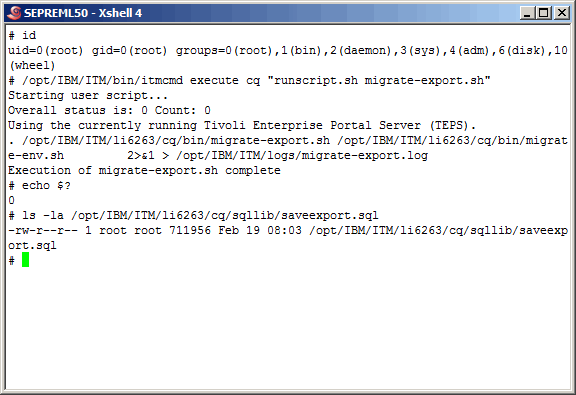
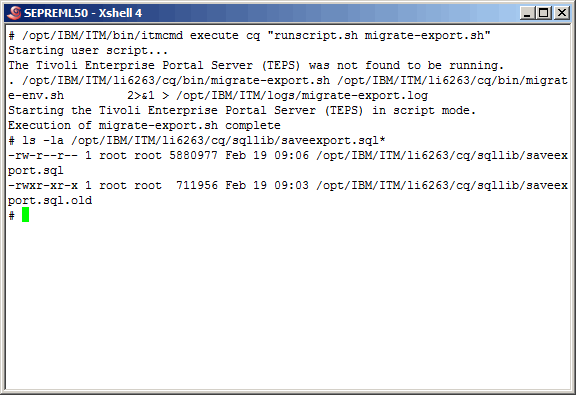
Here we run the IBM-supplied migrate-export.sh script. We have used this script for backup/restore
purposes from and to the same database as well as restoring to the datbase of the backup TEPS. Another
way to backup/restore to the same database is via the DB2 backup/restore commands. Your DBA's might be
performing the backups for you on a regular basis. After running the script we take a look at the size
of the saveexport.sql file created. We notice that the file is quite small, however that is easily explained
by the fact that this TEPS database is practically empty and that nothing has been done to the TEPS as all
at this point.
|
|
|
|
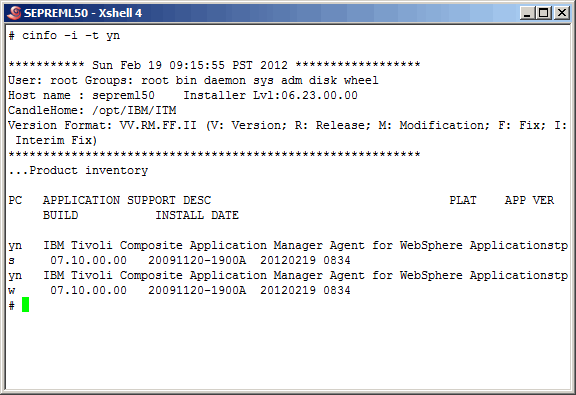
At this point there are many things we could do to change the TEPS database. We choose to
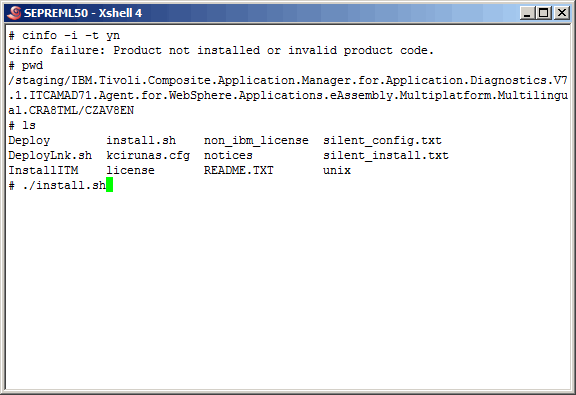
add product support and reconfigure the TEPS database. Here we add product support for the
YN TEMA (Tivoli Enterprise Monitoring Agent). This is the ITCAM for AD WebSphere Agent, however
for the purpose of this article there is no need to understand that product at all.
|
|
|
|
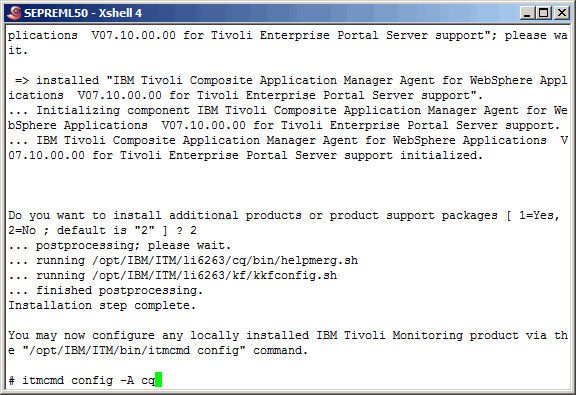
We skipped through some defaulted steps and here we see that the product support was successfuly
added. This in itself does not change the contents of the TEPS database. However, when we reconfigure
the TEPS, the database will also change, as you will see. So let's use the "itmcmd config -A cq"
command to reconfigure the TEPS.
|
|
|
|
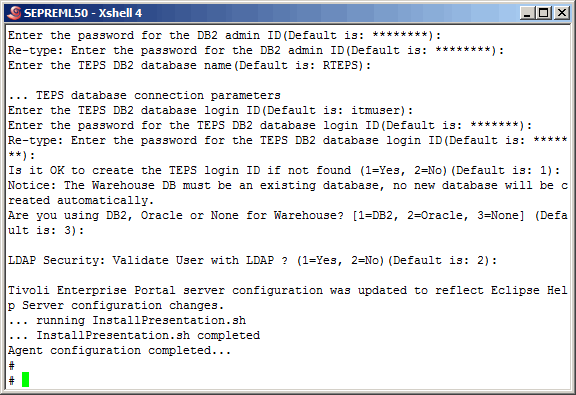
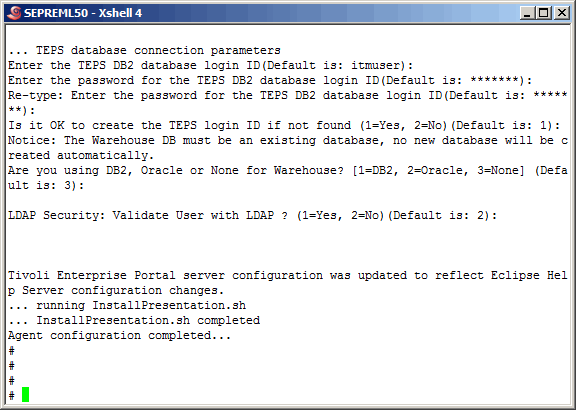
Again, we skip some screens and see that we were successful in reconfiguring the TEPS.
|
|
|
|
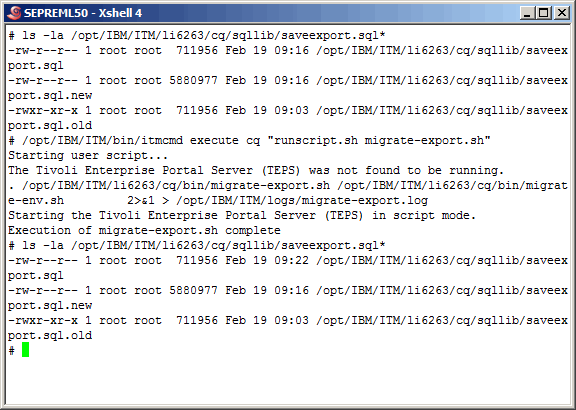
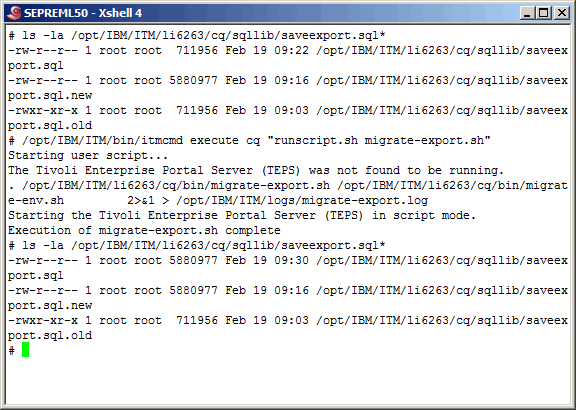
Here we run the migrate-export.sh script again, however prior to running it, we renamed the previous
output to saveexport.sql.old to avoid it being overwritten. We will use it to prove a point later. After
running the migrate-export.sh script, notice the difference in the sizes of the backups. Obviously
adding product support and reconfiguring the TEPS added content to the TEPS database.
|
|
|
|
We never verified product support for the YN TEMA after installing it, so let's do so here.
|
|
|
|
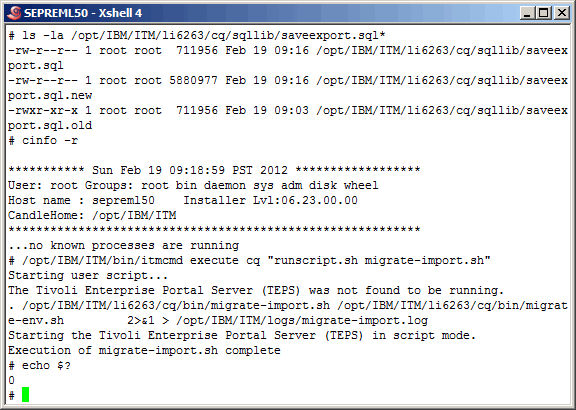
Here we have manipulated the previous exports. Notice that we again copied the saveexport.sql
with the ".new" extension, and replaced the saveexport.sql with the original backup. We did this
because we are not ready to restore the TEPS database to it's original state, prior to the most
recent TEPS reconfigure. Now we successfully restore the database using the migrate-import.sh
script as shown.
|
|
|
|
Now we run another migrate-export.sh and we see that the current TEPS database size is exactly
(to the byte) size as it should be, the original size.
|
|
|
|
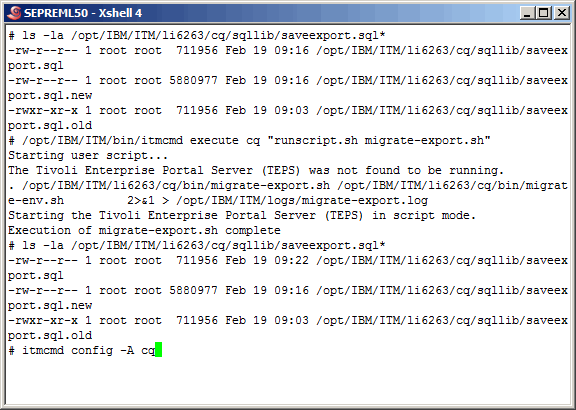
Now, what size will it be if we reconfigure the TEPS? Let's do it and find out. Reconfigure the
TEPS using the "itmcmd config -A cq" command as shown.
|
|
|
|
Again we skip some screen shots and see that we have successfully reconfigured the TEPS.
|
|
|
|
Again we perform another migrate-export.sh and see that the size of the TEPS database export is
exactly (to the byte) the same size as it was prior to the restore. This is exactly what we
were hoping and expecting to see.
|
|
|
|
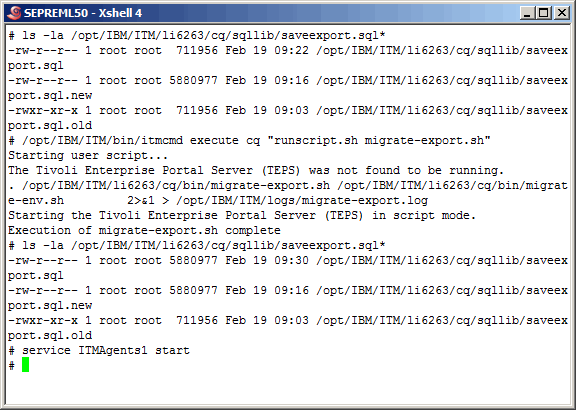
Start all ITM related processes on the TEPS server as shown.
|
|
|
|
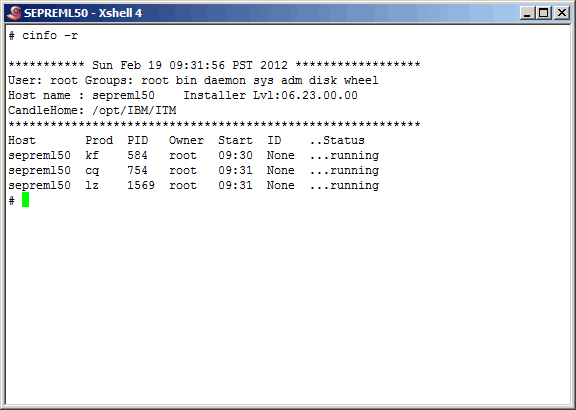
Verify that they have started. We will not show you that we logged back in to the TEP
successfully, but we did as we did in a previous section.
|
|
|
|
Conclusion
So, what can we conclude from all of this? Well, you tell us with your thoughts on the
topic. What we can tell you is that this configuration works in this small tightly controlled
environment, however we cannot accept any
responsibility for anything should you chose to apply it to your environment. As we stated
earlier, there does not seem to be any good reason as to why this remote TEPS database configuration
will not work, but then we are not IBM. We contacted IBM and all they would say is that "it is not
supported at this time but might be in a future release". At a minimun
we have been able to show you some really good Linux, ITM and DB2 concepts and commands. Do
let us know what you think.
|
|
Printing This Article
If you have trouble printing this article, be sure to set your browser Page Properties correctly. Go
to File -> Page Setup and set your left and right margins to .125 inches.
|