|
Tivoli: Creating A Tivoli Directory Server 6.1 LDAP Instance
(c) Symmetric Web Sites, Inc. Author: Mark Hopkins Email Date: 02.21.2008
Tivoli Directory Server 6.1, as with many other IBM products can, at times, be nearly impossible to install.
However, we found it much easier to install this product on Redhat Enterprise Linux 5.1, than on IBM's own AIX.
What also seems true is that once the product is installed, it runs very very well. In the following article, we
will not exactly test the "strength" of TDS, rather perform the necessary steps to create and verify an LDAP
instance.
Background In a previously written article (TDS: Installing Tivoli Directory Server 6.1 On RHEL5.1) we stepped through a complete procedure to get TDS 6.1 up and running on Redhat Enterprise Linux 5 Update 1. So now what? We all know that there are many possible uses for an LDAP server, and many system administration tasks to be performed along the way. In this article we step through a process for creating and managing a basic LDAP instance on TDS 6.1. In future articles we might address such topics as "Leveraging LDAP For Enterprise Authorization", "LDAP Replication With Tivoli Directory Server 6.1", and "Using Tivoli Directory Integrator 6.1.1". Hopefully we will be able to provide a plethora of such articles as we march forward using this IBM offering. Assumptions / Requirements
The only assumption is that you have installed Tivoli Directory Server 6.1, successfully, on either an
AIX server or on Redhat Linux, and have verified the installation.
|
|
The hardware and Software configuration that we are using for this exercise is as follows:
|
|
Procedure Now that we have laid the groundwork, let's get going with the actual steps.
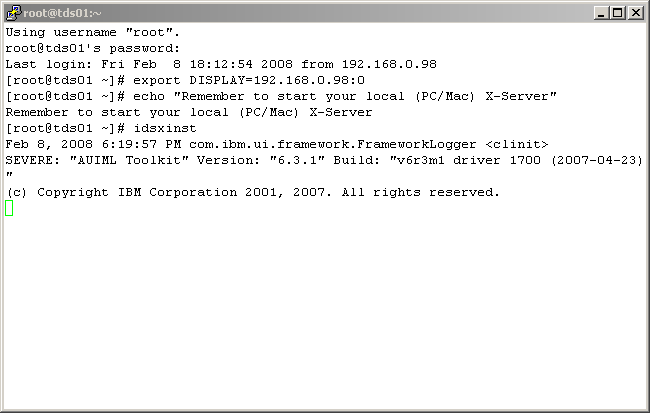
First, let's log into the TDS server, and do a little bit of setup work, including exporting the DISPLAY variable
as we will be using X-Windows. Then, execute the "idsxinst" command to begin.
|
|
|
|
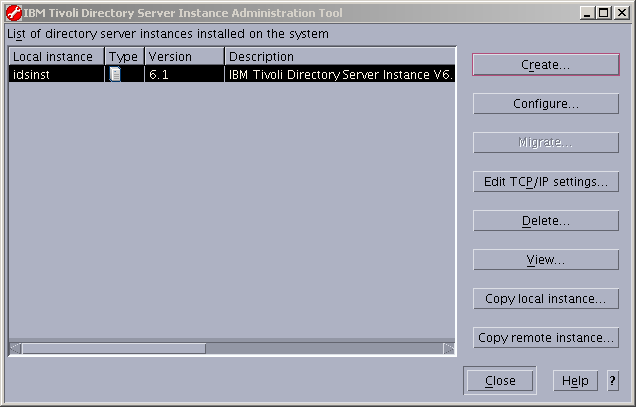
Once the "Instance Administration Tool" appears, on a newly created TDS server, you will probably
see the following. This probably indicates the default instance (idsinst) was created as part of the
TDS installation process. We will want to click on the Create... button to begin the
process of creating a new instance.
|
|
|
|
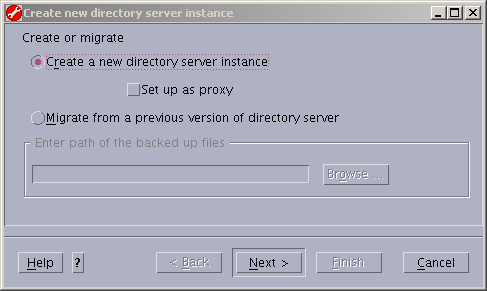
Take the default here and click Next to continue.
|
|
|
|
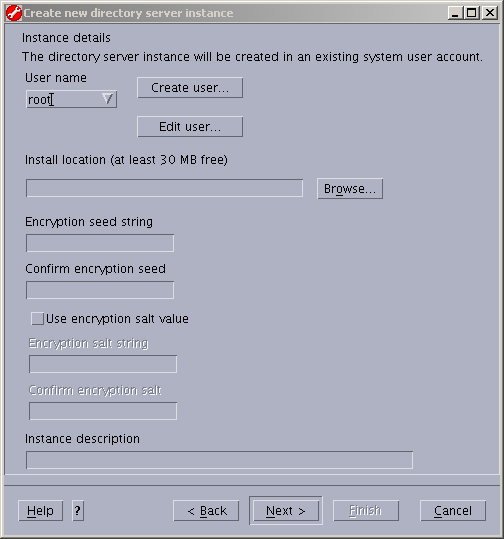
It seems that the standard thing to do here, is to create a new user per instance. This
should not create any real problem. After all, how many instances per server are we ever
going to create? So here, click the Create user... button.
|
|
|
|
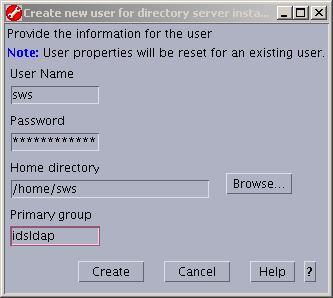
Since the LDAP instance name will be "sws" let's create an "sws" user. It seems inportant
to make the LDAP instance owner's primary group to be "idsldap", so do it here. All other
information can be whatever you like. We are choosing the defaults.
|
|
|
|
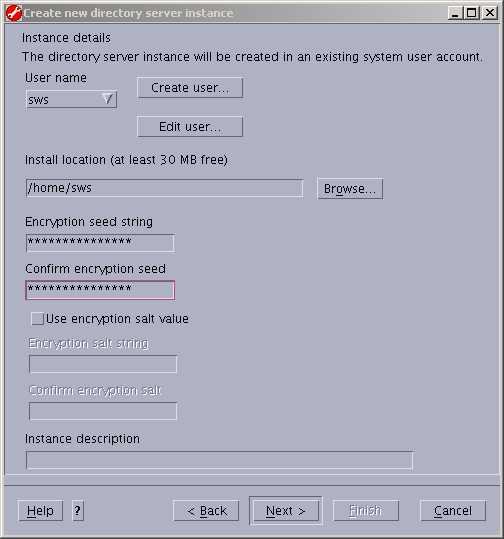
Notice the new LDAP instance owner is "sws". Fill in the remainder of the information
any way that is specific to your environment. Once again we have chosen the default install
location. The encryption seed used here is "123456789012345".
|
|
|
|
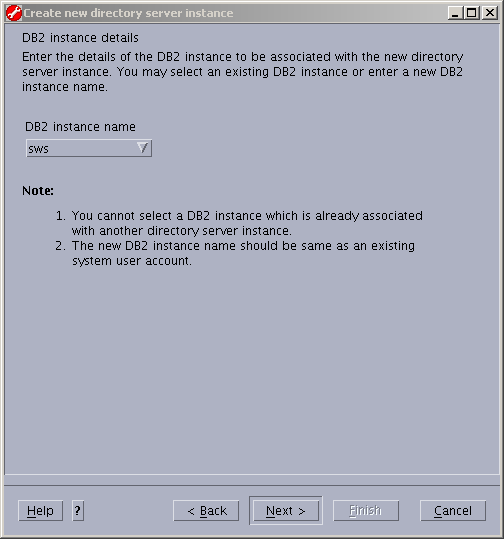
Take the defaults here and click Next to continue.
|
|
|
|
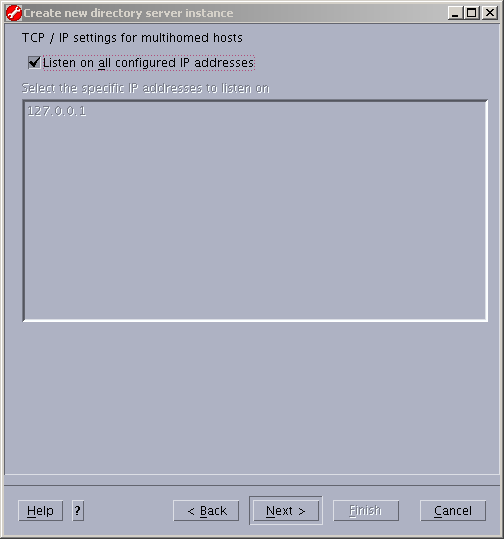
Again, take the defaults and click Next to continue.
|
|
|
|
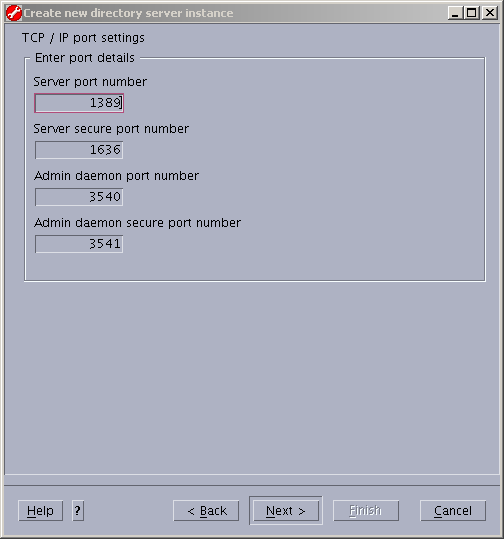
The TDS instance installer automatically increments port numbers as new instances are created. We
will take the defaults here, but of course you may chose whatever unused ports that you would like
to use. Click Next to continue.
|
|
|
|
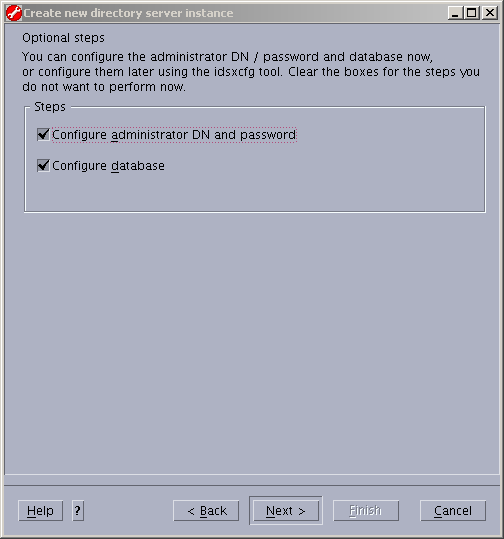
This is what we came to do, so here take the defaults and click Next to continue.
|
|
|
|
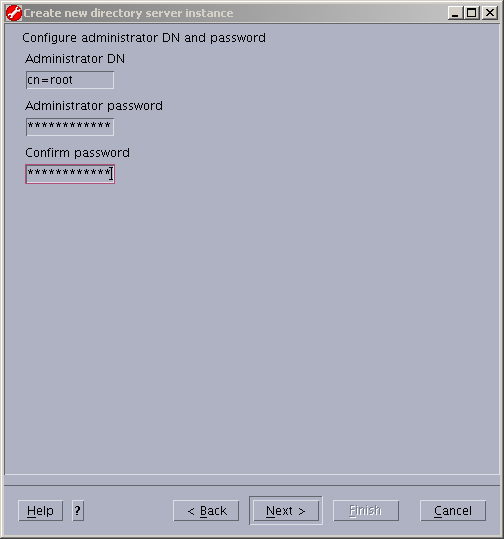
Define the administrator distinguished name (DN), assign it a password and
then click Next to continue.
|
|
|
|
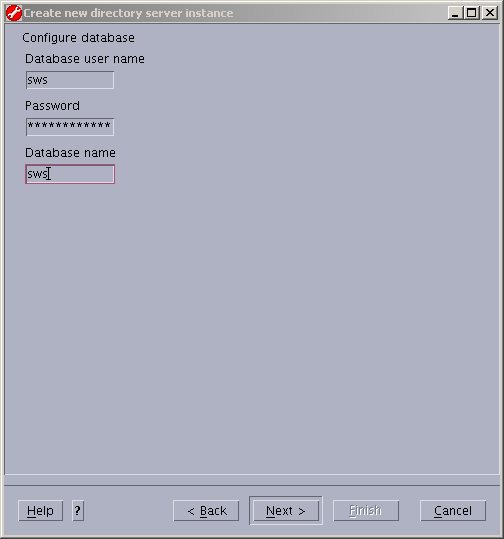
We stay consistent when naming the database and the database username. Then,
click Next to continue.
|
|
|
|
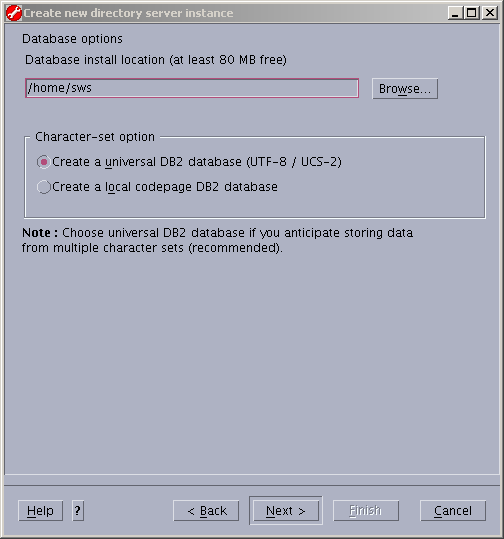
Install the database wherever you like, however we chose the home directory of
the "sws" user account home directory, then click Next to continue.
|
|
|
|
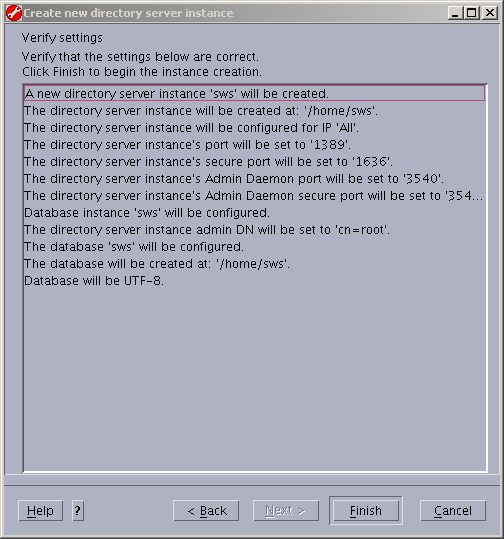
Verify what we have chosen to do, then click Finish to continue.
|
|
|
|
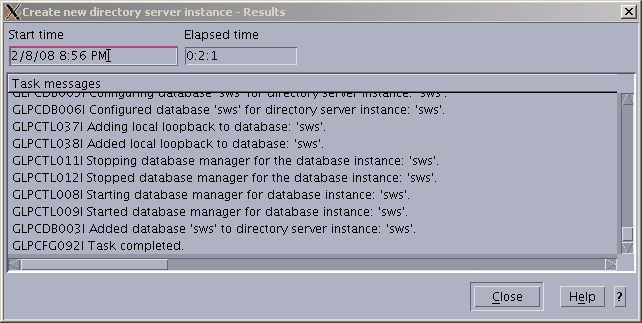
After the database and instance have been successfully created and configured, we see the
following. Click Close to continue.
|
|
|
|
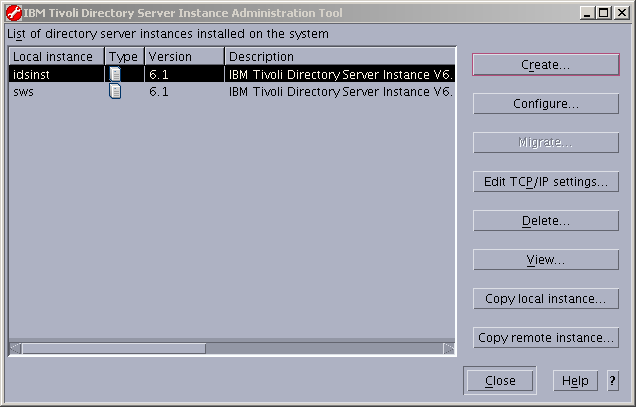
Now we can see that we have another instance available. then click Close to continue.
|
|
|
|
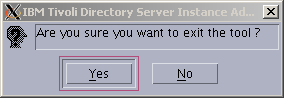
The ever annoying "are you sure?" message. Click Yes to continue.
|
|
|
|
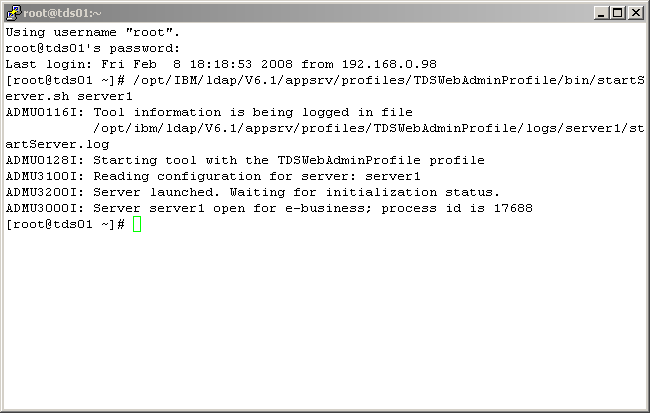
We now need to (1) make the new instance available to the TDS web administration interface, and
(2) ensure that the new instance will start up successfully. So, open another PuTTY session to the
TDS server. If the web administation interface has not been started, start it with the following command:
|
|
|
|
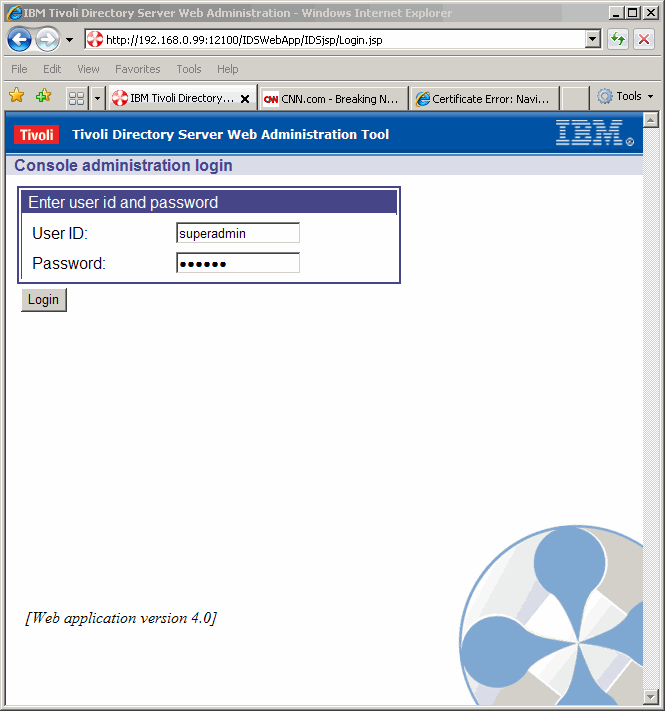
Using your favorite web browser, navigate to the following link as shown below:
|
|
|
|
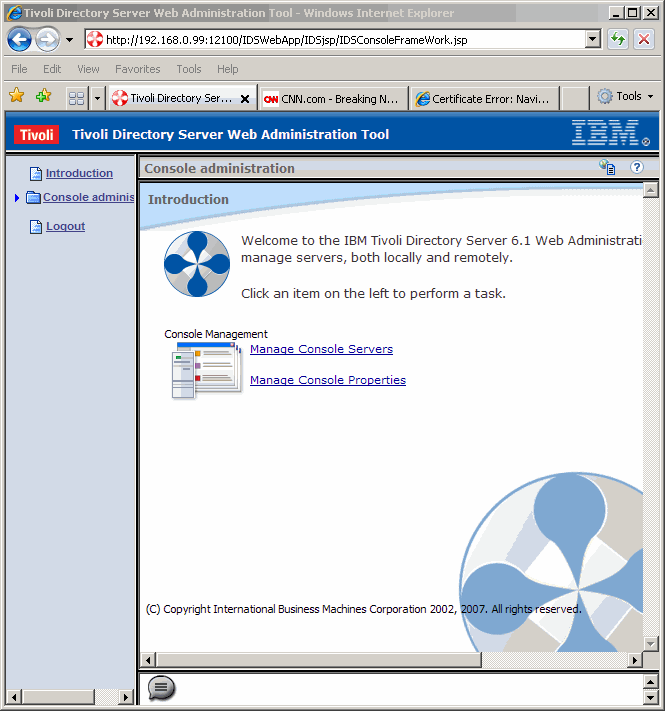
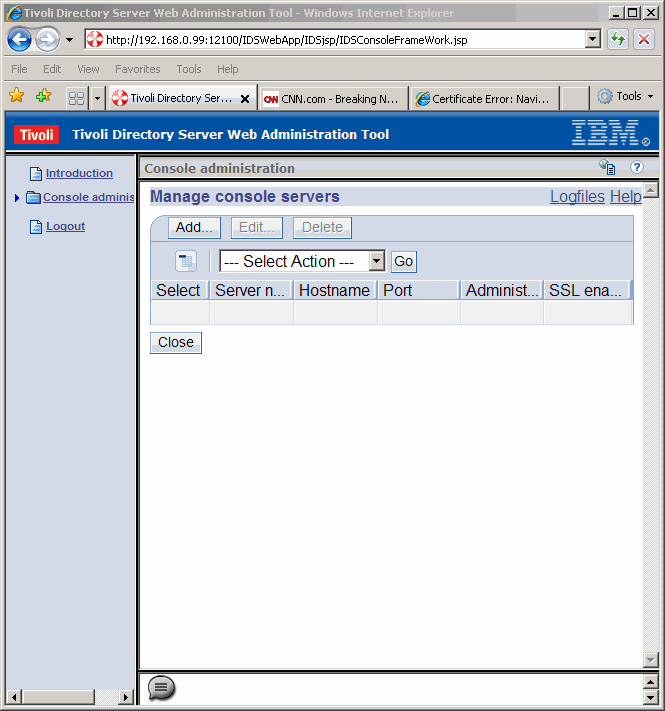
Once loged in, we want to click Manage Console Servers.
|
|
|
|
Click Add... to add a console server for the newly created LDAP instance.
|
|
|
|
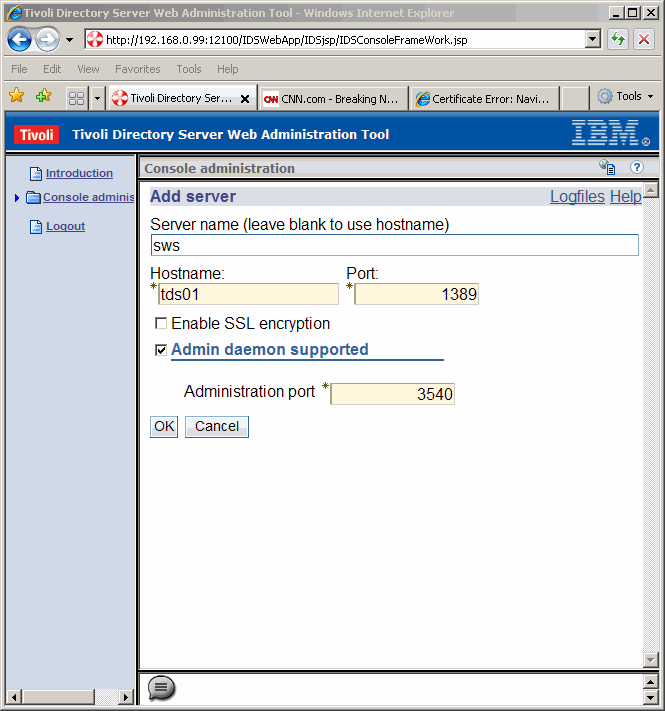
Complete the form, something like the following, and click OK to continue. Note that
most of this information can be gathered (if forgotten) from an earlier screen displayed above.
|
|
|
|
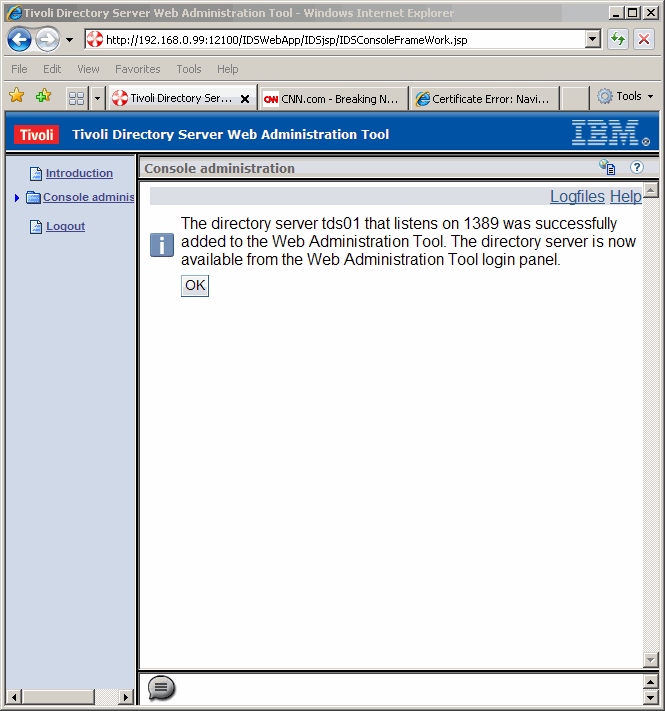
If all entered information is correct,we see the following. Click OK to continue.
|
|
|
|
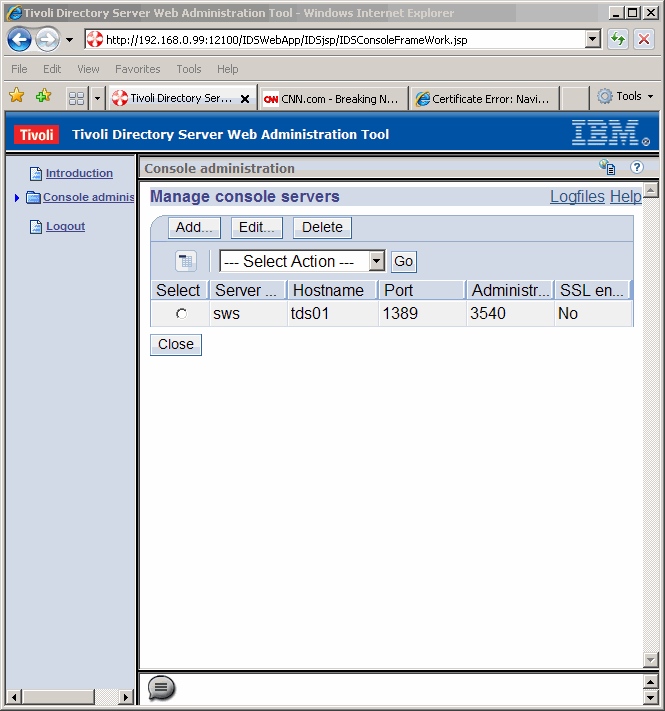
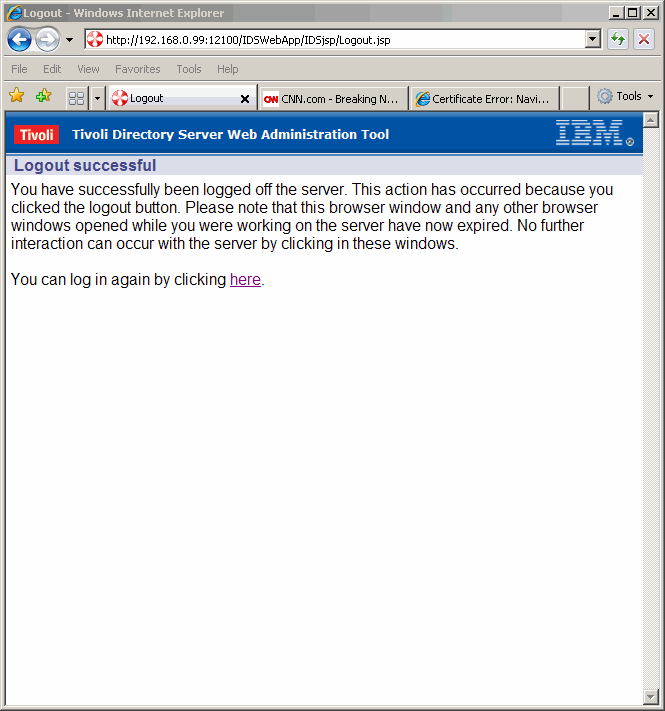
Now we see that we have identified a console for the new LDAP instance. Click Logout
to continue.
|
|
|
|
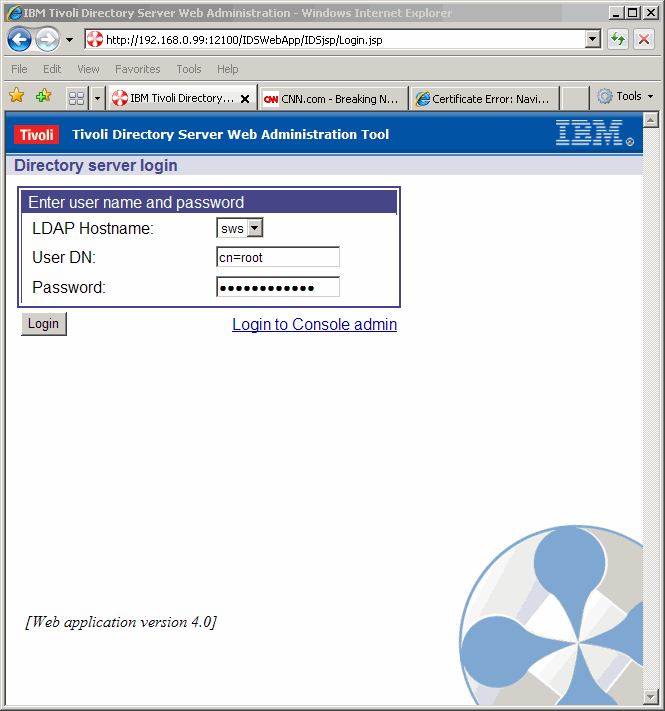
Let's log back in for some verification work. Click here to do so.
|
|
|
|
Now notice that the default login screen has changed a little. Of course we can still log back
in as "superuser" should we like, or we can log in to a particular LDAP instance. We choose the later
as shown here.
|
|
|
|
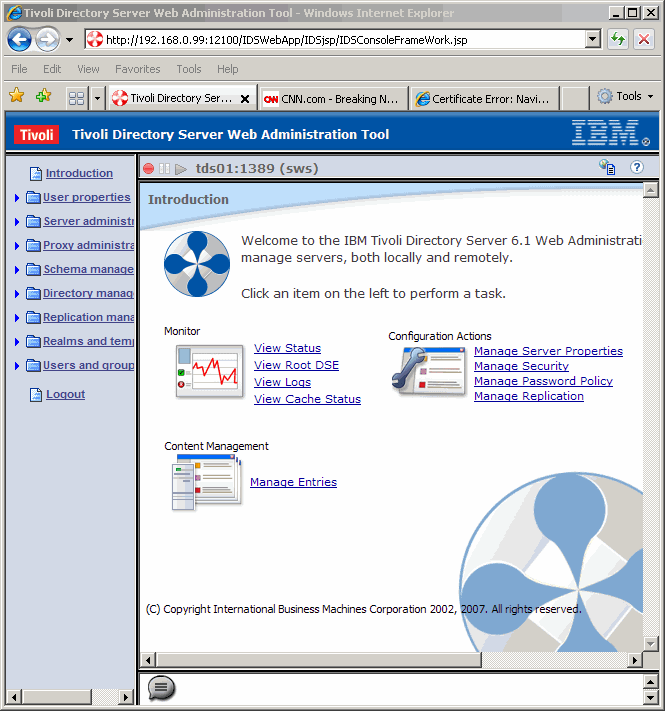
Our goal here is simple, to successfully start up the new LDAP instance. So, on the left panel,
click Server Administration.
|
|
|
|
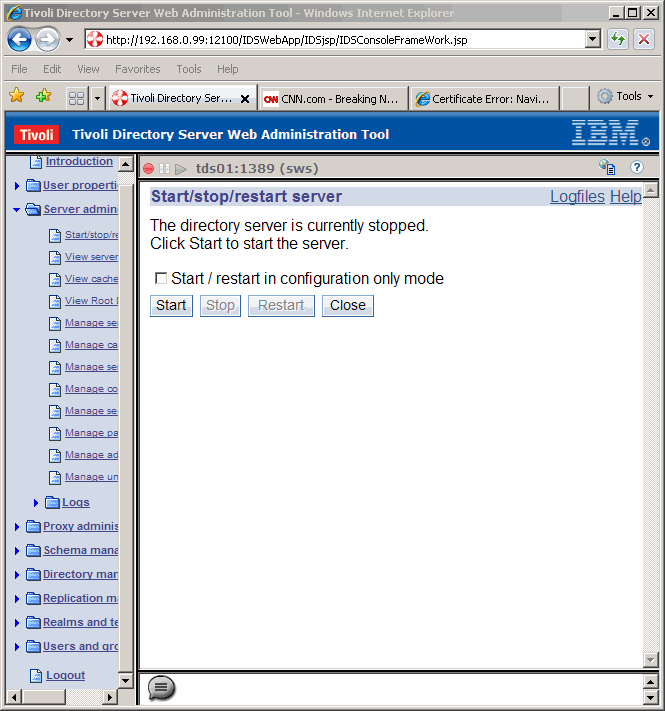
Once again, on the left panel, click Start/stop/restart server. Then on the right
panel, click Start.
|
|
|
|
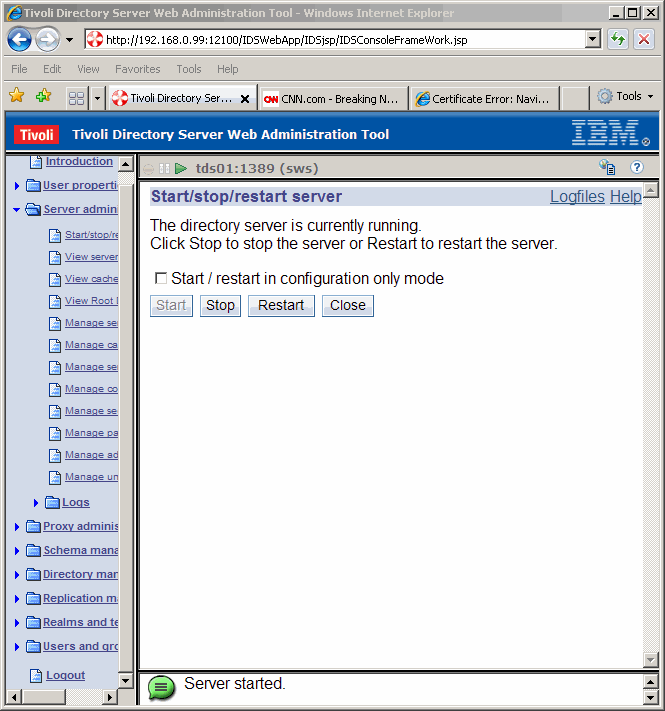
After a few moments, the screen should automatically refresh to look like the following. An inportant
note here is that if there is anything wrong with the startup, the LDAP server will more than likely
start in "configuration more", and will be indicated with a "check" in the box shown below. But, for
us, all started as expected. On the left panel, click Logout, as we are finished with the
web interface for now.
|
|
|
|
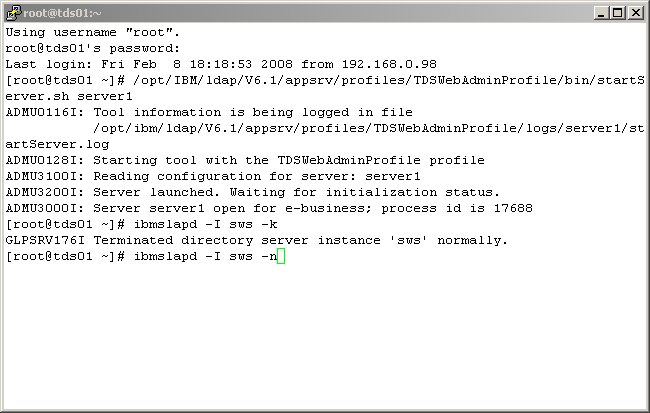
An optional, actually preferred, way of starting an LDAP instance is from the command line as
shown below, with the following command:
|
|
|
|
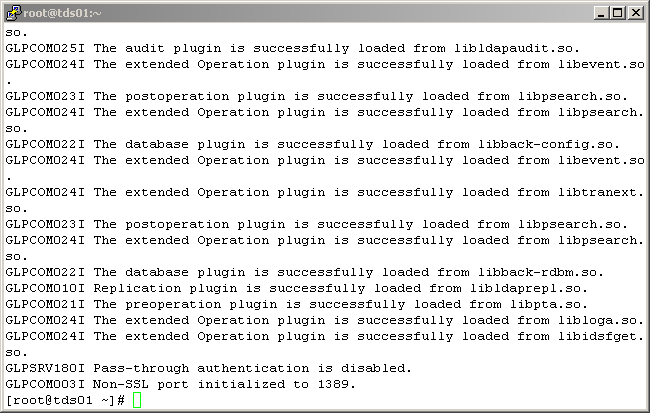
If the LDAP instance started successfully, you will see something like the following:
|
|
|
|
Conclusion
This concludes our exercise to create, configure and verify the configuration of an LDAP instance
using Tivoli Directory Server 6.1.
|
|
Printing This Article
If you have trouble printing this article, be sure to set your browser Page Properties correctly. Go
to File -> Page Setup and set your left and right margins to .125 inches.
|