|
VMware Fusion: Backups - Keep It Simple With UNIX
(c) Symmetric Web Sites, Inc. Author: Mark Hopkins Email Date: 08.07.2009
One of the few things we like about VMware over XenServer, and it might be the only thing,
is the flexibility of taking a full backup from the file system layer of the operating
system. What we mean by this is the ability to shut down the virtual machine (VM) and to
take a backup that gives you a completely restorable copy. We find this not only to be
a nicity, but an absolute necessity (for disaster recovery at a minimum). We find the
concept of VMware snapshots as unreliable and cumbersome, at best, especially with VMware
Fusion. We have experienced, twice now, corruption using the snapshot process. Certainly
this could be user error, but that does not matter to us or to the scope of this article.
Each time we experienced corruption, we lost valuable time recovering. Using the steps
in this article, we can (and do) avoid, or certainly minimize, lost time.
Article Index Assumptions / Requirements
We are not making any assumptions with this article / howto. We will assume that
you understand the requirements listed next however.
|
|
Procedure Now that we have laid the groundwork, let's get going with the actual steps. |
|
Setup It's always a good idea when we do anything, to prepare. In this particular case, there are (fortunately) few things to worry about, and absolutely nothing we can do to harm the existing environment. |
|
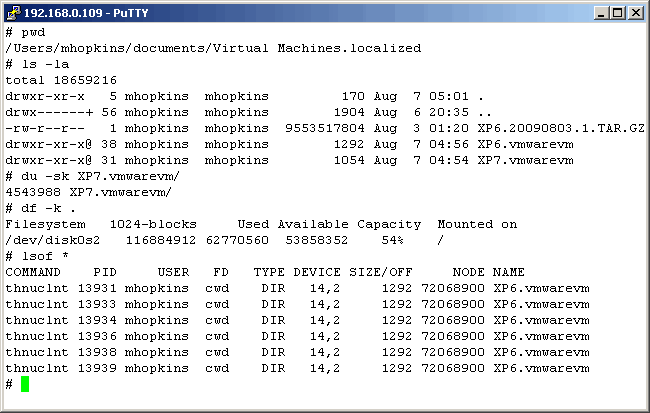
In the following screen shot, many things need observation. Although we neglected to
show it, we are logged into the Mac as the virtual machine (VM) owner, mhopkins. Notice
that the pwd command returns the default path where VM's are created. We saw no reason
to change the default, although you certainly may. Next, we take a look at existing
files in that directory using the "ls" command. We can see that there is already an existing
archive that we took on 8/3. We also see that there are two VM's (XP6 and XP7). We are going
to back up XP7. The "du" command is next used to see how much space we will need. Then we use
the "df" command to see if the system has enough free space to contain the backup archive. As
you can see, we have the necessary disk space. The final command, "lsof", shows us all open
files relative to our current default directory. What the output shows is that the VM named XP6
appears to be running. This is fine because we are not intending to back it up, rather XP7
is our target. We can now feel free to continue.
|
|
|
|
Backup Now that the target VM is down, and all files are closed, we can take the "image" backup. |
|
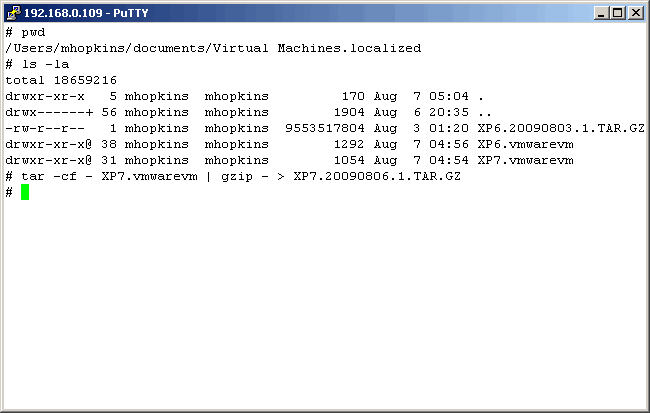
In the following screenshot, recall that our default directory is still appropriate, and
notice the directory listing. Now, using the UNIX "tar" and "gzip" commands, together, create
the archive.
|
|
|
|
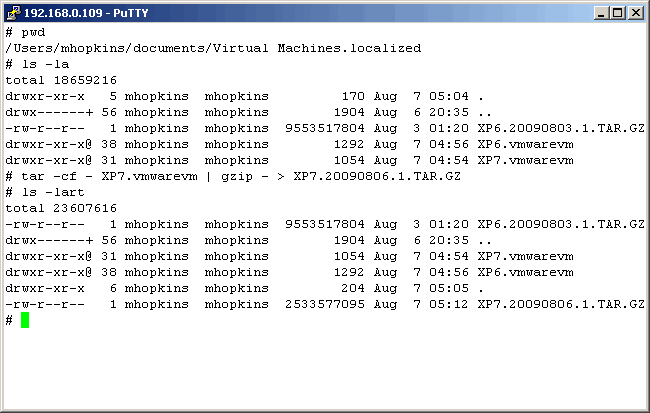
Once the command completes, without error, perform another directory listing to see the
new backup (compressed archive).
|
|
|
|
Archive For obvious reasons, it is a very good idea to move or copy the newly created backup archive to a safer place. It is certainly fine to keep a local copy, for speed of recovery, but if you only keep the archive local, and your laptop hard drive dies, you have nothing from which to restore. So, copy the newly created archive to a network share for safe keeping. We will not describe this process in this article, but we felt it important to mention. |
|
Restore Now we are going to simulate a VM failure. Let's assume that XP7 encountered a virus that destroyed our confidence in the operating system. Not so far fetched at all with Windows. |
|
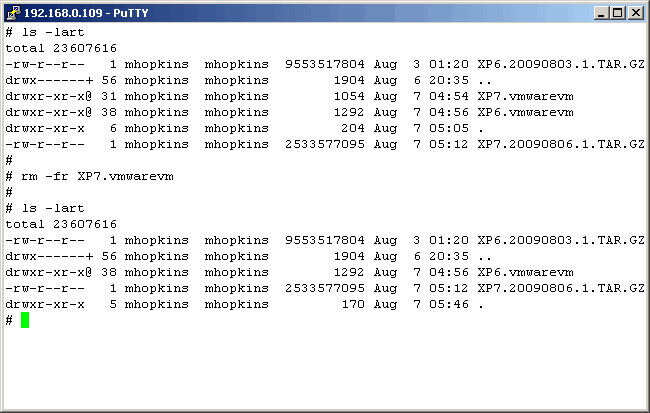
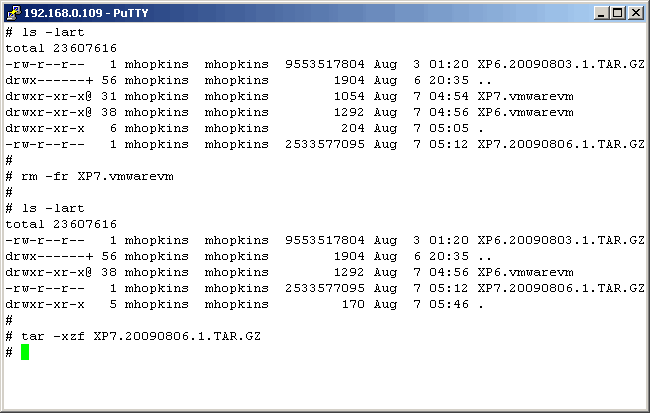
Here, we see that the old (corrupted) XP7 instance still exists. AFTER shutting it down through
VMwase Fusion, delete the VM using the UNIX "rm" command, as shown here. After the delete, notice
two archives, and the existence of the VM XP6.
|
|
|
|
Now, let's restore the VM with the UNIX "tar" command. Note that we use the "z" flag here.
This flag just tells "tar" that it is working with a gzip compressed archive.
|
|
|
|
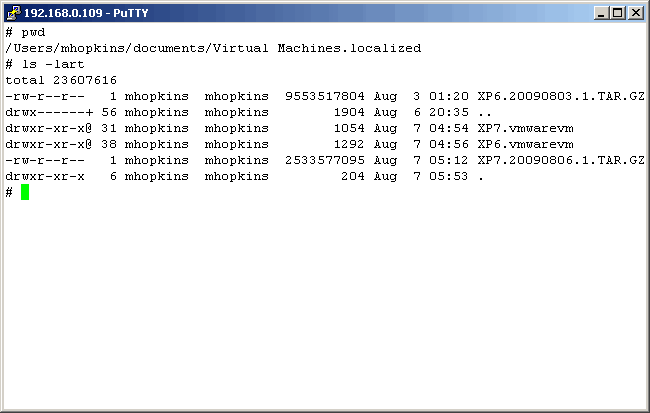
Once the "tar" command completes, the VM has been restored and can be started. We have
recovered XP7. If it was clean when you archived it, it will be clean once you start
it.
|
|
|
|
Conclusion
So, why is this article necessary? Why did we write and publish it? Well, let us
count the reasons:
|
|
Printing This Article
If you have trouble printing this article, be sure to set your browser Page Properties correctly. Go
to File -> Page Setup and set your left and right margins to .125 inches.
|